Miracast? Plain Basics
Your TV's box says Miracast, Windows offers to connect, and then... nothing happens, or it connects and stutters. Miracast is the wireless display standard built into Windows — no dongle needed when both ends support it — but it is picky about network setup and drivers. This guide gets the handshake working.
TL;DR / Quick Fix
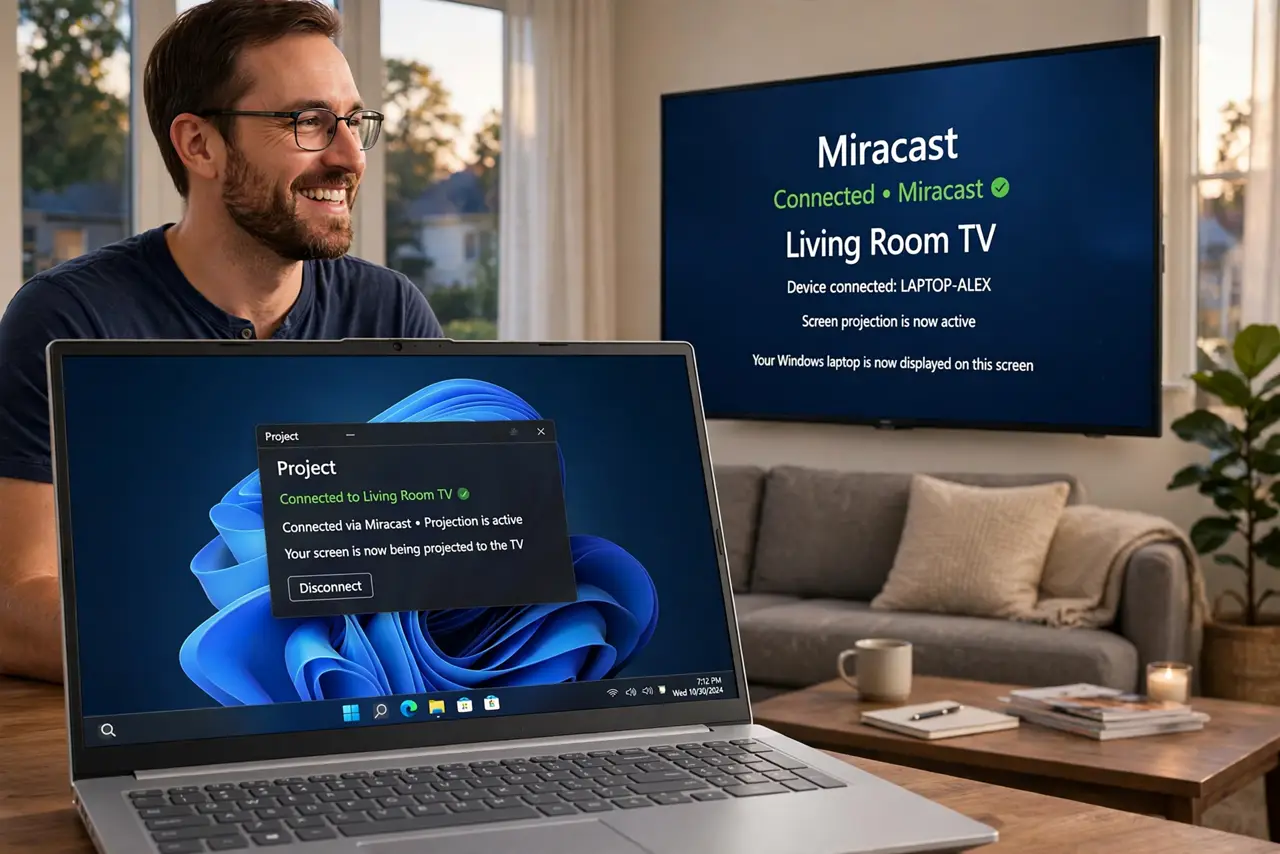
Quick fix: press Windows key plus K and select your Miracast TV or adapter. Put the TV in screen-mirroring mode first and keep both devices on the same Wi-Fi network. Update your Wi-Fi drivers if the TV never appears. A wireless display adapter is more reliable than built-in TV Miracast.
Follow these steps
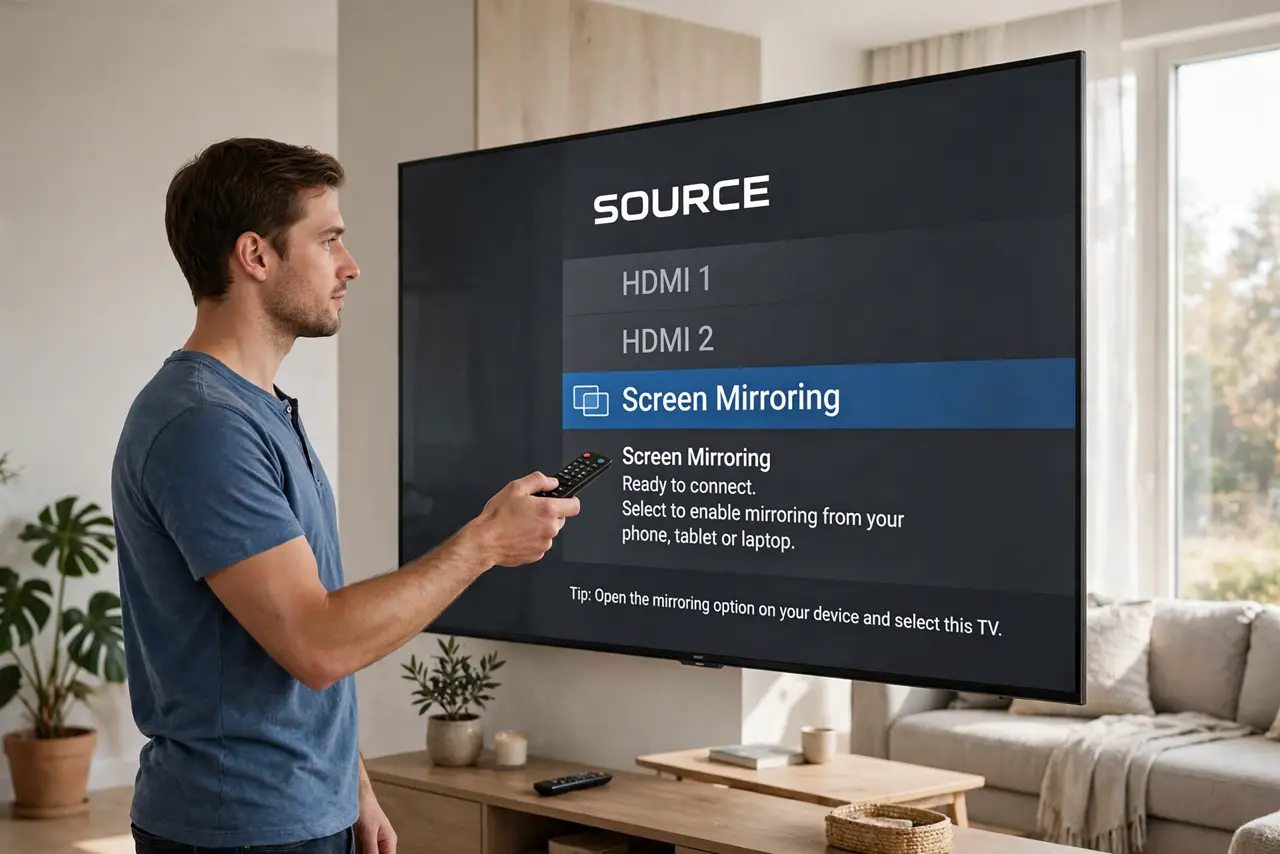
- Put the TV in mirroring mode. Open the TV's screen mirroring or Miracast input before touching Windows. The TV must be listening — on an HDMI input it is invisible to the Cast panel.
- Open Cast with Windows key plus K. The Cast panel scans for Miracast receivers. Your TV should appear within seconds; select it and accept any PIN the TV shows.
- Keep both on the same network. Miracast discovery needs both devices on the same Wi-Fi network. A same-network issue blocks discovery exactly like it does for other casting standards.
- Update Wi-Fi and display drivers. Stale drivers are the top cause of 'TV never appears.' Update through Device Manager or the laptop maker's support page, then retry.
- Lower the strain for smooth video. Sit nearer the router, use 5 GHz Wi-Fi, and close background downloads. Miracast compresses video in real time — a clean network keeps it smooth.
- Consider a dedicated adapter. Built-in TV Miracast is often flaky; a plug-in wireless display adapter tends to be more reliable. For a TV you cast to weekly, the adapter pays for itself in saved frustration.
What NOT to do
- Do not expect Miracast to game well. The compression lag that is invisible in movies ruins fast games — cable for gaming.
- Do not cast across different networks. Phone hotspots, guest networks, and VPNs all break Miracast discovery.
- Do not ignore driver updates. 'It used to work' plus 'TV not found' almost always means a driver aged out — update first.
- Do not leave the TV on the wrong input. Mirroring mode first, Cast panel second — order matters every time.
Frequently asked questions
Is Miracast the same as Chromecast?
No — Miracast mirrors your whole screen peer-to-peer; Chromecast streams specific content through apps. Windows uses Miracast natively.
Why does Miracast stutter?
Weak Wi-Fi, 2.4 GHz congestion, or an overloaded laptop. Move closer to the router and close heavy apps.
Can I Miracast to a Fire TV stick?
Many Fire TV models support Miracast under Display settings. Enable it there, then cast from Windows key plus K.