Change What Closing the Lid Does
You close your laptop lid at your desk and it sleeps — killing your external monitor setup. Or it stays awake in your bag and cooks itself. The lid action is configurable per power state, and the right choice depends entirely on where the laptop lives when closed.

TL;DR / Quick Fix
Open Control Panel > Power Options > 'Choose what closing the lid does' and pick Sleep, Hibernate, or Do nothing per power state. 'Do nothing' needs an external monitor — a laptop in a bag overheats. The choice is per power plan, so set it for each plan you use.
Follow these steps
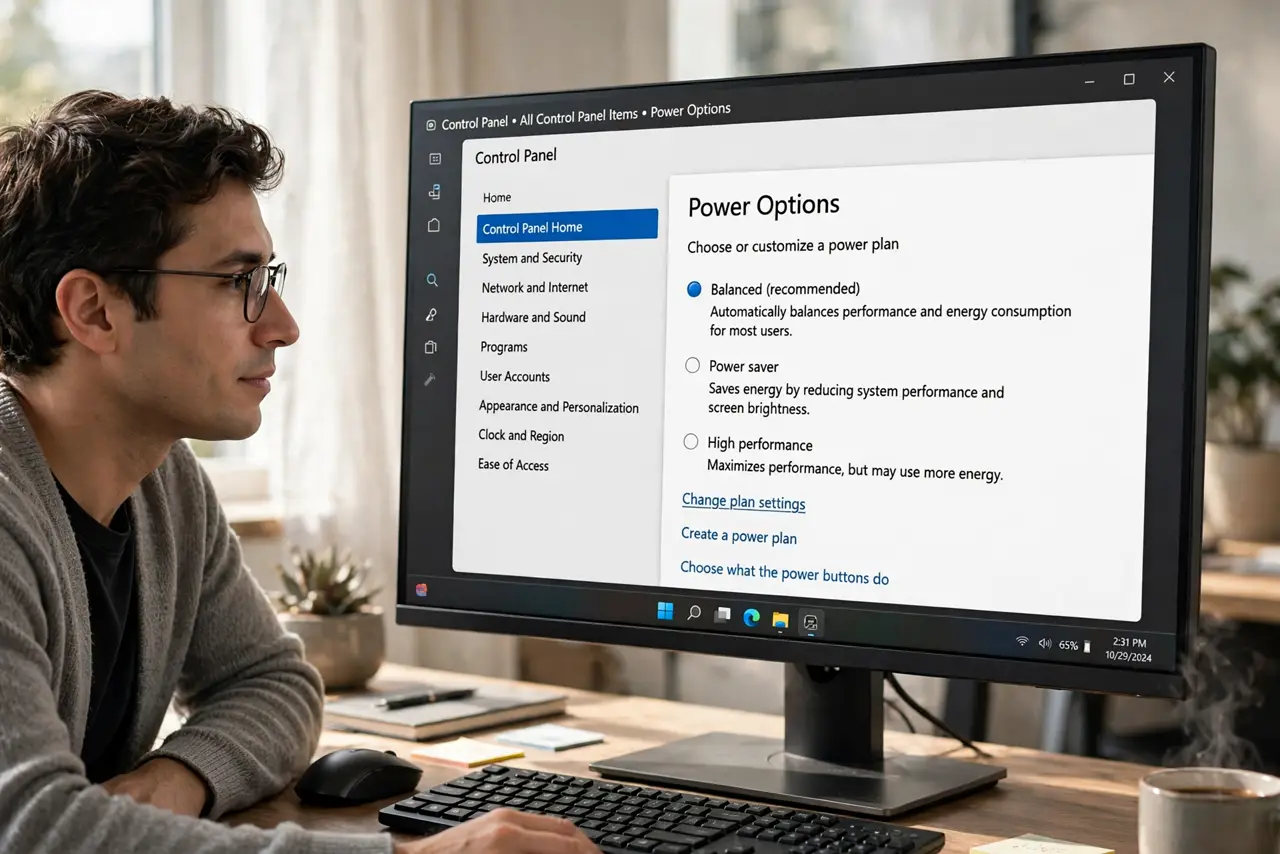
- Open the lid settings. Open Control Panel > Power Options and click 'Choose what closing the lid does' in the left sidebar.
- Set the on-battery action. For 'On battery', Sleep is the safe pick — a closed lid in a bag should never stay fully awake.
- Set the plugged-in action. For 'Plugged in', choose Do nothing if you dock with the lid closed, or Sleep if you don't. Match it to your desk reality.
- Confirm the external monitor stays on. With 'Do nothing' set, closing the lid should leave the external display running. Test it once — see the does nothing check if it sleeps anyway.
- Remember it's per power plan. The lid choice belongs to each power plan. If you switch plans, revisit the setting — it doesn't follow you automatically.
- Never choose Do nothing on battery in a bag. A running laptop in an enclosed bag overheats fast. This is the one combination that can genuinely damage hardware.
What NOT to do
- Do not set Do nothing without an external display. A closed laptop with no screen output is just a heater.
- Do not assume the setting covers the power button. Lid and power button are separate choices on the same page — set both deliberately.
- Do not close the lid mid-update. Updates need the PC awake; a sleeping lid can interrupt them.
- Do not ignore heat. If the closed laptop feels hot, the lid action is wrong for that situation — change it.
Frequently asked questions
Why does my laptop sleep with the lid closed on a dock?
The plugged-in lid action is still Sleep. Change it to Do nothing for the plugged-in state and the dock setup survives lid-close.
Can I turn off the built-in screen but keep the laptop awake?
Yes — that's exactly what 'Do nothing' plus Win + P set to external-only does. The laptop runs, only the external monitor shows.
Does closing the lid disconnect Wi-Fi?
Only if the lid action sleeps or hibernates. With Do nothing, Wi-Fi stays connected and downloads continue.