Live Captions Lag Behind Audio? Fix It
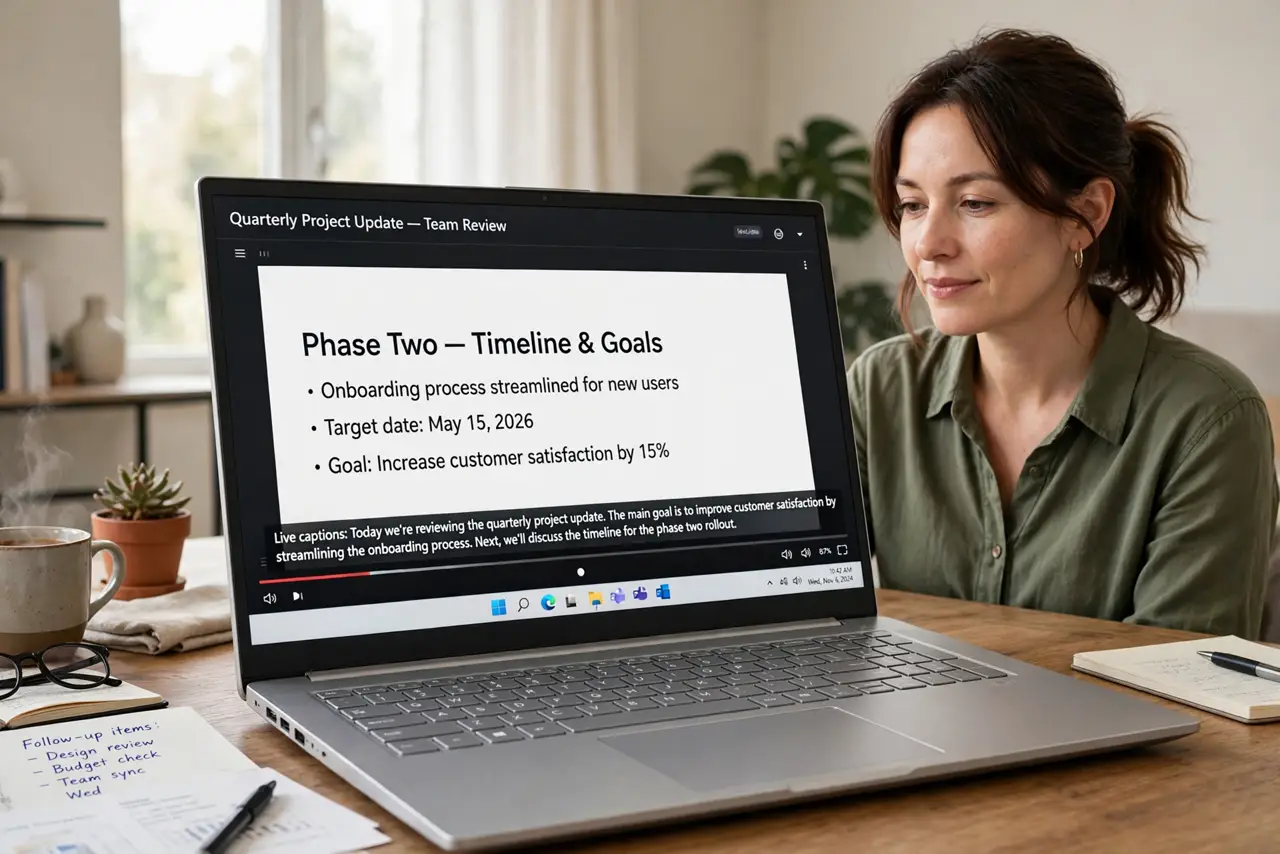
When live captions lag behind the audio, you read words for a sentence you already heard, and conversations feel out of sync. Captions need a clear audio signal and spare processing power, so the fix starts with audio quality and load, not with caption settings alone.
TL;DR / Quick Fix
Quick fix: close heavy apps you do not need, move closer to the microphone or speaker, and reduce background noise. Then turn live captions off and back on. If captions still lag, test with a simple video with clear speech before you change deeper settings.
Follow these steps
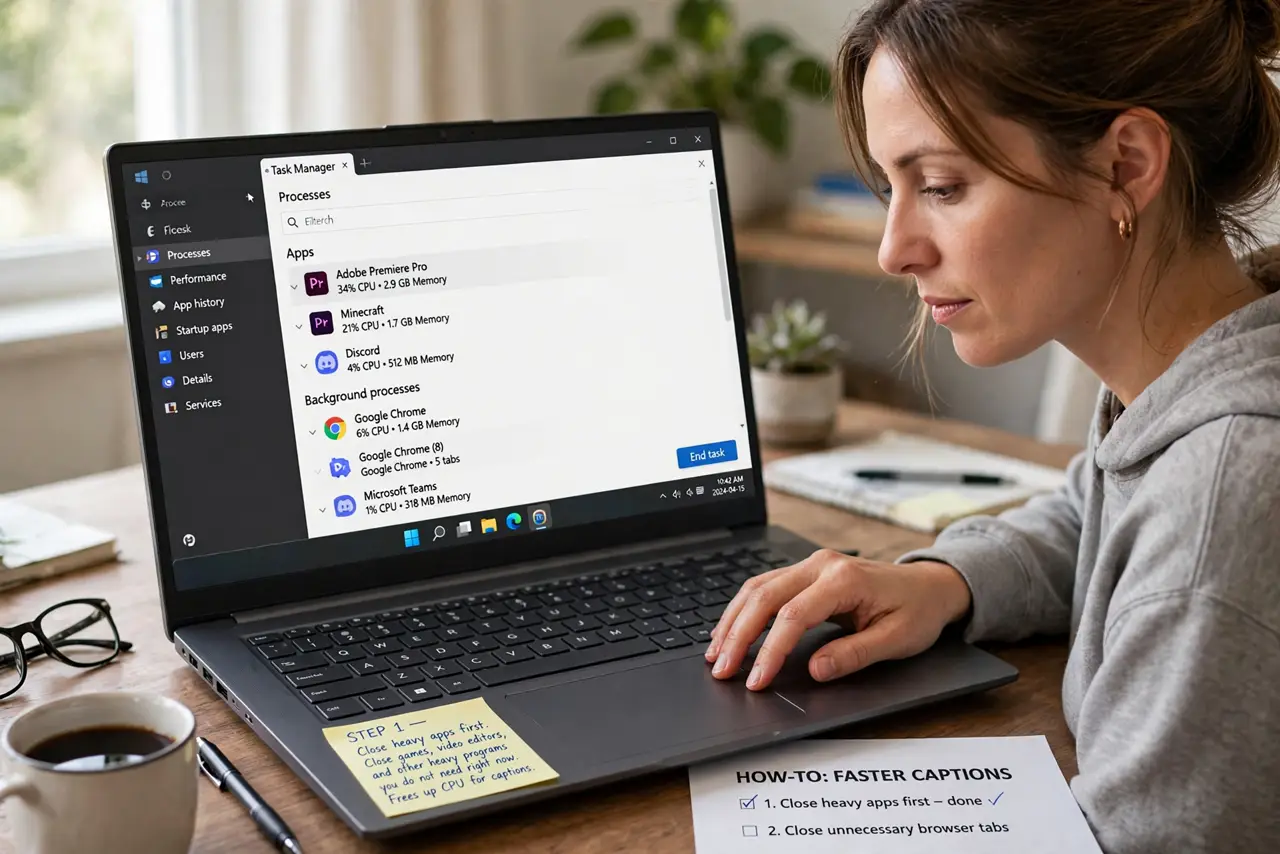
- Close heavy apps first. Close games, video editors, and other heavy programs you do not need right now. Captions compete for processing power, and a busy computer captions more slowly.
- Give captions a clean audio signal. Move closer to the speaker, turn the volume to a comfortable level, and reduce background noise. Clear speech is far easier to caption in sync than muffled or noisy audio.
- Restart live captions. Turn live captions off, wait a few seconds, and turn them back on. A fresh caption session drops the backlog that built up during the lag.
- Test with a clear video. Play a simple video with one speaker and clear speech. If captions stay in sync there, the original audio was the problem, not your caption settings.
- Check your microphone if you caption your own speech. If captions lag on your own voice, check the microphone position and input level in Sound settings. A quiet or distant microphone forces captions to guess more and lag more.
- Restart if lag keeps growing. Save your work and restart the computer. A restart clears a slow caption process, and it is the fastest way to test whether the lag was a one-time slowdown.
What NOT to do
- Do not keep turning caption speed settings up and down at random. Caption lag usually comes from audio quality or computer load, not from a speed slider.
- Do not install a third-party caption tool from a pop-up to fix lag. An extra tool adds load and can make captions slower, not faster.
- Do not turn captions off permanently because of one laggy call. Test captions on a clear video first, because the call audio may be the cause.
- Do not blame the captions app before you check the audio. Muffled, quiet, or overlapping speech will lag in any caption system, no matter how good it is.
Frequently asked questions
Why do captions lag more on calls than on videos?
Calls add network delay and overlapping voices, while a recorded video has clean, single-speaker audio. Both make live captioning harder in real time.
Can captions ever be perfectly in sync?
No. Live captions always trail speech by a short delay, because the system must hear words before it can display them. The goal is a short, steady delay, not zero delay.
Do captions need the internet?
Windows live captions can run on the device for many setups, but call and video audio quality still matters. A poor connection will still cause lag in the audio itself.