Live Captions Never Appear on Windows
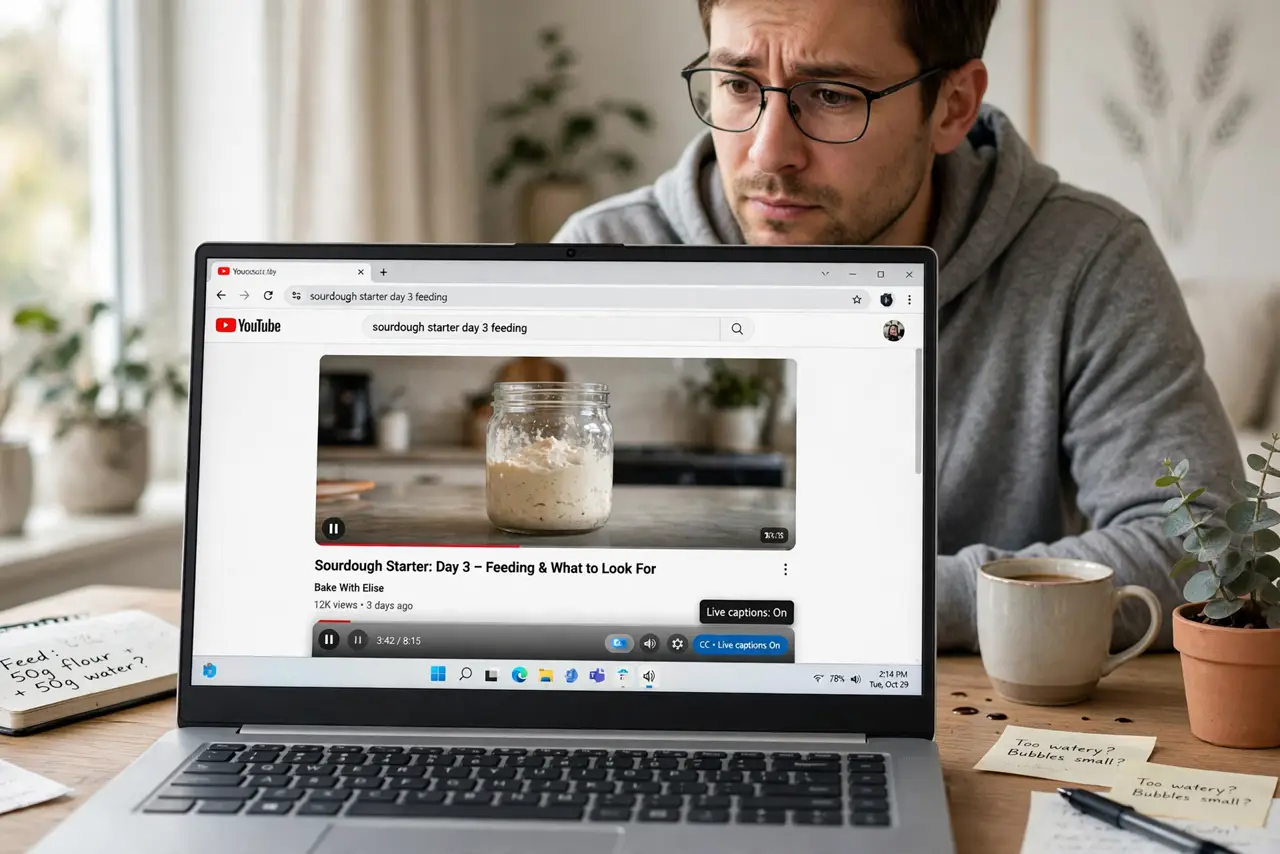
You turn on Live Captions and no caption box appears — no error, no download prompt, just nothing. The feature needs its speech model downloaded on first run, and it only captions audio playing through the system. The fix is completing the first-run setup, and the captions that lag behind audio guide covers the timing problem once they work.
TL;DR / Quick Fix
Quick fix: open the Live Captions settings in Accessibility and let the first-run speech model finish downloading first. Then play audio through the PC's speakers or headphones and check the caption box appears. If it shows but stays empty, confirm audio is actually playing and not muted.
Follow these steps
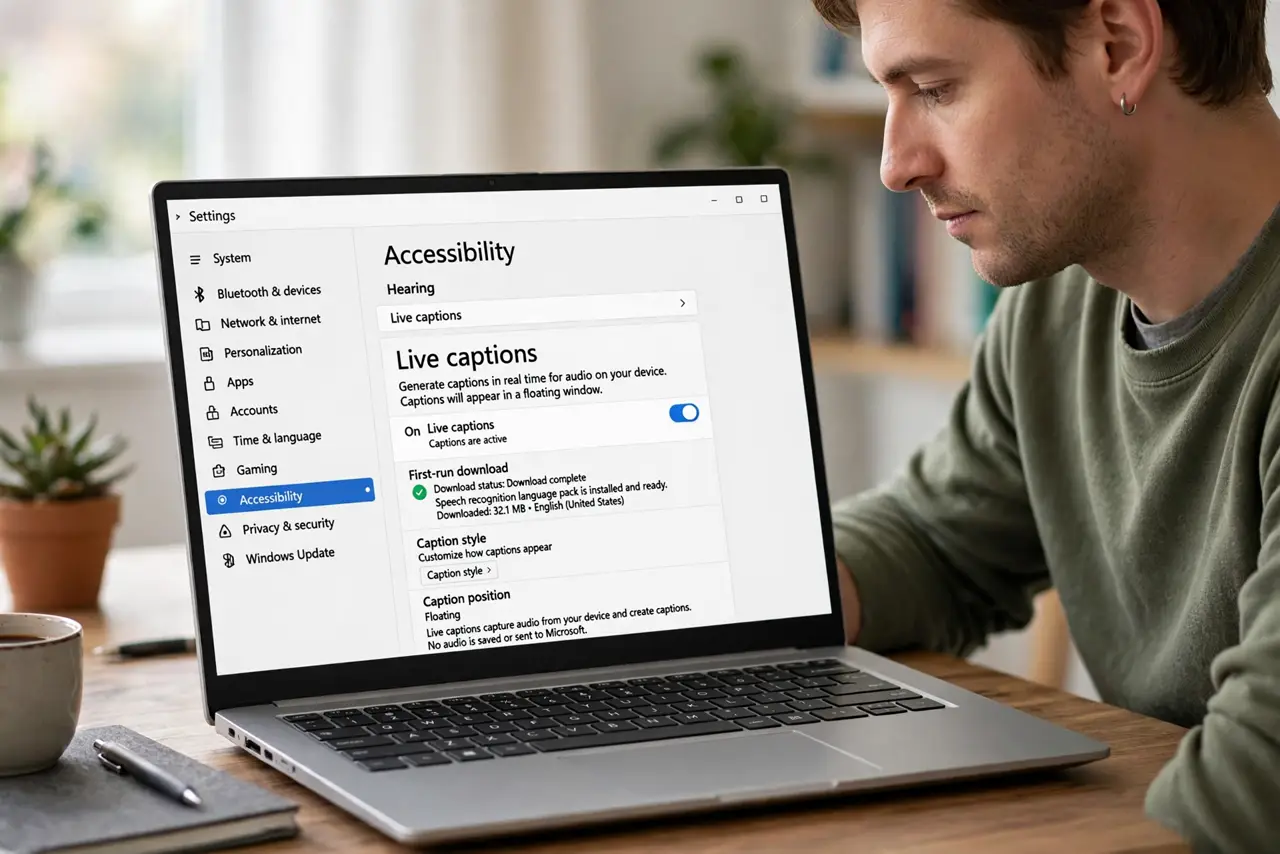
- Open Live Captions in Accessibility settings. Go to Settings, then Accessibility, then Live captions. This page holds the master toggle and the first-run download status.
- Let the speech model download. On first enable, Windows downloads the captioning model. Watch for the download to finish; the feature does nothing until the model is on disk.
- Turn the toggle on and look for the box. Enable Live captions and check for the floating caption window. It may appear minimized or behind other windows on first launch.
- Play real audio through the system. Start a video or call with actual speech. Live Captions transcribes system audio, so silence or music-only content gives it nothing to caption.
- Check the audio is not muted. Confirm the volume mixer shows audio playing and the output device is correct. Captions cannot transcribe audio that never reaches the speakers.
- Try the caption box on a second app. Test with a different video app or a browser. If captions work in one app but not another, the failing app may block audio capture.
What NOT to do
- Do not expect captions for protected content. Some DRM video blocks the audio capture that Live Captions depends on, by design.
- Do not assume the feature is broken on first run. The silent model download is the cause of most never-appears reports.
- Do not confuse Live Captions with app subtitles. App subtitles come from the video; Live Captions transcribes any system audio, even without subtitle tracks.
- Do not leave the caption box lost off-screen. If it vanished, check behind windows and on other monitors before deeper troubleshooting.
Frequently asked questions
Why do Live Captions never appear?
Because the first-run speech model has not finished downloading, or no audio is playing for it to transcribe.
Do Live Captions work on calls?
Yes. They caption any system audio, including video calls, which is one of their best uses.
Are my captions sent to Microsoft?
No. Live Captions processes audio on your device; the transcription never leaves the PC.