Local vs Microsoft Account?
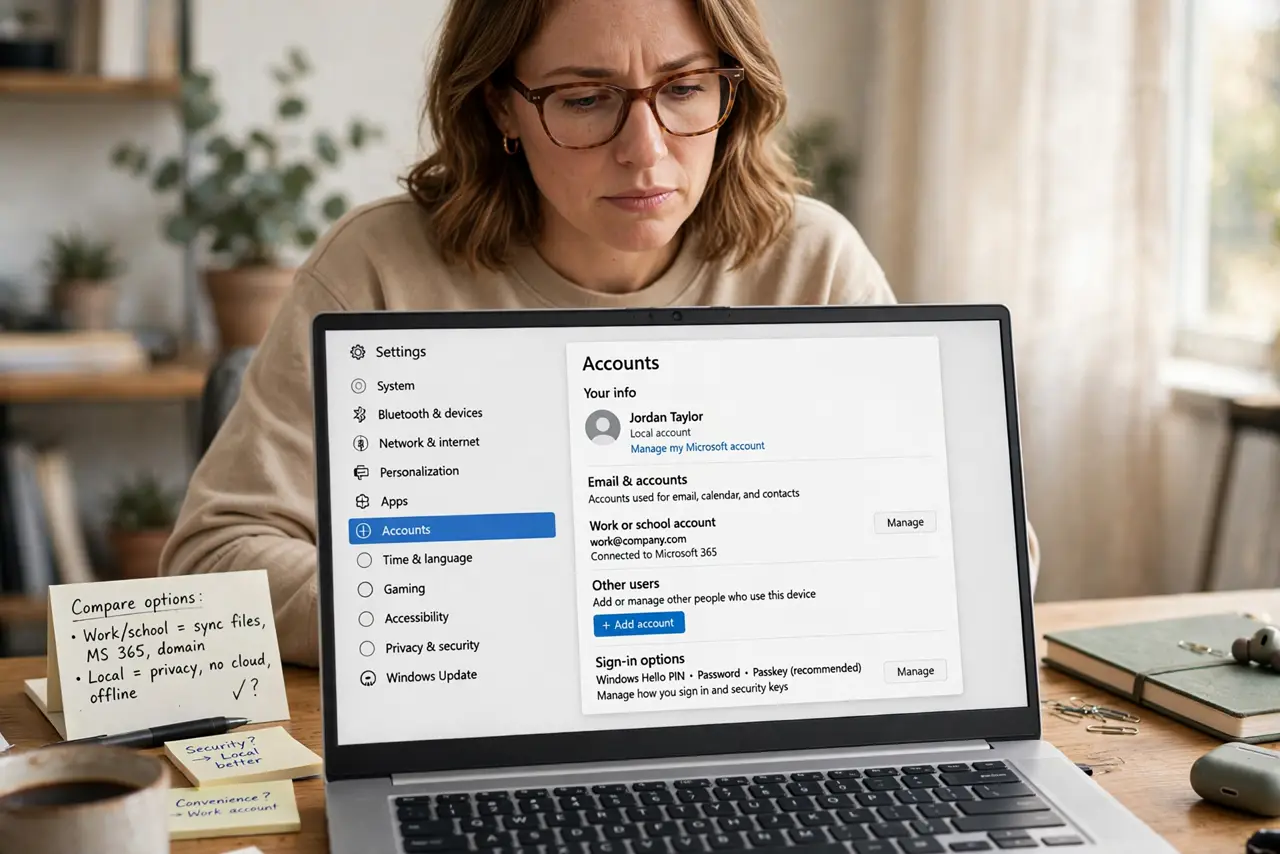
Windows keeps asking you to 'sign in with a Microsoft account,' and you're not sure what you'd gain — or lose. A Microsoft account syncs settings and unlocks cloud features; a local account keeps everything on the PC and asks nothing. Neither is wrong, but the trade-offs are worth knowing before you switch.
TL;DR / Quick Fix
Quick fix: choose a Microsoft account if you want synced settings, OneDrive, and easy password recovery; choose local if you want maximum privacy and no cloud ties. You can switch between them anytime in Settings under Accounts, without losing files.
Follow these steps
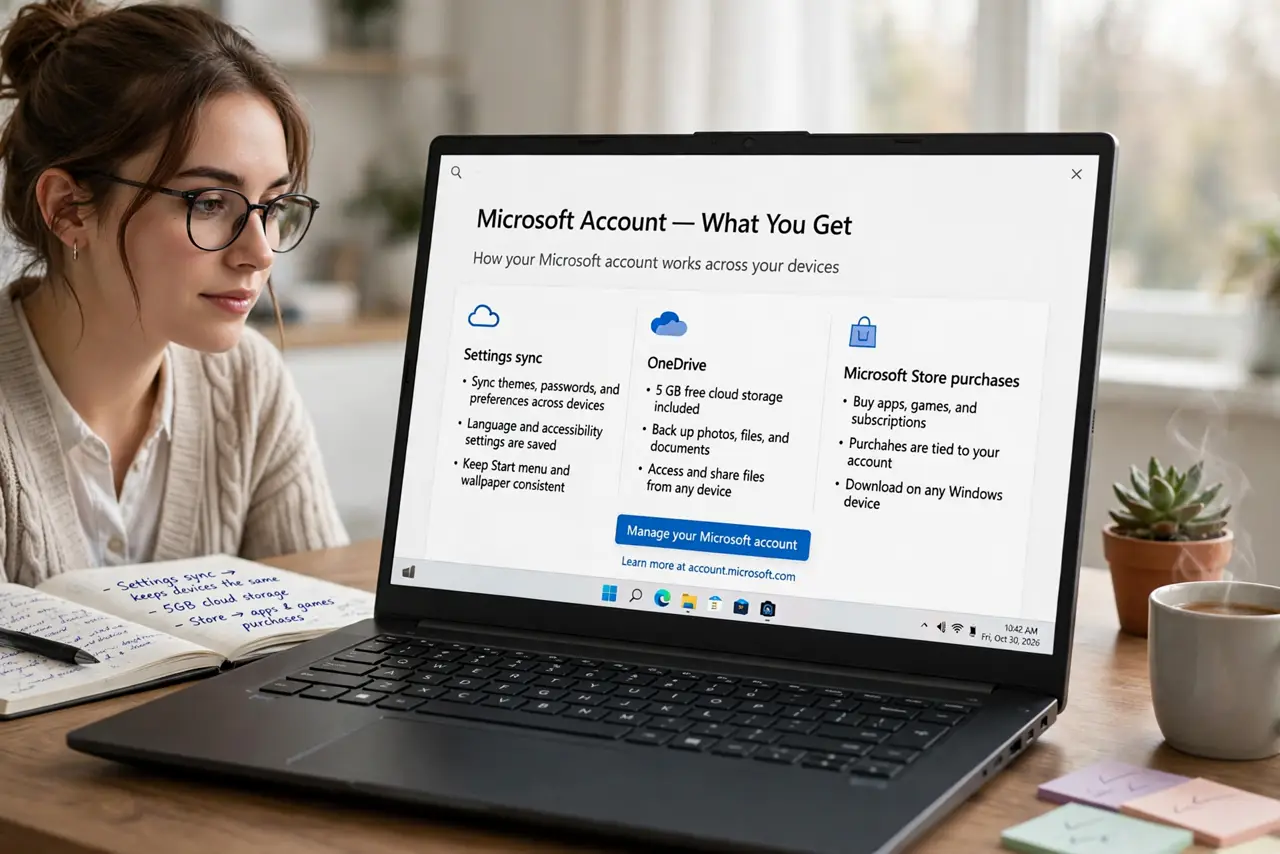
- Learn what a Microsoft account gives you. Settings sync across PCs, OneDrive, Microsoft Store purchases, and online password recovery. The cost is a cloud identity tied to the PC.
- Learn what a local account gives you. A username and password that live only on the PC. No syncing, no cloud, no Microsoft tracking — and no online recovery if you forget the password.
- Check which one you have now. Settings > Accounts > Your info shows either an email (Microsoft) or a plain username (local).
- Switch in either direction. Settings > Accounts > Your info > 'Sign in with a local account instead' or 'Sign in with a Microsoft account instead.' Your files stay; only the sign-in method changes.
- Set up recovery before you need it. Local accounts should have a password hint or security questions set. Microsoft accounts recover through email — keep that email's own recovery options current.
- Consider who else uses the PC. Shared family PCs often work best with one admin Microsoft account plus local standard accounts for others — see removing accounts when someone leaves.
What NOT to do
- Do not switch to a Microsoft account on a PC you don't trust with your identity. Internet cafés and borrowed machines deserve local accounts.
- Do not assume 'local' means 'less secure.' A strong local password plus BitLocker is a solid setup.
- Do not create a Microsoft account with an email you can't access. Recovery depends on that inbox working.
- Do not switch account types mid-crisis. If you're locked out, solve the lockout first — switching types won't unlock anything.
Frequently asked questions
Can I use Windows without a Microsoft account?
Yes. Choose the local account option during setup (sometimes tucked under 'offline account'). Everything core works; you just skip the cloud extras.
Does a Microsoft account slow down my PC?
No. Sign-in may take a second longer on first setup while it syncs, but day-to-day performance is identical.
Which is better for kids' accounts?
A Microsoft account in a family group gives screen-time and content controls. A plain local account gives none of that — pick based on how much supervision you want.