App Missing From Location Permissions? Fix It
When an app is missing from location permissions, you cannot turn its location access on or off, which feels like a loss of control. Often the app has never asked for location yet, or location services are off entirely. Making the app ask, then checking the list again, usually reveals it.
TL;DR / Quick Fix
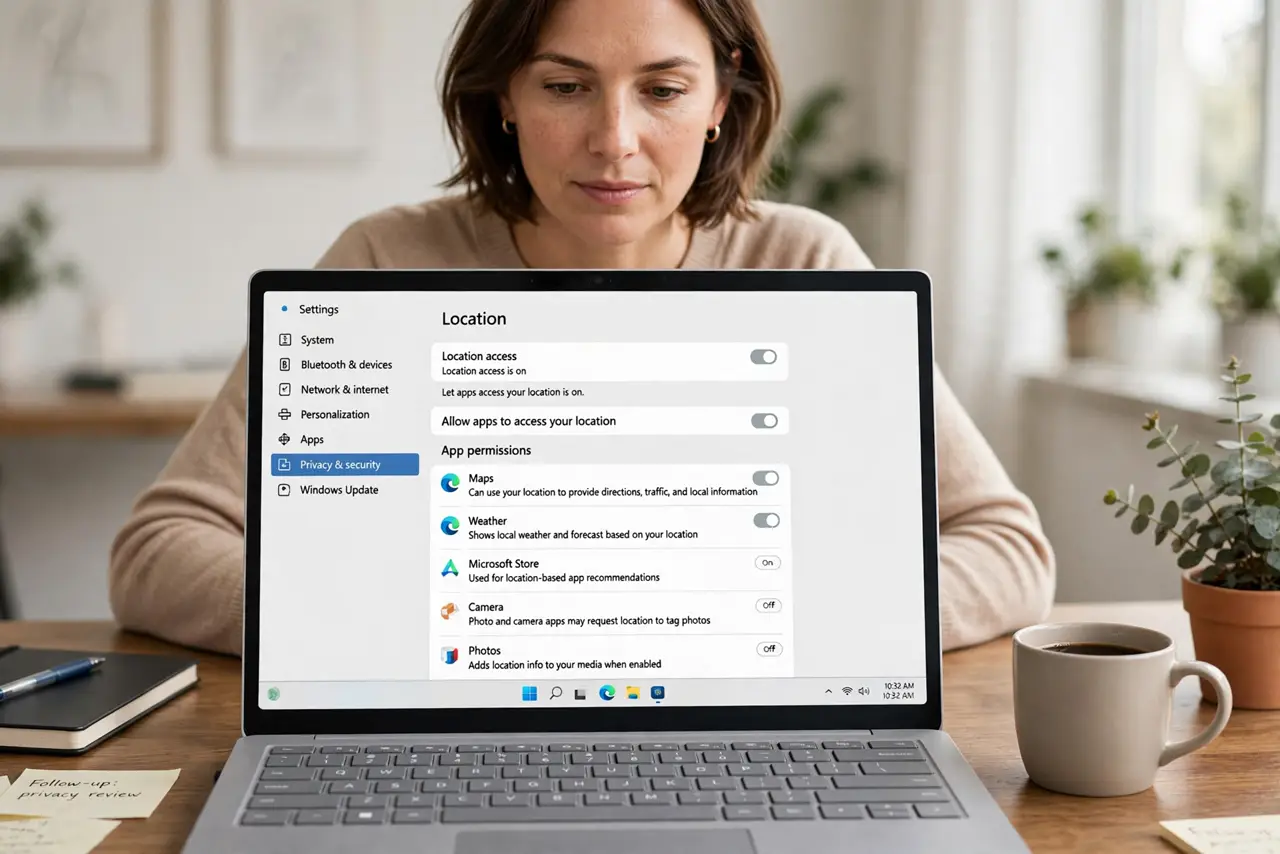
Quick fix: turn Location services on in Settings, then Privacy and security, then Location, then open the app and trigger the feature that needs location. Return to the location permissions list: the app should now appear, and you can set its access.
Follow these steps
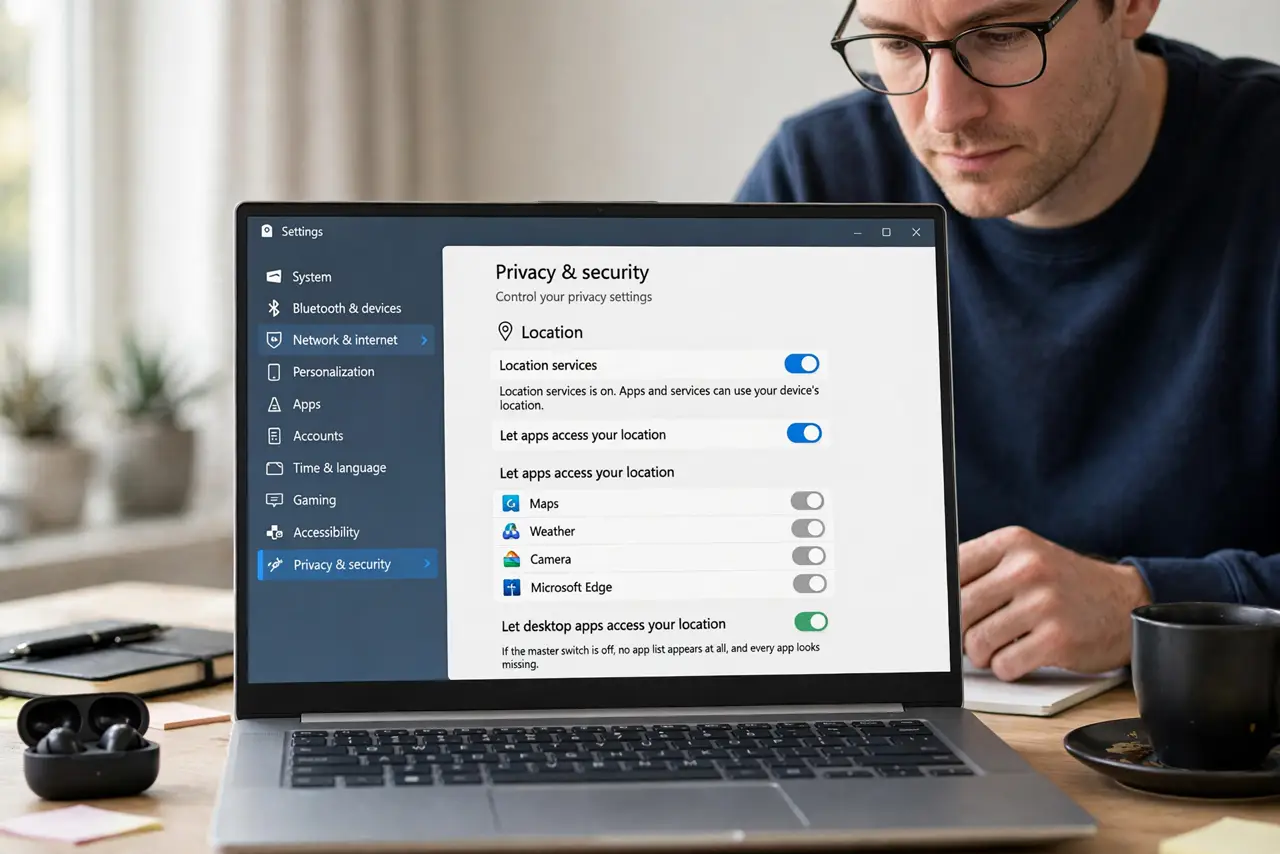
- Turn Location services on. Open Settings, then Privacy and security, then Location, and turn Location services on. If the master switch is off, no app list appears at all, and every app looks missing.
- Open the app feature that needs location. Open the app and use the feature that needs location, such as a map or a nearby search. Windows only lists an app after it first requests location.
- Return to the location list. Go back to the Location settings page and look for the app in the list. It should now appear with its own switch, which you can turn on or off.
- Check whether the app is a desktop app. Some desktop apps use a different location method and never appear in the per-app list. For those apps, the master Location services switch is the control that matters.
- Check the app own location setting. Open the app own settings and look for a location option. If the app itself has location turned off, it will never ask Windows, and it will never appear in the list.
- Restart the app if it still does not appear. Close the app fully, reopen it, and trigger the location feature again. A fresh launch forces a fresh location request, which is what makes the app appear.
What NOT to do
- Do not reinstall the app just to make it appear in the list. Reinstalling does not force a location request, and the app will still be missing until it asks for location.
- Do not turn on location for every app to find one missing app. Grant location only to apps that genuinely need it, and leave the rest off.
- Do not assume a missing app is spying on your location. An app that never appears in the list has never been granted location through this control, which is the opposite of hidden access.
- Do not edit system settings from a forum post to force an app into the list. The list fills itself when apps request location, and manual edits can break other permissions.
Frequently asked questions
Why is an app not in the location list?
Usually it has never requested location, or Location services are off entirely. Triggering its location feature is what makes it appear.
Can an app use my location without appearing here?
Desktop apps can use other methods, such as an IP address, for rough location. The master Location services switch is the broader control for those cases.
What if the app appears but its switch is grayed out?
A work or school policy, or a master switch, may control it. Check the Location services master switch first, then ask IT if the computer is managed.