Lock Screen Times Out Too Fast?
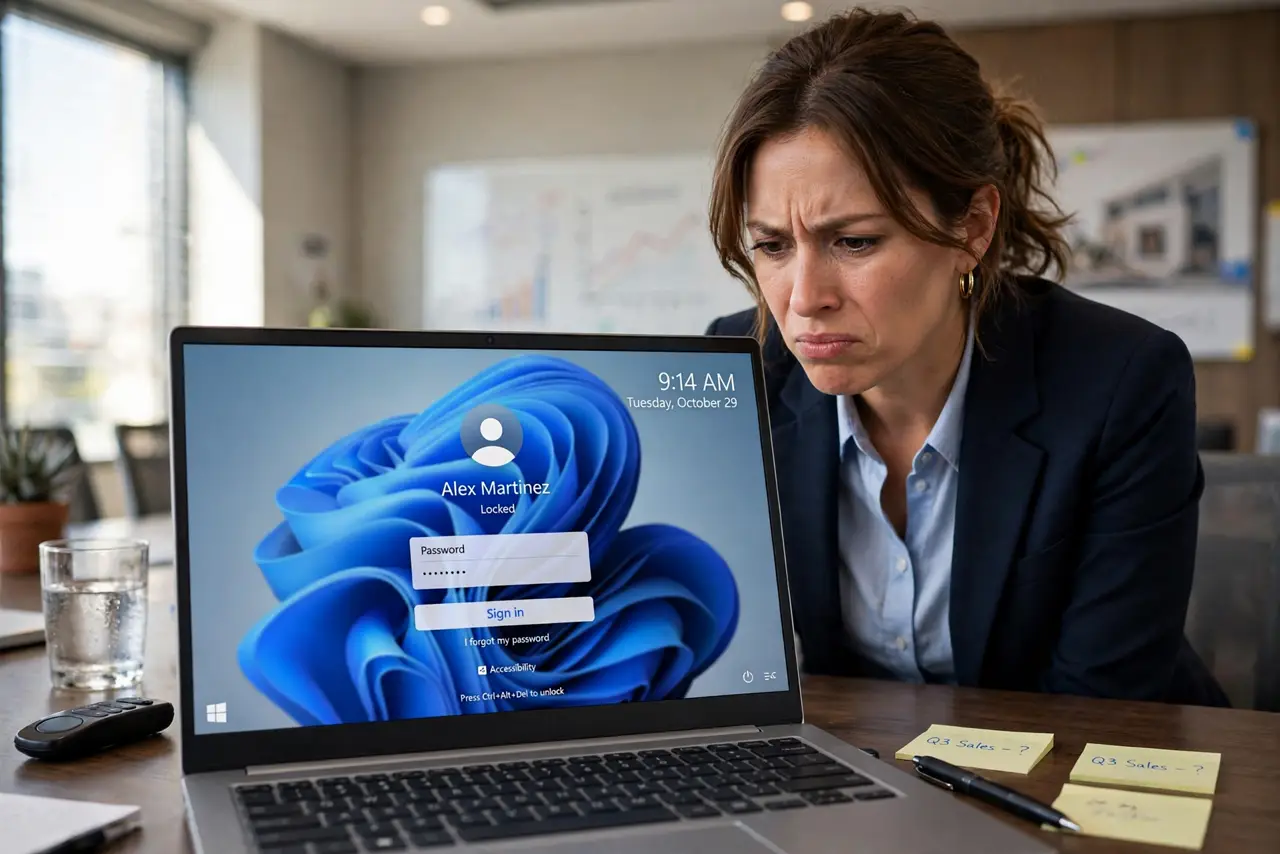
You are presenting or reading something when the screen dims and locks mid-task, forcing you to sign back in again. Windows actually runs two separate timers — one for the display and one for the lock screen — and the lock timer is usually the culprit. Both live in Settings, take seconds to change, and nothing gets deleted. This guide shows where both timers hide and what to set.
TL;DR / Quick Fix
Quick fix: Windows uses two timers — display and lock-screen — and the lock one is usually shorter. In Settings, raise the display timeout under Power, then extend the lock delay under Accounts → Sign-in options. Set generous times on plugged-in power, shorter on battery, and it stops locking mid-task.
Follow these steps
- Check which timer is biting you. Watch what happens: if the screen goes dark first, the display timer fired; if it jumps straight to the sign-in prompt, the lock timer fired. Knowing which one you are fighting saves you changing the wrong setting. Both are fixable in under two minutes, starting in the sign-in options.
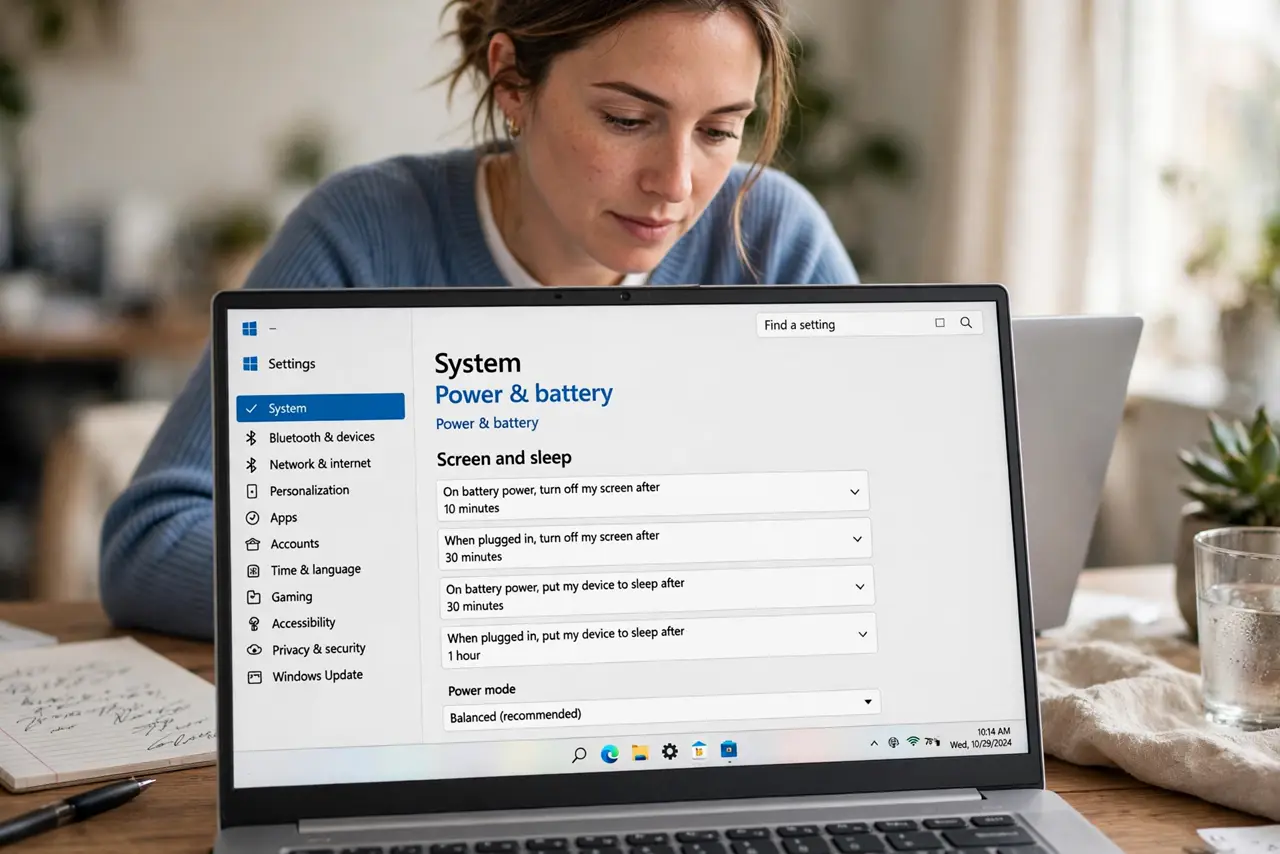
- Raise the display timeout. Open Settings → System → Power & battery → Screen, sleep & hibernate timeouts. Set 'Turn off my screen after' to something comfortable, like 10 or 15 minutes on plugged-in power. This timer also delays everything downstream, including the lock screen.
- Extend the lock screen delay. Go to Settings → Accounts → Sign-in options and find 'If you've been away, when should Windows require you to sign in again?'. Set it to a longer delay, such as 15 minutes or 'When PC wakes from sleep'. A Windows Hello PIN makes signing back in painless on the occasions it still locks.
- Set different values for battery and plugged in. Windows lets you set separate timers for each power state. Keep plugged-in timeouts generous and battery timeouts shorter to protect battery life. You only need to change this once — Windows remembers the values per power source.
- Check the screen saver setting too. An old screen saver with 'On resume, display logon screen' can lock you independently of the other timers. Search for 'screen saver' in Settings and either disable it or uncheck that box. Many people chase the wrong timer because of this hidden one.
- Test with your real routine. Wait through one full idle cycle doing what you normally do — read a document, watch a demo, present slides. If it still locks too fast, check whether a work or school policy is forcing a short timeout. Company-managed PCs can lock this setting, and that one needs your IT admin.
What NOT to do
- Do not disable the lock screen entirely to dodge the timer. An unlocked, unattended PC is an open invitation — lengthen the timeout instead of removing the protection.
- Do not set a 4-hour timeout on battery. Long idle times drain the battery fast and leave the machine unlocked for hours if you walk away.
- Do not confuse the display timer with the lock timer. Fixing one while the other is the culprit is the most common reason this 'doesn't work.'
- Do not edit the registry to force the timeout on a work PC. Company policies will override it anyway, and you risk breaking your sign-in.
Frequently asked questions
Why does my screen lock even with a long timeout?
Usually the screen saver with 'display logon screen' is the hidden culprit, or a company policy is forcing a short lock. Check the screen saver setting first, then ask IT whether a policy controls it.
Can I make it never lock when I'm home?
Not safely with a built-in switch — Windows always wants to protect an idle PC. A Hello PIN keeps sign-in to seconds, which is the practical compromise. Never disable locking on a laptop that leaves the house.
Does a longer timeout hurt the battery?
A little, since the screen stays on longer when idle. Use generous timeouts on plugged-in power and modest ones on battery to get convenience without draining the battery.