Long File Paths? The Fix
You try to copy, delete, or open a file and Windows complains the path is too long — even though the filename looks normal. The culprit is nesting: folder inside folder inside folder, each adding characters until the total path passes the old 260-character limit. The fix is part settings, part housekeeping.
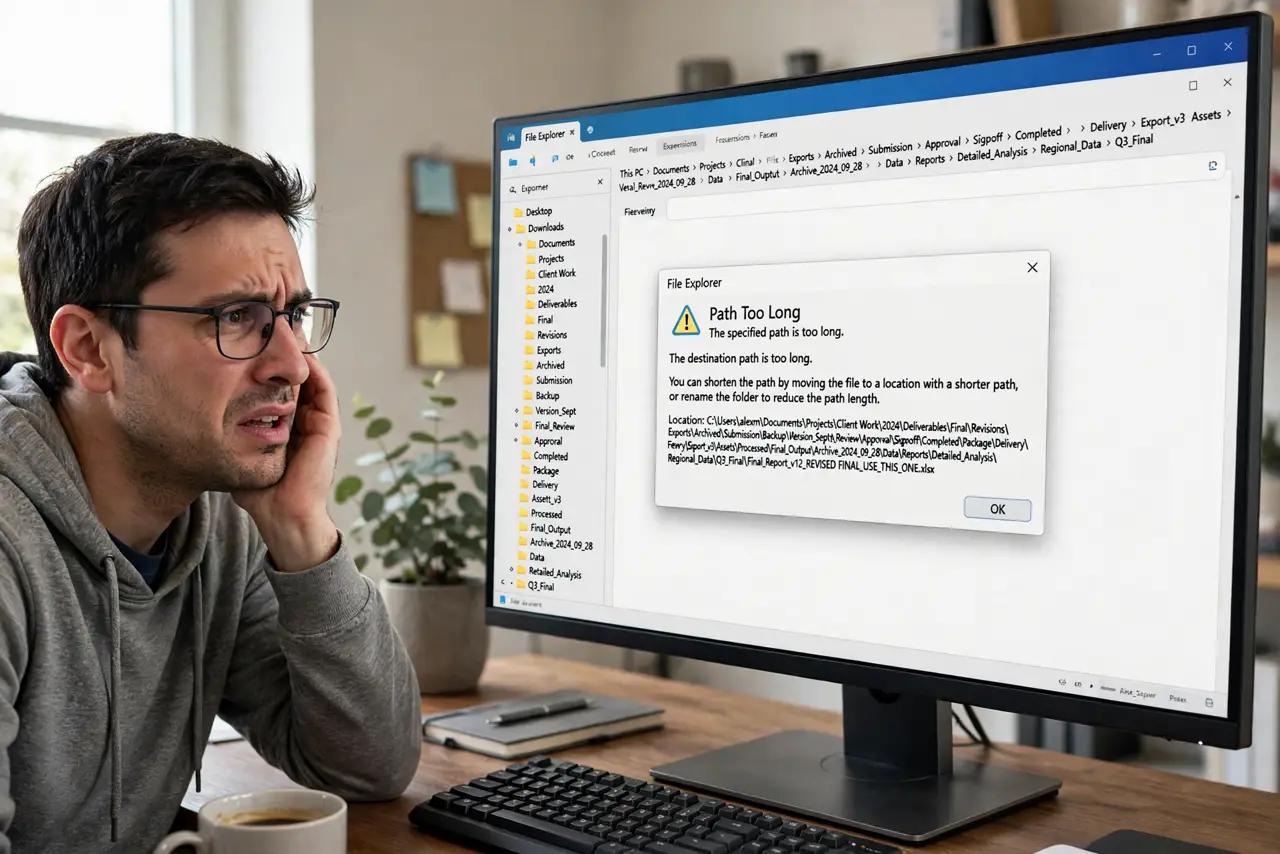
TL;DR / Quick Fix
Quick fix: shorten the path by renaming top folders or moving the deep folder closer to the drive root. For a permanent fix, enable long path support in Group Policy or the registry. Restructure the folders once instead of fighting it file by file.
Follow these steps
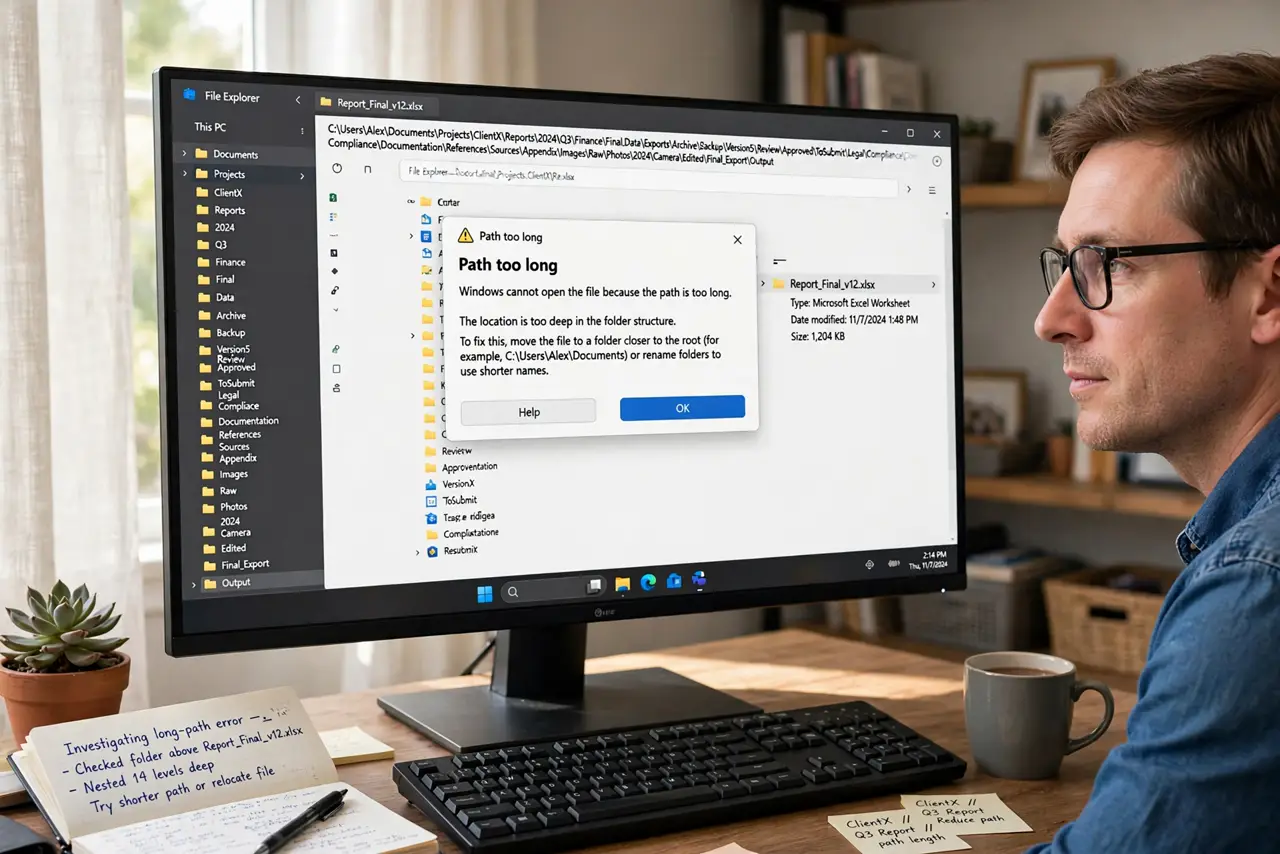
- See how deep the nesting goes. The error names the file, but the folders above it are the real problem. Each level adds its name plus separators to the total count.
- Rename the top folders shorter. Shortening a folder near the root trims characters from every path beneath it. One rename can fix dozens of files at once.
- Move the deep folder up. Drag the deeply nested folder closer to the drive root — or to a shorter-named parent. Fewer levels, shorter paths, problem gone.
- Enable long path support. In the Local Group Policy Editor, enable Win32 long paths; or set the matching registry value. This lifts the old 260-character limit for programs that support it.
- Use robocopy for stubborn copies. When Explorer refuses, the built-in robocopy command often powers through long paths. It is the official brute-force option.
- Prevent it going forward. Keep folder structures shallow and names concise. A tidy tree never hits the limit; a chaotic one hits it monthly.
What NOT to do
- Do not rename files one by one at the bottom of the tree. Fix the top of the nesting — one change there beats fifty at the bottom.
- Do not edit the registry blindly from forum snippets. Back up the registry first, and change only the long-paths value.
- Do not assume cloud sync handles long paths. OneDrive and friends have their own limits — a path Windows tolerates may still choke sync.
- Do not delete the 'offending' file in anger. The file is innocent; the folder structure is guilty.
Frequently asked questions
What is the actual character limit?
Historically 260 characters for the full path. With long path support enabled, modern Windows and apps handle far longer paths.
Why do some programs still fail after I enable it?
The program itself must support long paths too. Old software keeps the old limit regardless of the Windows setting.
Can long paths corrupt files?
No — they just block operations. The files are fine; Windows simply refuses to address them until the path shortens.