Where Did Optional Updates Go? Find Them
Optional updates — drivers and extras Windows offers but does not force — used to sit in plain view, and now the section seems gone. Microsoft moved it deeper into Settings, and on some PCs it hides until you know where to look. This guide shows the exact path and what to do when the list is genuinely empty.
TL;DR / Quick Fix
Quick fix: go to Settings > Windows Update > Advanced options > Optional updates — the section moved there. If the entry is missing, check for a pending restart or a metered connection blocking downloads. Install only the drivers you actually need.
Follow these steps
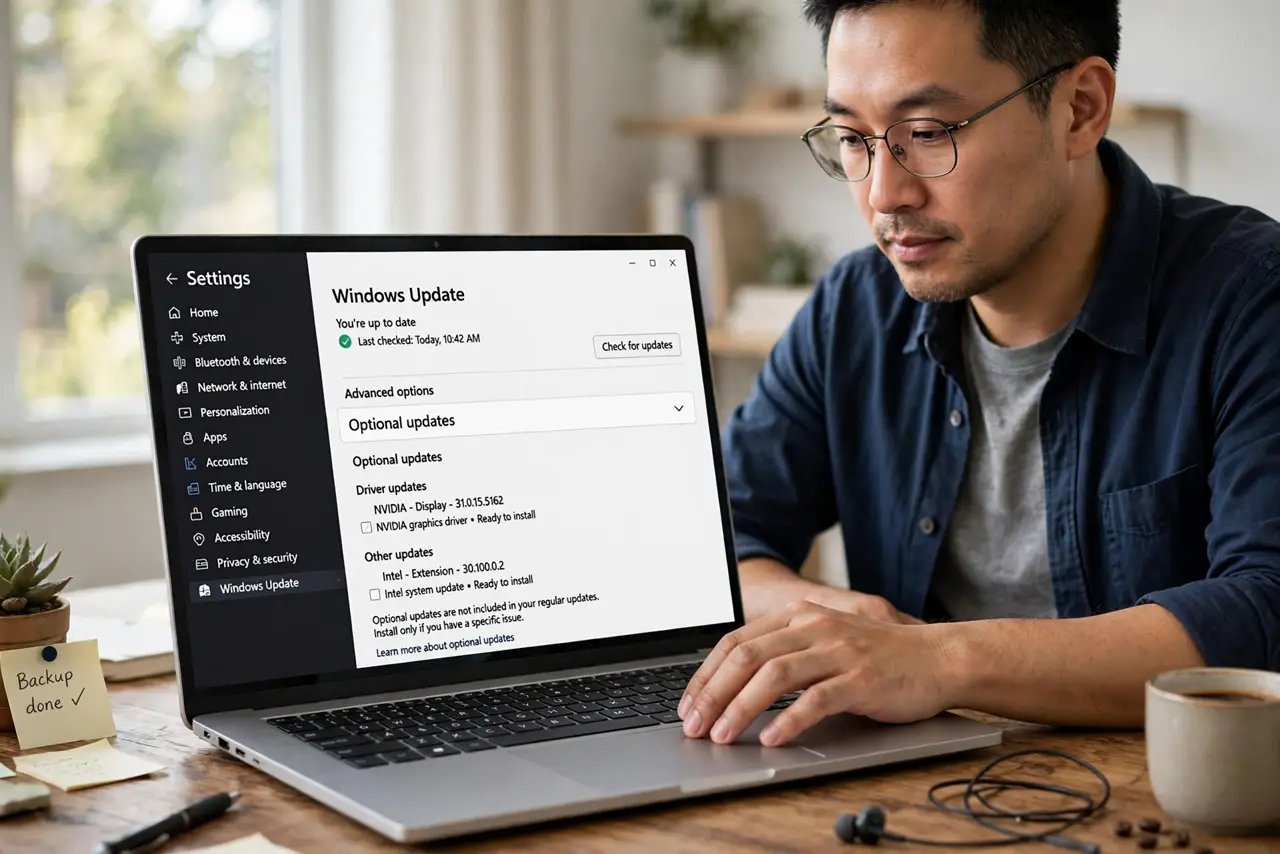
- Open the right Settings page. Go to Settings > Windows Update > Advanced options > Optional updates. The section lives under Advanced options now, not on the main update page where older guides show it.
- Check for a pending restart. If Windows is waiting on a restart to finish an update, the optional list may not refresh. Restart the PC and check the path again.
- Turn off the metered connection block. On a metered connection, Windows holds back optional downloads. Go to Settings > Network & internet > Wi-Fi, open your network, and check the metered setting.
- Look for a management policy. If the whole Advanced options area is locked or the entry is missing, a work or school policy may hide it — the same kind of policy behind a stuck update. Disconnect leftover accounts and recheck.
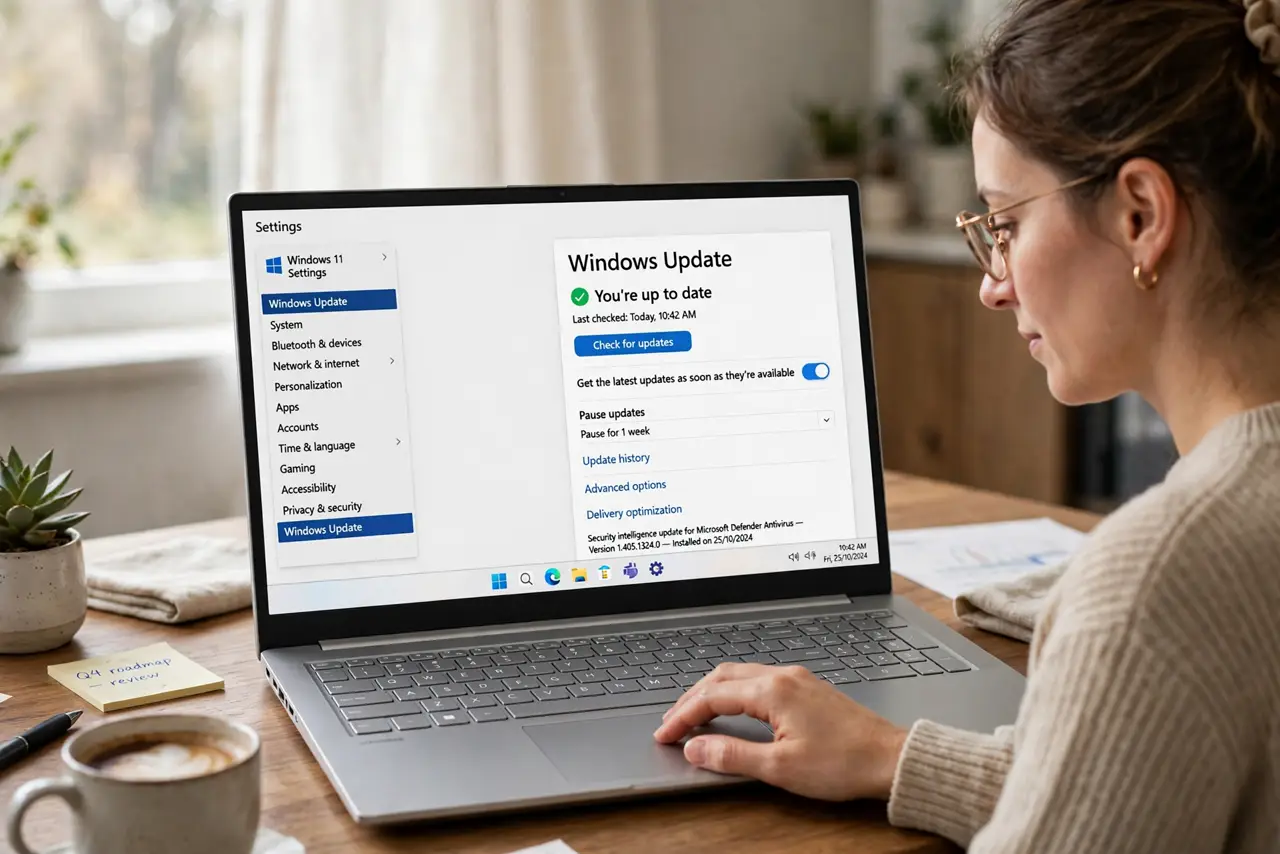
- Refresh Windows Update. On the Windows Update page, choose Check for updates. A fresh check often repopulates the optional list, including driver offers that were missing.
- Install only what you need. Expand the Driver updates group and tick only the driver for hardware giving you trouble. Skip the rest — optional means optional, and unneeded driver swaps cause new problems.
What NOT to do
- Do not install every optional driver at once. One bad driver update can break working hardware, so change only the driver you need.
- Do not use third-party driver updater tools. They bundle junk and often install wrong drivers; Windows Update is the safe source.
- Do not mistake optional updates for required ones. Skipping an optional driver never harms security the way skipping a quality update does.
- Do not panic if the list is empty. An empty optional list usually means your drivers are current, not that updates are broken.
Frequently asked questions
Where are optional updates in Windows 11?
Settings > Windows Update > Advanced options > Optional updates. Microsoft moved them off the main update page.
Should I install all optional driver updates?
No. Install only the driver for hardware that misbehaves. If everything works, leave the list alone.
Why is the Optional updates entry missing?
A pending restart, a metered connection, or a management policy can hide it. Check those three in order.