Reconnect Mapped Drives
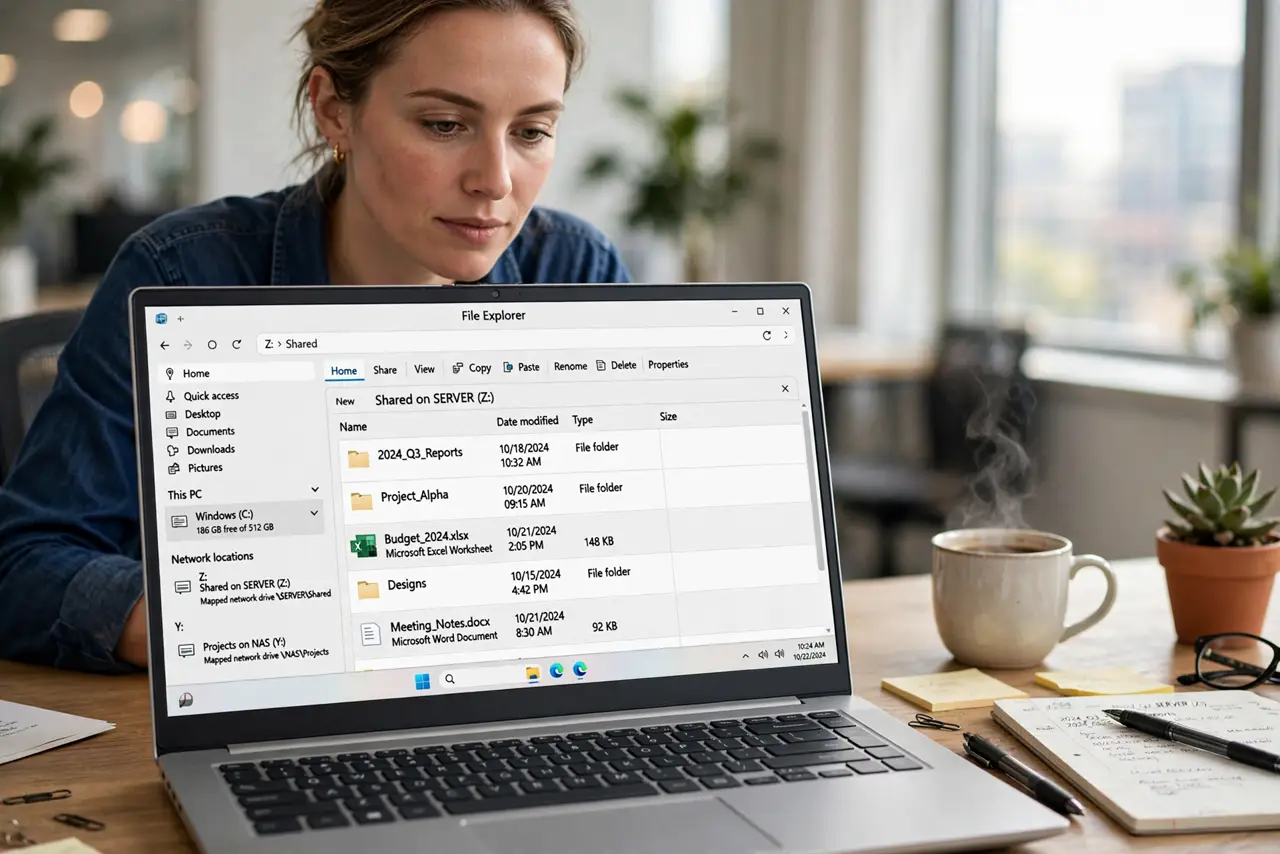
Every reboot, your network drive shows a red X and you have to click it awake before it works. Windows maps the drive at sign-in but does not always reconnect it cleanly — usually a timing issue, not a broken network. Here is how to make mapped drives reconnect reliably.
TL;DR / Quick Fix
Quick fix: if a mapped network drive shows a red X after reboot, click it once to wake it — then remap it with 'Reconnect at sign-in' checked. For stubborn cases, a logon script or scheduled task that remaps after a short delay beats the race condition.
Follow these steps
- Wake it with one click. A red X often means 'not connected yet,' not 'broken.' Double-click the drive — if it opens, everything is fine and it just needed a nudge.
- Remap with 'Reconnect at sign-in' checked. Disconnect the drive, then map it again and tick 'Reconnect at sign-in.' Mappings made without that box never survive a reboot.
- Use the server name, not the IP. Map via the server name rather than an IP address. IPs change; names (usually) do not, and a stale IP is a classic reconnect failure.
- Check network discovery is on. If the PC cannot see the network at sign-in, nothing will reconnect. Confirm network discovery is enabled on private networks.
- Delay the mapping past sign-in. Windows sometimes maps drives before the network is ready. A scheduled task that runs the mapping command 30 seconds after logon sidesteps the race entirely.
- Save the credentials. If Windows asks for a password each time, save it in Credential Manager so the reconnect is silent — see saved credentials.

What NOT to do
- Do not map by IP address. DHCP will eventually change it and break the mapping silently.
- Do not assume the red X means data loss. It is a connection state — your files are still on the server.
- Do not disable the reconnect checkbox 'to fix it.' That guarantees the drive never comes back on its own.
- Do not troubleshoot the drive before the network. If the PC has no network at sign-in, no mapping trick will help.
Frequently asked questions
Why does only one of my mapped drives fail?
Each mapping stores its own path and credentials — one stale entry does not affect the others. Remap just the failing one.
Can I map a drive that needs different credentials?
Yes — choose 'Connect using different credentials' when mapping, and save them so reconnects stay silent.
Mapped drive works but is slow to open?
That is usually the spin-up or first-connection delay, not a fault. If it is consistently slow, check the network path.