Meet the New Media Player
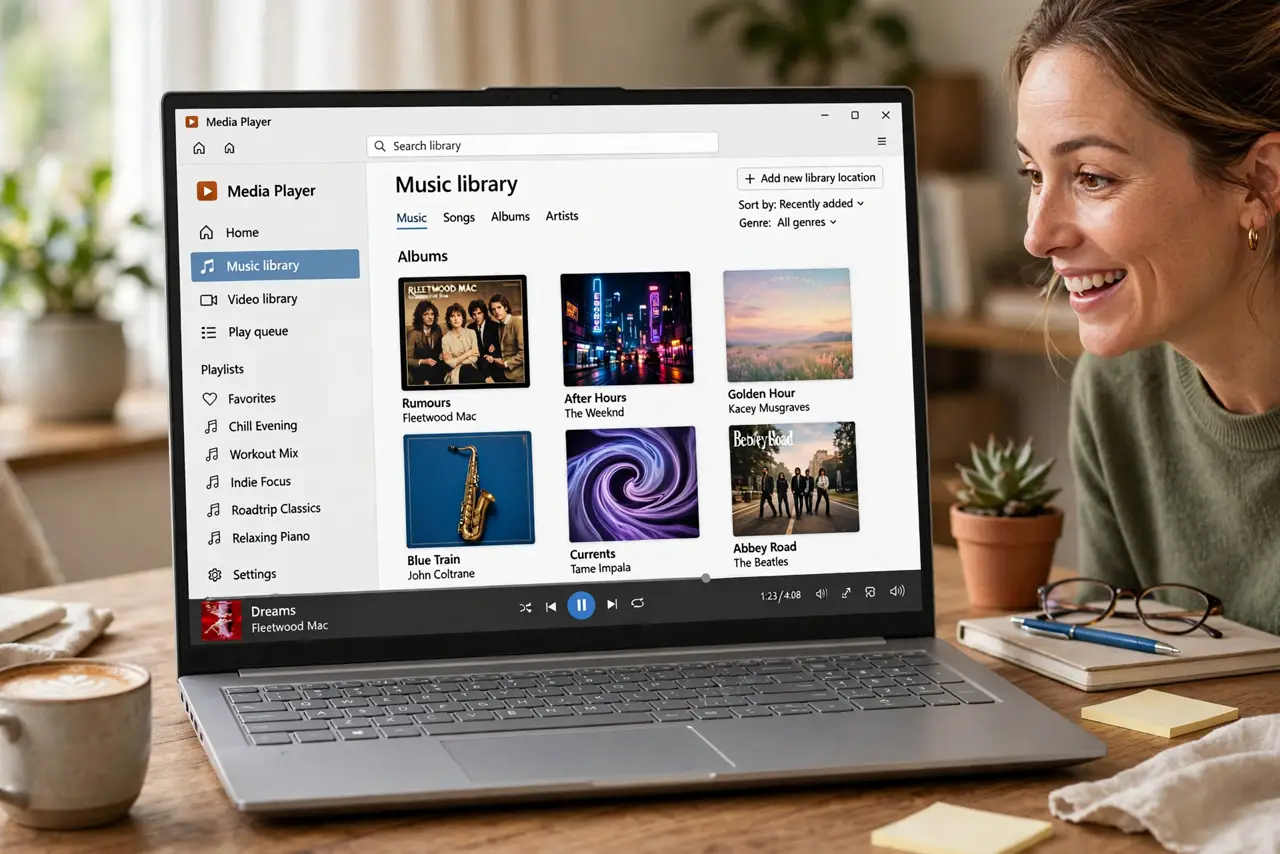
Groove Music is gone, and in its place Windows has a new Media Player — cleaner, faster, and handling both your music and your videos. If you have been double-clicking files and wondering where they went, this is the tour. Your old library comes along; your old habits mostly still work. For creating rather than playing, try Clipchamp.
TL;DR / Quick Fix
Quick fix: the new Media Player replaces the old Groove app — it plays your music and video with a cleaner look and better library views. Open it from the Start menu and let it find your media folders. Your old playlists may need re-adding, but the upgrade is painless.
Follow these steps
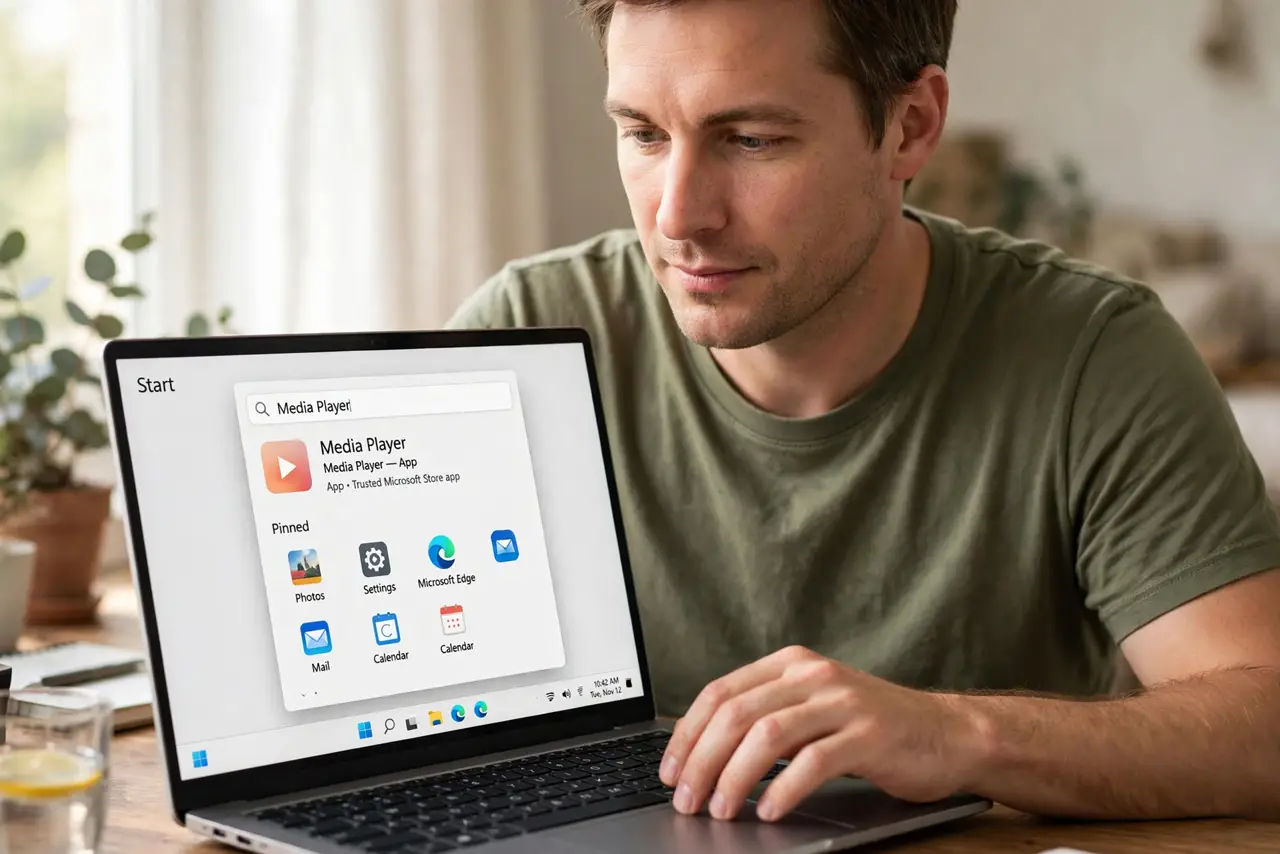
- Open the new Media Player. Find Media Player in the Start menu — it may already be your default for music and video files.
- Let it find your media. Point it at your music and video folders. It builds a library with album art and metadata automatically.
- Re-add old playlists. Playlists from Groove may not carry over. Rebuild the important ones — it is also a good excuse to prune the duds.
- Explore the library views. Browse by artist, album, or genre. The new views are genuinely nicer than the old app's flat lists.
- Set it as default. If files still open elsewhere, set Media Player as the default for your music and video formats in Settings.
- Learn the keyboard shortcuts. Play, pause, and skip from the keyboard work as expected. A few shortcuts make it feel like home within a day.
What NOT to do
- Do not expect streaming inside it. Media Player is for your own files — streaming services live in their own apps.
- Do not panic if artwork is missing. Metadata mismatches happen; the music still plays fine while you fix tags later.
- Do not keep the old Groove around. It is retired — commit to the new player and remove the confusion.
- Do not forget backups. Your media library is yours to lose — the player organizes, it does not back up.
Frequently asked questions
Where did Groove go?
Microsoft retired Groove Music; the new Media Player is its replacement for local files. Streaming moved to other services.
Can it play my video files too?
Yes — it handles common video formats alongside music, making it a genuine all-rounder.
Why is some album art wrong?
Metadata mismatches from imperfect file tags. Correct the tags and the art follows.