Try Windows Terminal
The old Command Prompt window — tiny, ugly, one tab — feels like a relic because it is one. Windows Terminal replaces it with tabs, panes, better fonts, and every shell you have in one place: Command Prompt, PowerShell, and more. Same commands, vastly nicer home. Customize the default shell and learn tabs and panes next.
TL;DR / Quick Fix
Quick fix: Windows Terminal replaces the ancient Command Prompt window with tabs, better fonts, and all your shells in one place — Command Prompt, PowerShell, and more. Pin it, open a couple of tabs, and you will wonder why you waited. The old black box had a good run.
Follow these steps
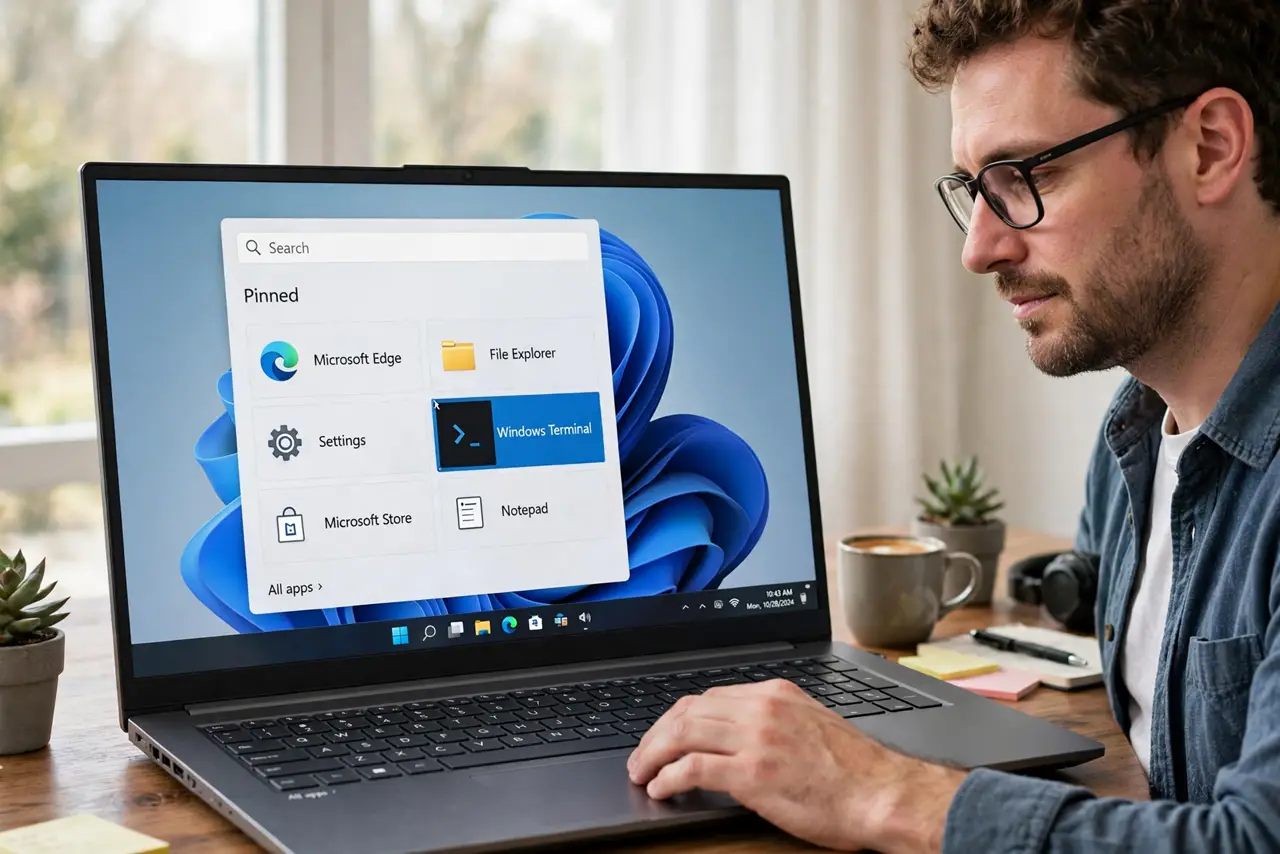
- Open Windows Terminal. Find Terminal in the Start menu or right-click the Start button. It may already be your default terminal app.
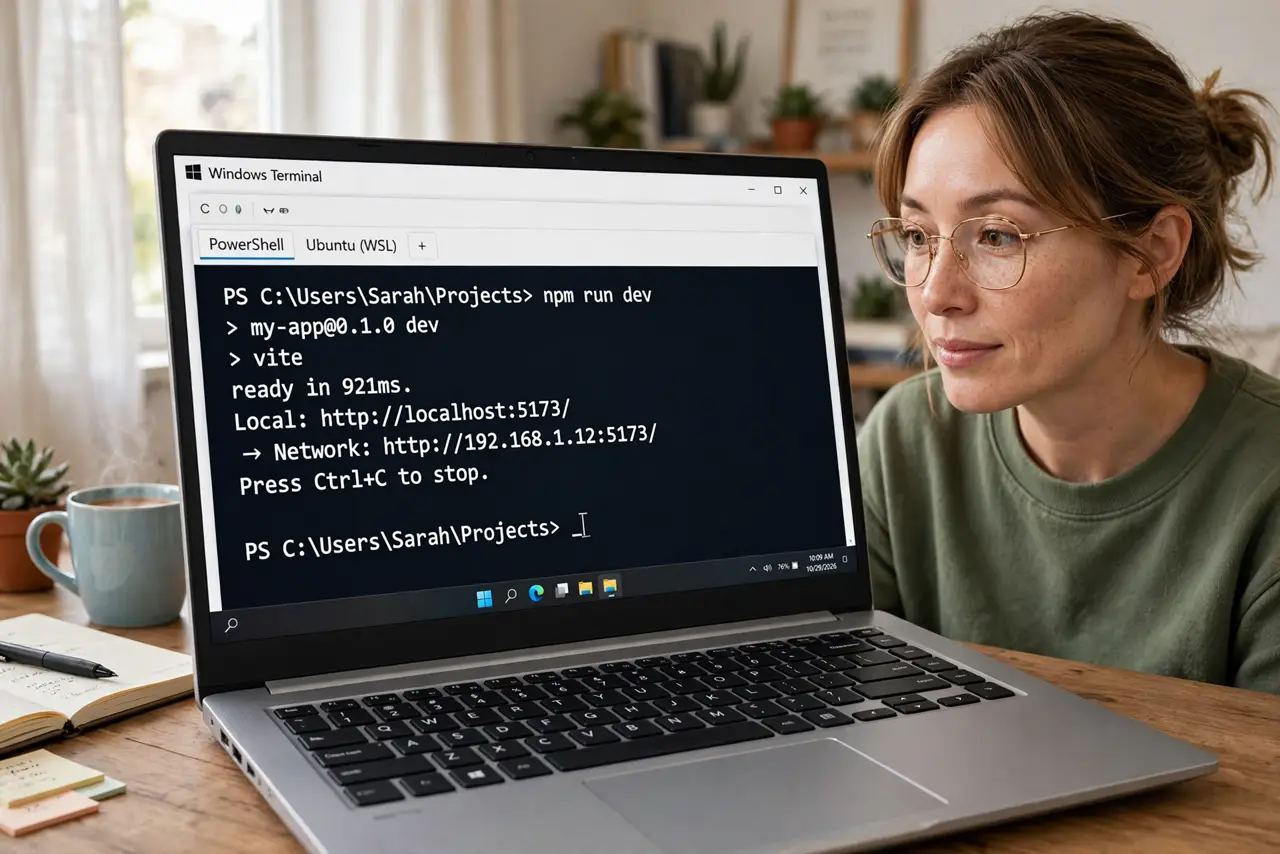
- Meet the tabs. Open new tabs with the plus button — each tab can run a different shell. No more five separate black windows scattered on the taskbar.
- Pick your shells. The dropdown offers Command Prompt, PowerShell, and anything else installed. Your old commands work exactly as before, in a nicer window.
- Try a split pane. Split one tab into side-by-side panes to watch two things at once — a server log beside the commands that query it.
- Tweak the appearance. Settings offer fonts, colors, and themes. A readable font and a pleasant theme make the terminal somewhere you enjoy being.
- Pin it and move on. Pin Terminal to the taskbar and forget the old Command Prompt exists. Same power, better home.
What NOT to do
- Do not fear the terminal. You cannot break Windows by looking around — reading commands is safe; only running unknown ones is risky.
- Do not paste commands you do not understand. A pasted command from the internet can do anything — read it first, always.
- Do not run everything as administrator. Admin rights are for installs and system changes, not for everyday commands.
- Do not skip the settings. Five minutes of font and theme tweaks pays off every single day you use it.
Frequently asked questions
Is this just a prettier Command Prompt?
More than that — tabs, panes, GPU-accelerated text, and all shells in one app. The looks are the least of it.
Do my old commands still work?
Yes. It hosts the same shells, so every command you know behaves identically.
Should beginners bother?
If you never touch the command line, no rush. If you do it weekly, the upgrade is immediately worth it.