Mic Still Too Quiet at Full Volume on Windows
A microphone that stays quiet even at full volume usually has a second level hiding somewhere: an app level, a boost setting, or simply too much distance from your mouth. This guide checks every level in order, from Windows to the app. If your voice echoes instead of staying quiet, see the guide on mic echo in video calls.
TL;DR / Quick Fix
Quick fix: Check the Windows input volume. Move the mic closer and speak up. Then work through the remaining steps in order, checking one change at a time, and stop for a technician if you see damage, swelling, or a burning smell.
Follow these steps
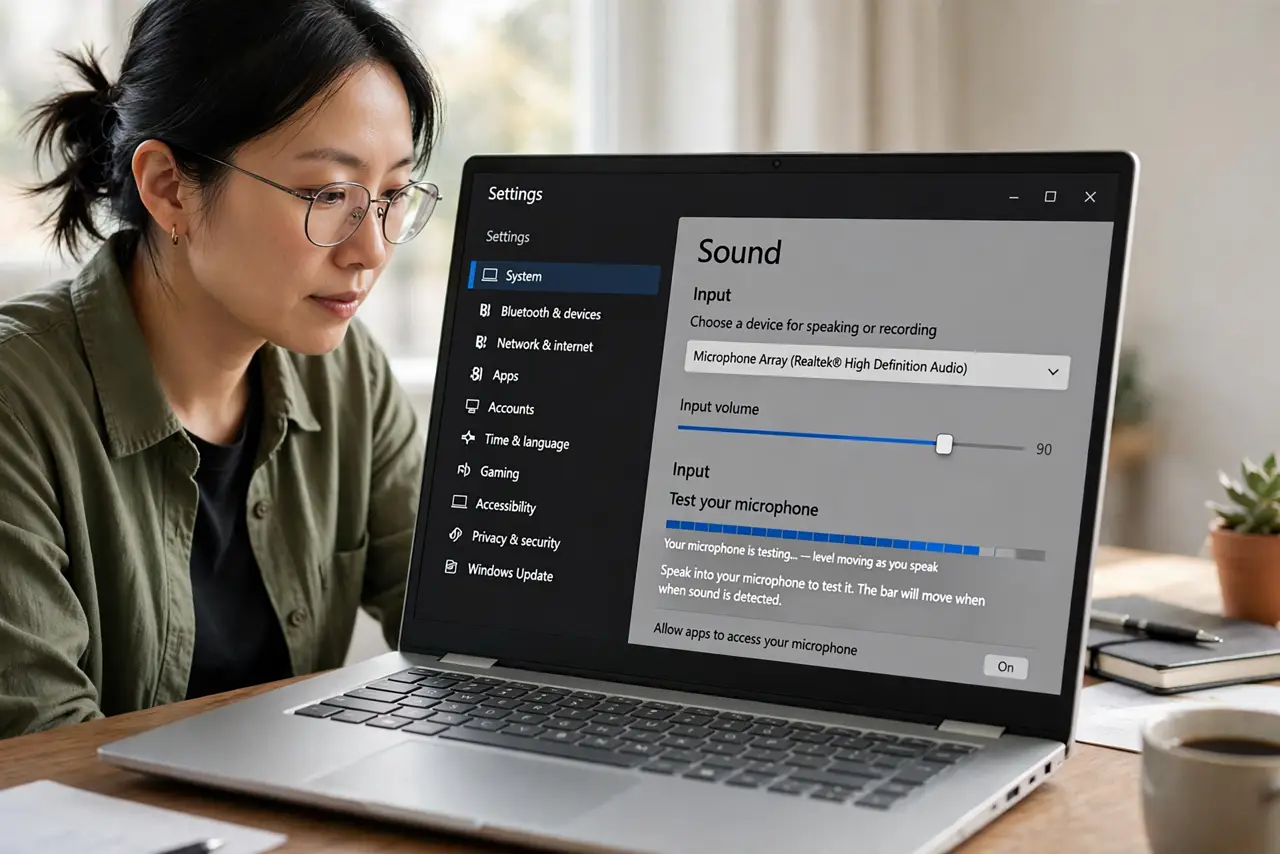
- Check the Windows input volume. Open Settings, then System, then Sound, then Input, select your microphone, and confirm the Input volume slider is high. Test by speaking and watching the input level bar move.
- Move the mic closer and speak up. Place a headset mic near the corner of your mouth, or sit closer to a laptop mic, and speak at normal volume. Distance is the most common cause of a quiet mic, and no slider fixes a mic two feet away.
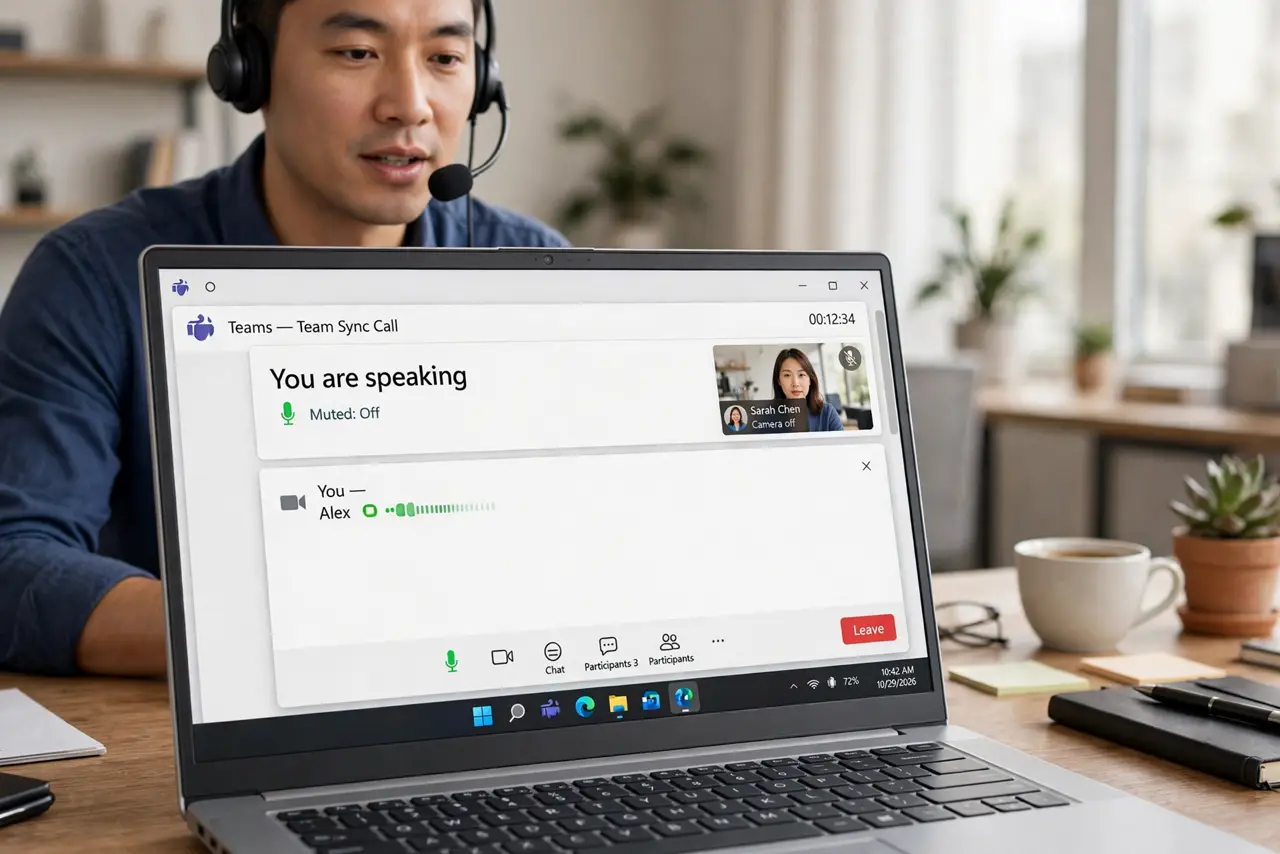
- Check the app own mic level. In your call or recording app, open its audio settings and confirm its input volume is also high. An app level set low will keep you quiet even when Windows is at full.
- Check microphone permissions. Open Settings, then Privacy and security, then Microphone, and confirm microphone access is on and your app is allowed. A blocked app can fall back to a faint or silent input.
- Test a different microphone. Plug in another headset or USB mic and test it in the same app. If the second mic is loud, the first mic or its cable is the problem, not Windows.
- Check enhancements that lower volume. In the microphone device properties, look at Enhancements and try turning them off. Some noise suppression settings lower quiet voices along with the noise, which can make you sound faint.
What NOT to do
- Do not shout to compensate for a quiet mic. Shouting distorts your voice and tires you out, while a closer mic and correct levels fix it cleanly.
- Do not buy a new mic before testing distance and app levels. Most quiet mics are a settings or distance problem, not a broken mic.
- Do not turn on every enhancement at once. Enhancements can fight each other, so test with them off first, then add one back.
- Do not assume full volume means maximum loudness. Windows, app, and mic boost levels multiply, so one low level anywhere keeps you quiet.
Frequently asked questions
Why is my mic quiet only in one app?
That app has its own input level or device choice, so check its audio settings separately from Windows.
Does a USB mic need a boost setting?
Usually not. USB mics set their own gain, so distance and app level matter more than any Windows boost.
Can background noise make me sound quiet?
Yes, if noise suppression lowers your voice with the noise. Testing with enhancements off shows whether that is happening.