Your Mic Echoes in Every Video Call
An echo in video calls usually means your microphone is picking up the other people voices from your speakers and sending them back. Headphones break that loop instantly, and echo cancellation settings handle the rest. This guide finds the loop and closes it. If your mic is too quiet rather than echoing, see the guide on mic too quiet at full volume.
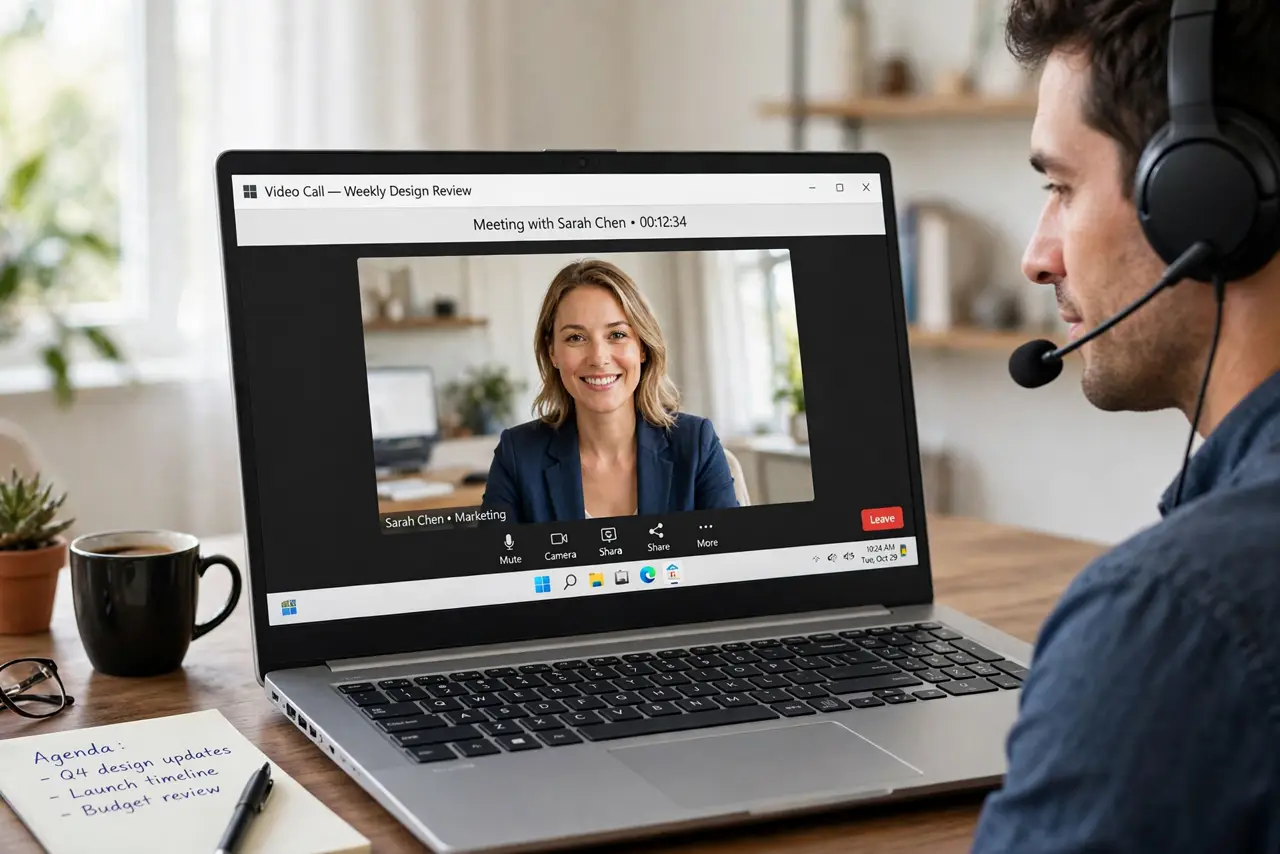
TL;DR / Quick Fix
Quick fix: Wear headphones for the next call. Lower speaker volume if you stay on speakers. Then work through the remaining steps in order, checking one change at a time, and stop for a technician if you see damage, swelling, or a burning smell.
Follow these steps
- Wear headphones for the next call. Put on headphones or earbuds for one call and ask the other people if the echo is gone. If it is, your speakers were feeding the mic, and headphones are the reliable fix.
- Lower speaker volume if you stay on speakers. If you must use speakers, turn them down and move the mic away from them. Lower volume means less speaker sound reaches the mic, which shrinks the echo even without headphones.
- Check echo cancellation in the app. In your call app audio settings, confirm echo cancellation or noise suppression is on. These features subtract speaker sound from the mic signal, and turning them off brings echo back.
- Use one mic, not two. If you have a headset mic and a laptop mic both active, mute or disable one. Two mics in the same room can pick up each other output and create a doubling effect.
- Ask one other person to test. Ask the other people which of them hears the echo. If only one person hears it, the loop is on their side, not yours, and their speaker setup is the place to fix.
- Check Windows audio enhancements. In the microphone device properties, try turning enhancements off and on once each, testing a call after each change. A wrong enhancement combination can defeat the app echo cancellation.
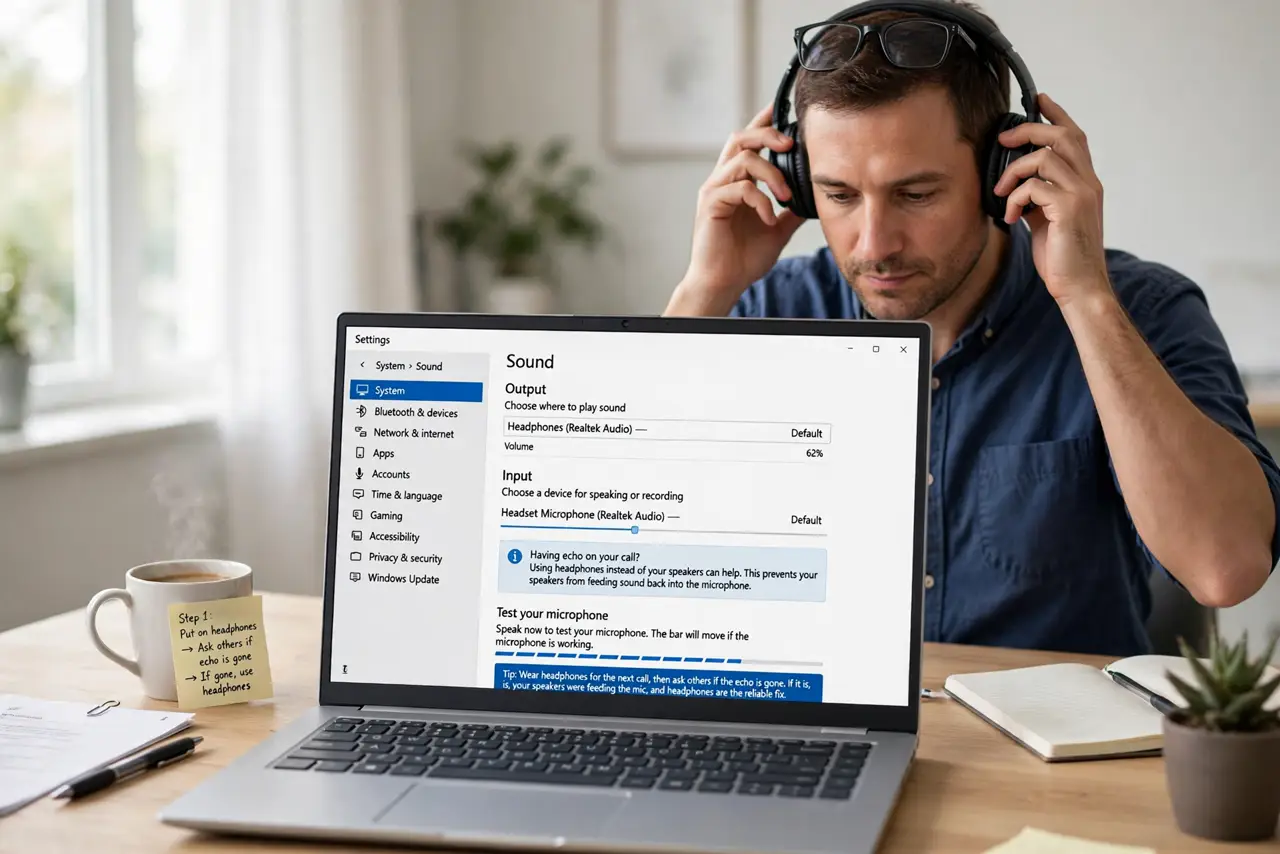
What NOT to do
- Do not turn your mic volume down to kill echo. Lower mic volume makes you quiet for everyone, while the echo loop stays.
- Do not blame the call app first. Test with headphones, because a speaker-to-mic loop causes echo in every app, not just one.
- Do not use speakers and a sensitive desk mic together. That combination is the classic echo setup, and headphones are the honest fix.
- Do not enable two echo cancellers that fight. Use the call app cancellation first, and leave Windows enhancements off unless a test proves they help.
Frequently asked questions
Why do only some people hear my echo?
Echo is heard by the people opposite the loop. If your speakers feed your mic, everyone else hears it, but you do not.
Do earbuds work as well as headphones?
Yes. Any listening device that keeps speaker sound out of the mic breaks the loop, including simple earbuds.
Can echo come from the other person side?
Yes. If only one person hears echo, ask them to wear headphones, because the loop may be on their setup.