Mouse Trails Turned On by Themselves? Fix It
Your cursor suddenly leaves a fading comet trail across the screen. Nobody admits turning it on — and nobody needs to, because Windows updates and accessibility toggles flip it silently. It is one checkbox, buried two dialogs deep. Here is the direct path.
TL;DR / Quick Fix
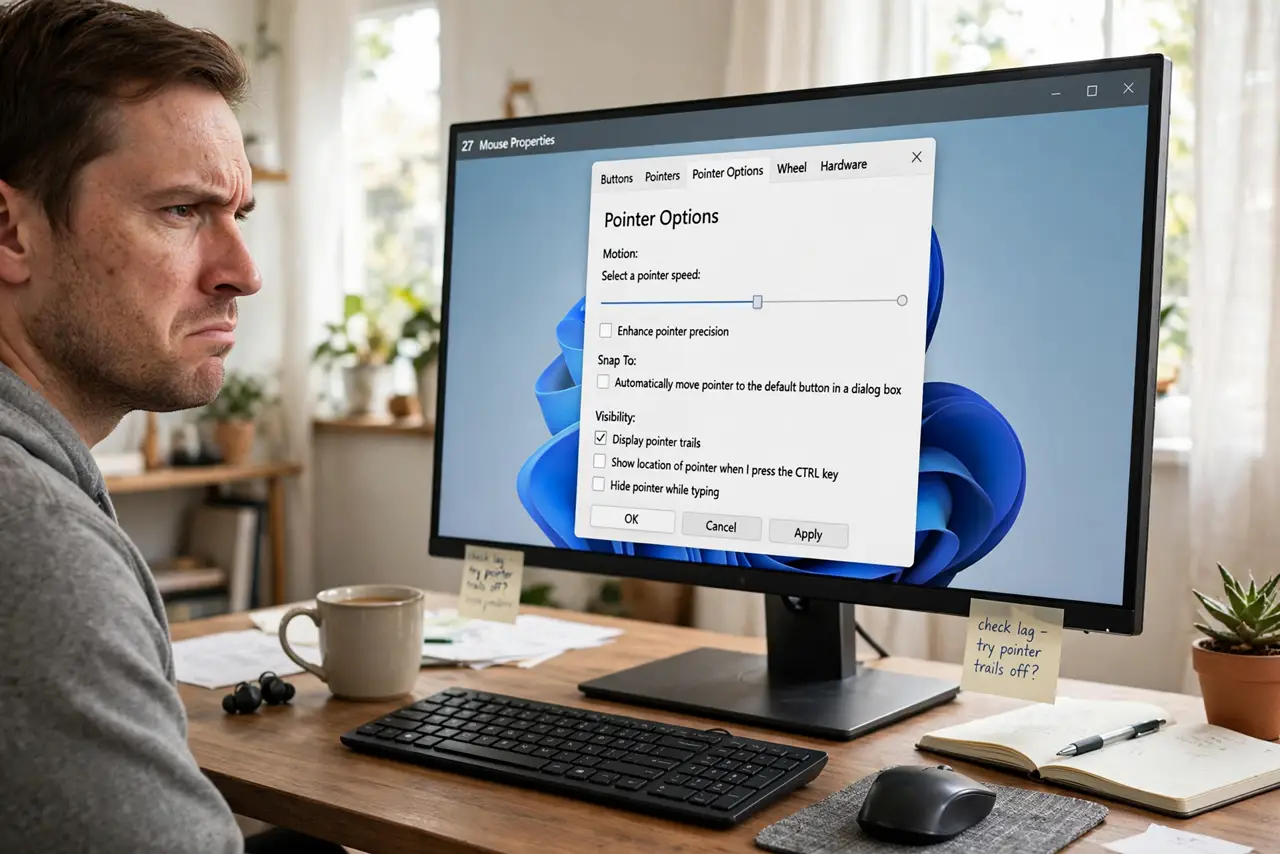
Quick fix: open Settings > Bluetooth & devices > Mouse > Additional mouse settings, go to the Pointer Options tab, and uncheck Display pointer trails. Trails usually appear after a Windows update resets the setting or after someone enabled an accessibility option. One checkbox ends them.
Follow these steps
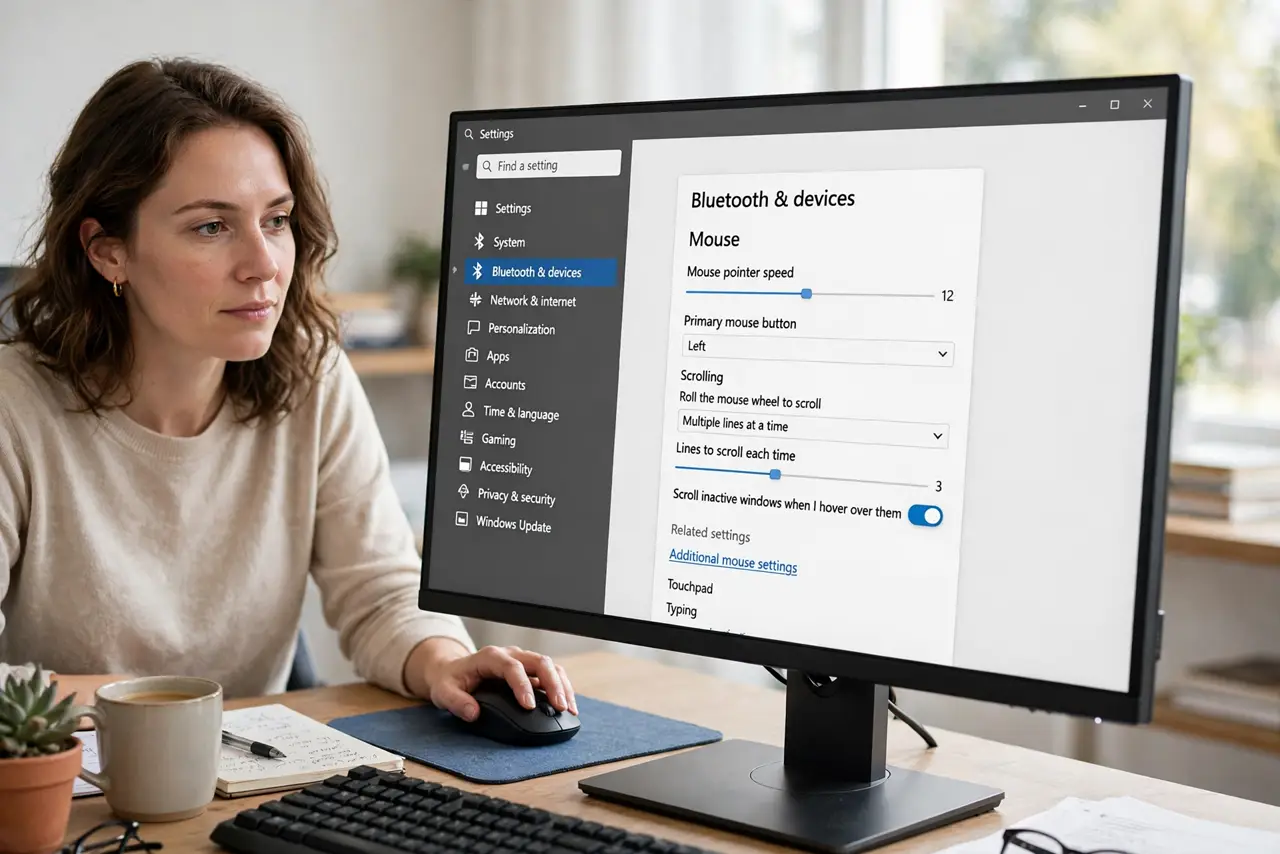
- Open the old Mouse Properties. Go to Settings > Bluetooth & devices > Mouse, then click Additional mouse settings. The classic dialog is where this checkbox still lives.
- Uncheck the trails. On the Pointer Options tab, clear Display pointer trails and click Apply. The comet tail vanishes immediately.
- Understand why it appeared. Major Windows updates occasionally reset mouse settings, and some accessibility presets enable trails. It was not a virus and not a prank.
- Decide if you actually like them. Short trails genuinely help some people track the cursor on large or multi-monitor setups — the Length slider tunes it. There is no shame in keeping them deliberately.
- Check mouse vendor software. Logitech, Razer, and similar tools have their own pointer effects that can mimic trails. If the checkbox was already clear, look there.
- Confirm across restarts. Reboot once. If trails return, a startup utility or accessibility preset is re-enabling them — check what launches at sign-in.
What NOT to do
- Do not reinstall mouse drivers over this. Pointer trails are a preference checkbox, not a driver symptom.
- Do not confuse trails with screen ghosting. Trails follow only the cursor; a smearing whole screen is a monitor response-time issue.
- Do not disable pointer precision to fix trails. Enhance pointer precision is a separate setting about acceleration — leave it alone.
- Do not assume malware. No malicious software bothers with cosmetic cursor effects.
Frequently asked questions
Why did pointer trails turn on by themselves?
A Windows feature update reset the mouse preferences, or an accessibility option got toggled during setup. Either way, the checkbox is the whole story.
Do pointer trails slow down the PC?
No measurable effect on modern hardware. They are drawn by the same compositor that draws everything else.
Can trails help me find a lost cursor?
Yes, genuinely — that is their original purpose. On a triple-monitor setup, a short trail beats hunting for a tiny arrow.