Narrator Starts by Accident on Windows
Narrator, the Windows screen reader, can start by accident through its keyboard shortcut, which is startling if you do not need it. The fix is turning off that shortcut, not removing accessibility features. This guide stops the accidental starts while keeping Narrator available. If the screen is stuck zoomed instead, see Magnifier stuck zoomed in.
TL;DR / Quick Fix
Quick fix: Stop Narrator with its shortcut. Open the Narrator settings page. Then work through the remaining steps in order, checking one change at a time, and stop for a technician if you see damage, swelling, or a burning smell.
Follow these steps
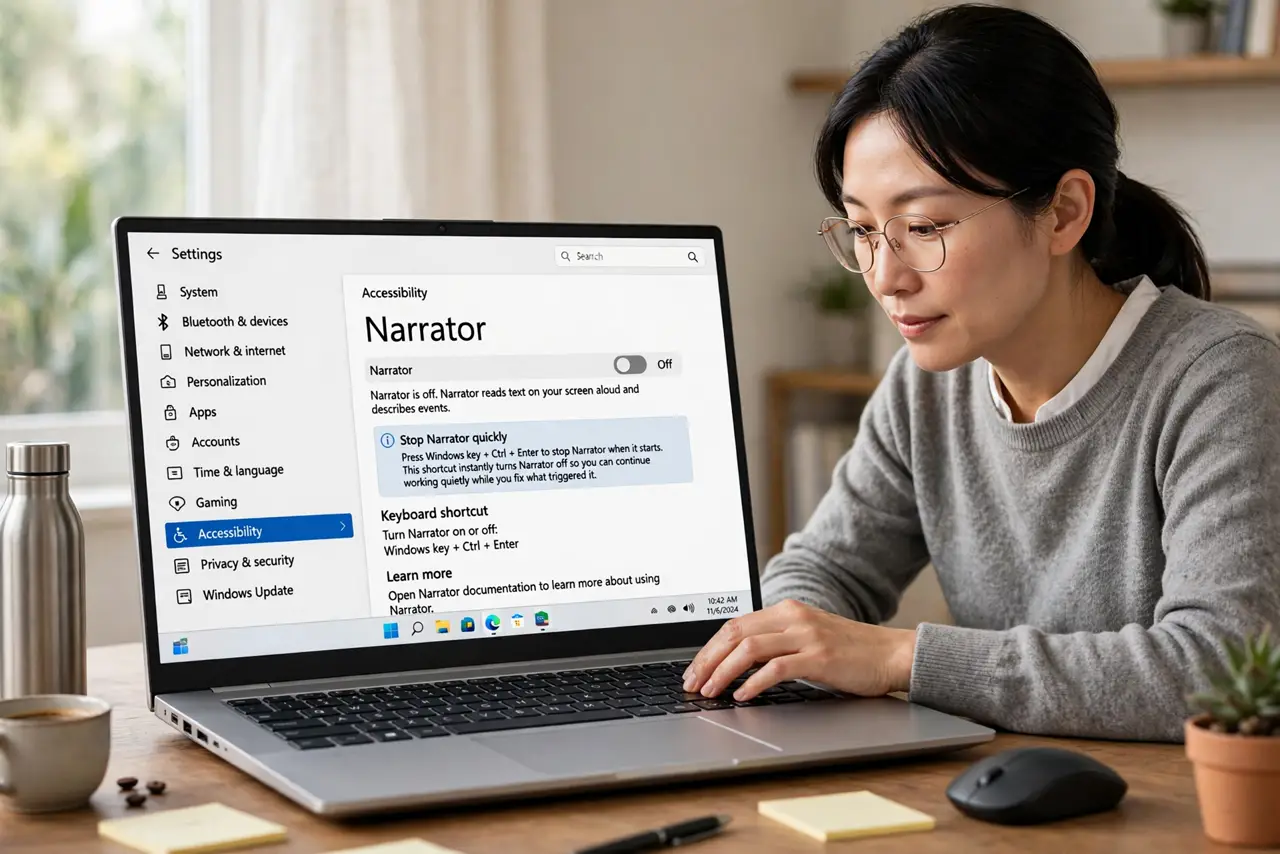
- Stop Narrator with its shortcut. Press the Windows key plus Ctrl plus Enter to stop Narrator when it starts. Knowing the stop shortcut gives you instant quiet while you fix the trigger.
- Open the Narrator settings page. Open Settings, then Accessibility, then Narrator. This page holds the startup and shortcut options for the screen reader.
- Turn off the Narrator shortcut. Turn off the setting that starts Narrator with Windows plus Ctrl plus Enter. With the shortcut off, only a deliberate open from settings or search starts it.
- Check sign-in Narrator settings. In the same page, confirm Narrator is not set to start before sign-in or after sign-in automatically. An automatic start setting will relaunch it at every boot.
- Test the shortcut. Press the Windows key plus Ctrl plus Enter and confirm Narrator stays silent. This test proves the shortcut is off, rather than hoping the next accidental press is quiet.
- Restart and confirm silence. Restart Windows and sign in, listening for Narrator. If it stays silent through sign-in and normal use, the accidental-start fix held.
What NOT to do
- Do not remove Narrator or accessibility features entirely. The shortcut toggle is the precise fix, and Narrator matters for people who need it.
- Do not keep closing Narrator without fixing the shortcut. It will return at the next accidental key combination.
- Do not assume a virus starts Narrator. The keyboard shortcut and automatic start settings cause this in almost every case.
- Do not turn off all keyboard shortcuts. Only the Narrator shortcut needs changing, and other shortcuts stay useful.
Frequently asked questions
What is Narrator for?
It reads screen content aloud, helping people who are blind or have low vision use Windows without seeing the screen.
Can I still use Narrator if I need it later?
Yes. Open it from Settings, then Accessibility, then Narrator, or from Start search, any time.
Why does Narrator start during games?
Games use many key combinations, and Windows plus Ctrl plus Enter can be pressed by accident during play.