Share Files with Nearby Sharing
You need a file from your PC on your laptop — no USB stick in sight, email is clumsy for big files. Windows Nearby Sharing beams files between PCs over Wi-Fi and Bluetooth, no cables or cloud uploads. It is AirDrop for Windows, hiding in plain sight.
TL;DR / Quick Fix
Quick fix: turn on Nearby Sharing in Settings under System, set it to Everyone nearby or My devices only, then right-click any file and choose Share. The other PC must have Bluetooth and Wi-Fi on and be nearby. Both PCs need Windows 10 or 11.
Follow these steps
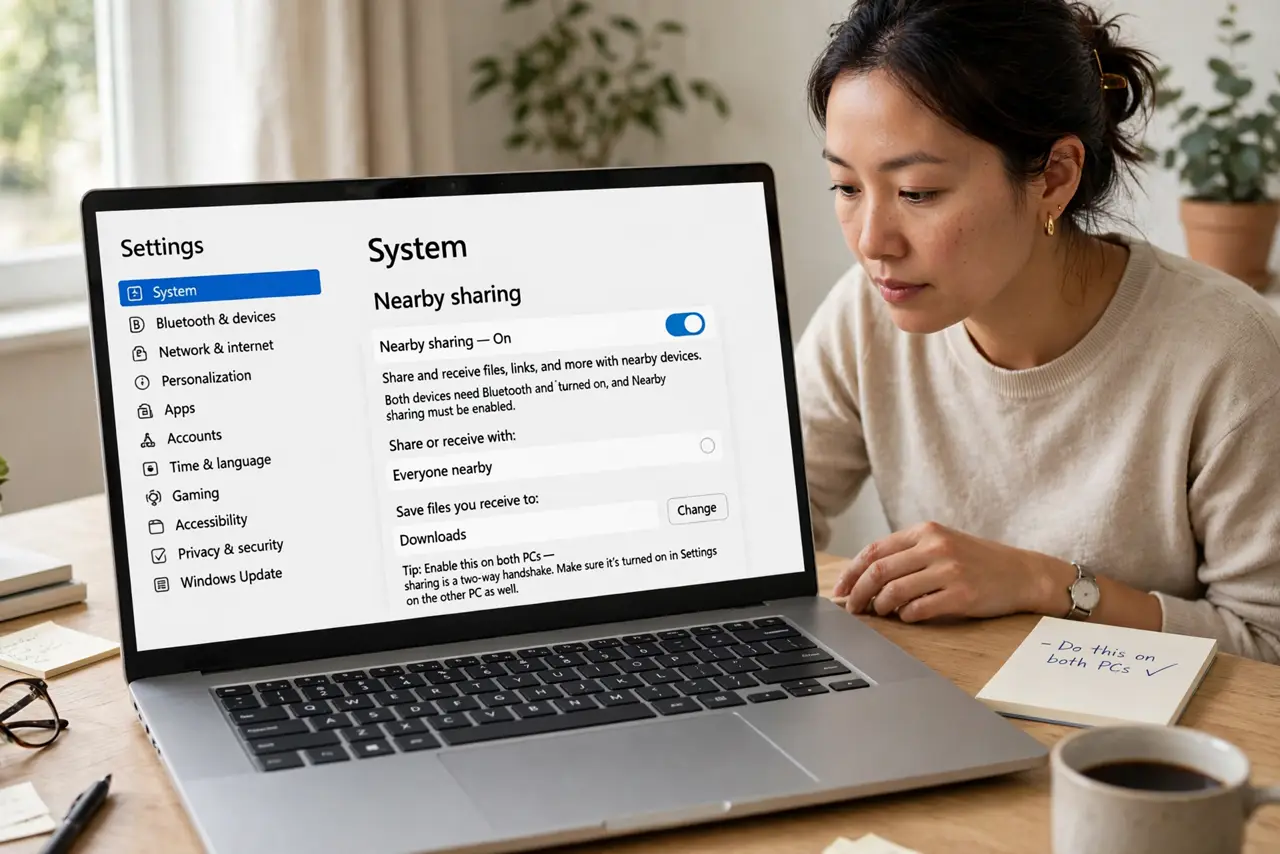
- Turn it on in Settings. Go to Settings > System > Nearby sharing and enable it. Do this on both PCs — sharing is a two-way handshake.
- Choose who can share with you. My devices only limits it to PCs signed into your Microsoft account; Everyone nearby is convenient but chattier. Pick based on your surroundings.
- Confirm Bluetooth and Wi-Fi are on. Nearby Sharing discovers devices over Bluetooth and transfers over Wi-Fi. If either is off, the other PC stays invisible.
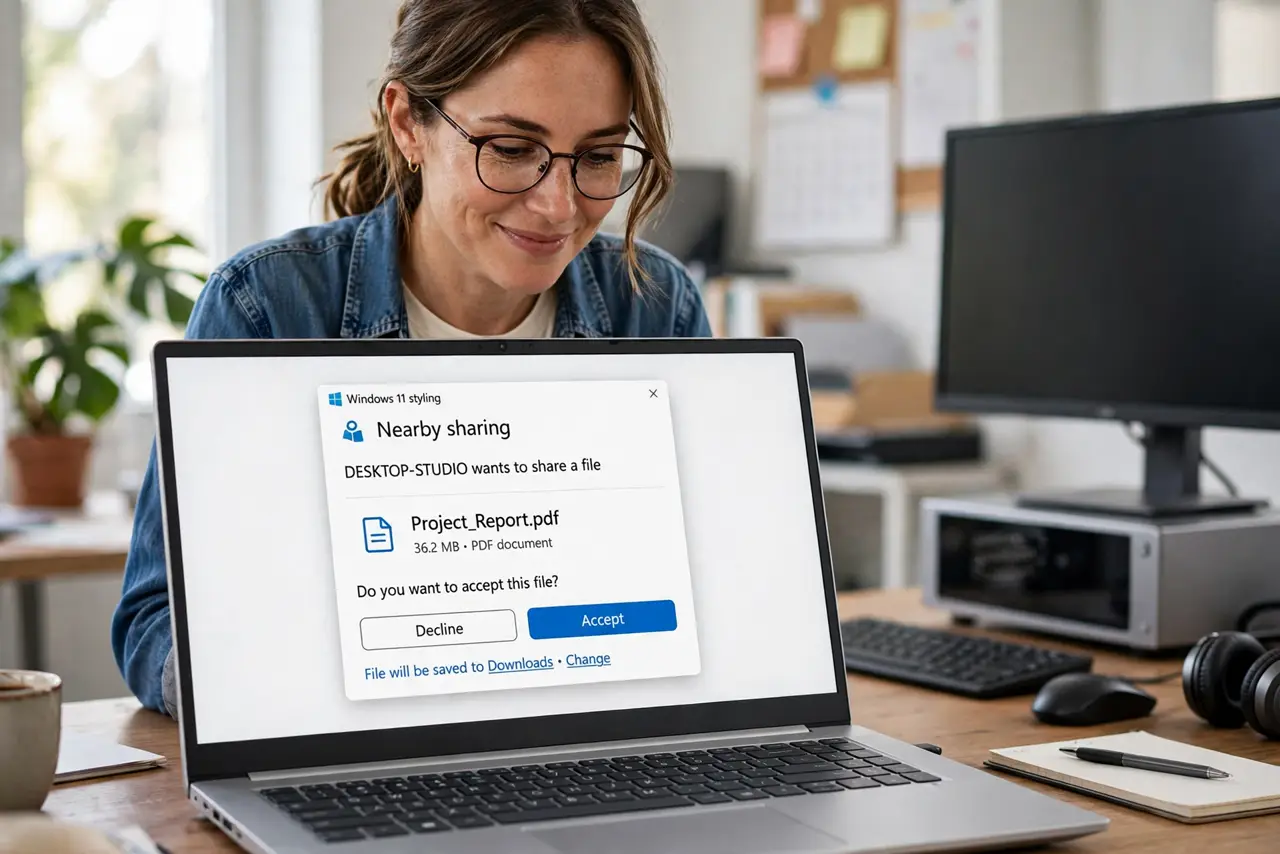
- Right-click and Share. Right-click any file, choose Share, and pick the target PC from the list. Accept the prompt on the receiving PC.
- Check the save location. Received files land in Downloads by default. You can change the destination in the Nearby sharing settings.
- Troubleshoot invisibility. If a PC does not appear, toggle Bluetooth off and on, move the PCs closer, and confirm both run Windows 10 or newer — Android's version has its own discovery quirks.
What NOT to do
- Do not use Everyone nearby in public. Strangers could beam you files — keep it to your devices on public networks.
- Do not expect it to work with the PCs far apart. This is a same-room feature, not an across-the-house one.
- Do not forget the receiving PC must accept. Files do not arrive silently — someone taps accept on the other end.
- Do not use it for huge multi-gigabyte transfers. It works, but a USB drive or wired transfer is faster for big jobs.
Frequently asked questions
Does Nearby Sharing work with phones?
Windows-to-Windows only. For phone transfers, use your phone's own sharing or a cloud service.
Why can't the other PC see mine?
Bluetooth off, Wi-Fi off, PCs too far apart, or mismatched visibility settings — check all four.
Is it the same as AirDrop?
Conceptually yes — local wireless file sharing. Technically different, and the two do not interoperate.