Notification Center Won't Open on Windows
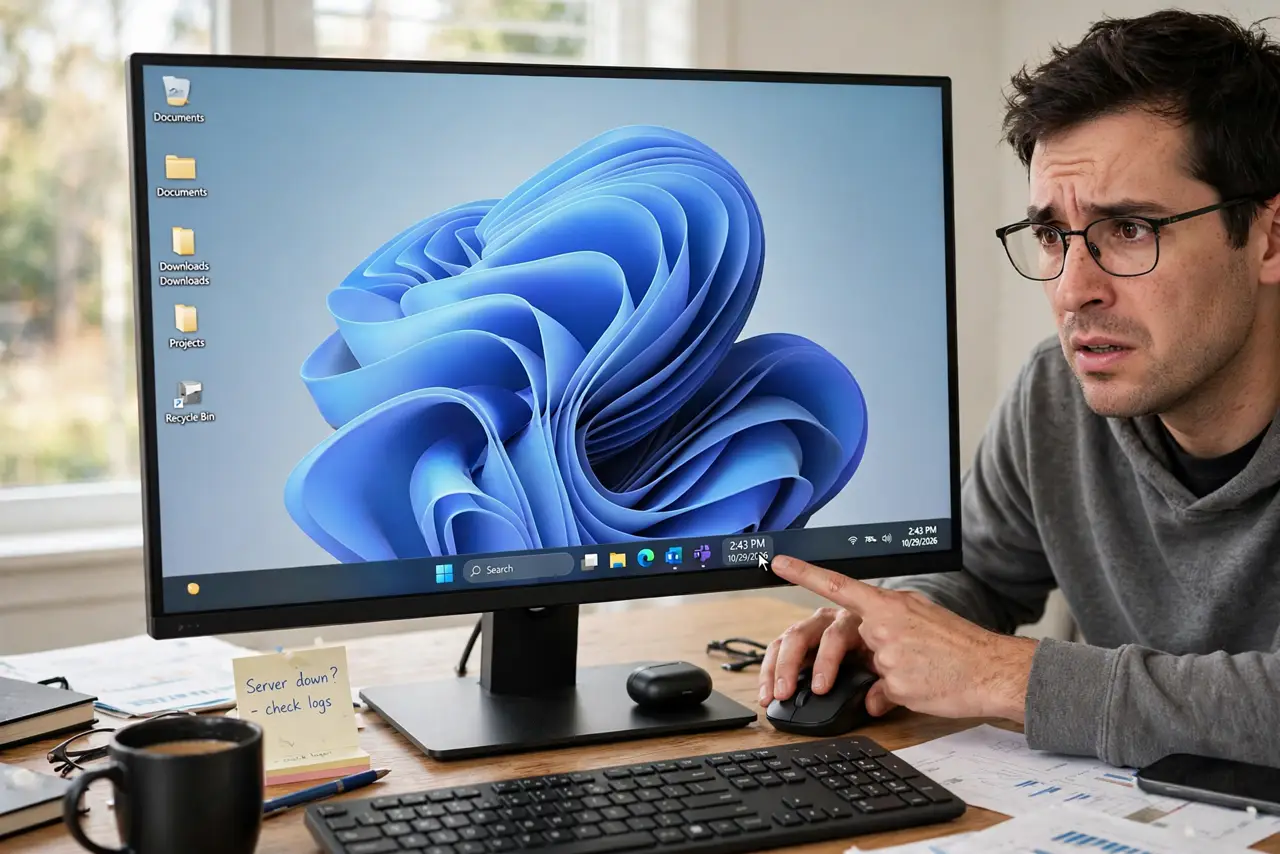
Clicking the clock or pressing Win+N does nothing — the notification center and calendar simply refuse to open. The flyout is drawn by Explorer, so a stuck Explorer process is the usual suspect, with Do Not Disturb settings as the runner-up. This is the reverse of getting too many notifications, covered in the stop notifications guide.
TL;DR / Quick Fix
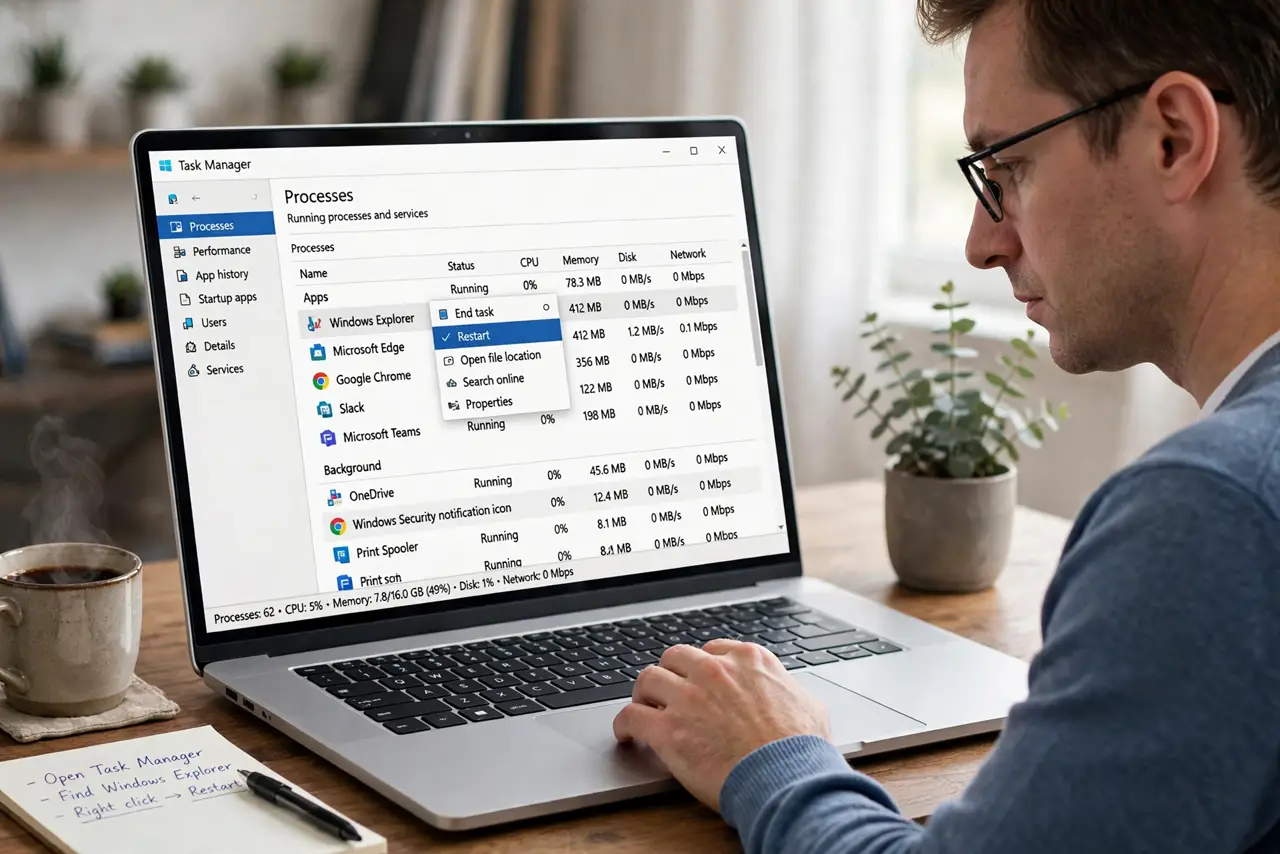
Quick fix: restart the Explorer process, which draws the notification flyout, then click the clock again. If it still will not open, check that Do Not Disturb is not suppressing the panel and run the system file checker to repair damaged shell files. The flyout returns once Explorer is healthy.
Follow these steps
- Restart the Explorer process. Open Task Manager, find Windows Explorer, and restart it. The notification flyout is part of Explorer's shell, and a stuck shell is the most common cause.
- Click the clock again and test Win+N. After the restart, click the date-time area and also try the Win+N shortcut. If either opens the panel, the stuck process was the whole problem.
- Check Do Not Disturb settings. Open notification settings and look at Do Not Disturb. An aggressive focus schedule can suppress the panel's behavior, so turn it off temporarily as a test.
- Run the system file checker. Open a terminal as administrator and run the system file checker. It repairs corrupted Windows shell files that can silently break flyouts like this one.
- Check for a pending restart. If Windows has updates waiting for a reboot, shell components can misbehave until you restart. Install the pending updates and reboot properly.
- Test on a fresh user profile. If the panel opens fine on a new profile, your main profile's shell state is damaged. Migrating to the fresh profile is cleaner than chasing the corruption.
What NOT to do
- Do not reinstall Windows for a stuck flyout. A restart of Explorer or a file repair fixes this in minutes.
- Do not disable notifications hoping the panel returns. The panel and the notification stream are related but separate; muting everything does not unstick the flyout.
- Do not run random shell-repair scripts. The built-in system file checker is the safe repair tool; mystery scripts can make shell damage worse.
- Do not ignore a pattern across flyouts. If the Start menu and quick settings also misbehave, the shell itself needs repair, not just the notification panel.
Frequently asked questions
Why does clicking the clock do nothing?
Because the click is handled by Explorer's shell, and when that process hangs, the flyout never draws even though the clock keeps working.
Is this the same as Do Not Disturb?
No. Do Not Disturb hides notification banners; a broken flyout means the whole panel, calendar included, will not open at all.
Will restarting Explorer close my programs?
No. Restarting the Explorer process only redraws the taskbar and desktop; your open apps keep running.