Silence Notifications for One App
One app dings like a slot machine while the rest behave. You don't want to mute the whole PC, and you don't want to block the app — you just want that one sound gone. Windows lets you silence notifications per app while keeping its banners.
TL;DR / Quick Fix
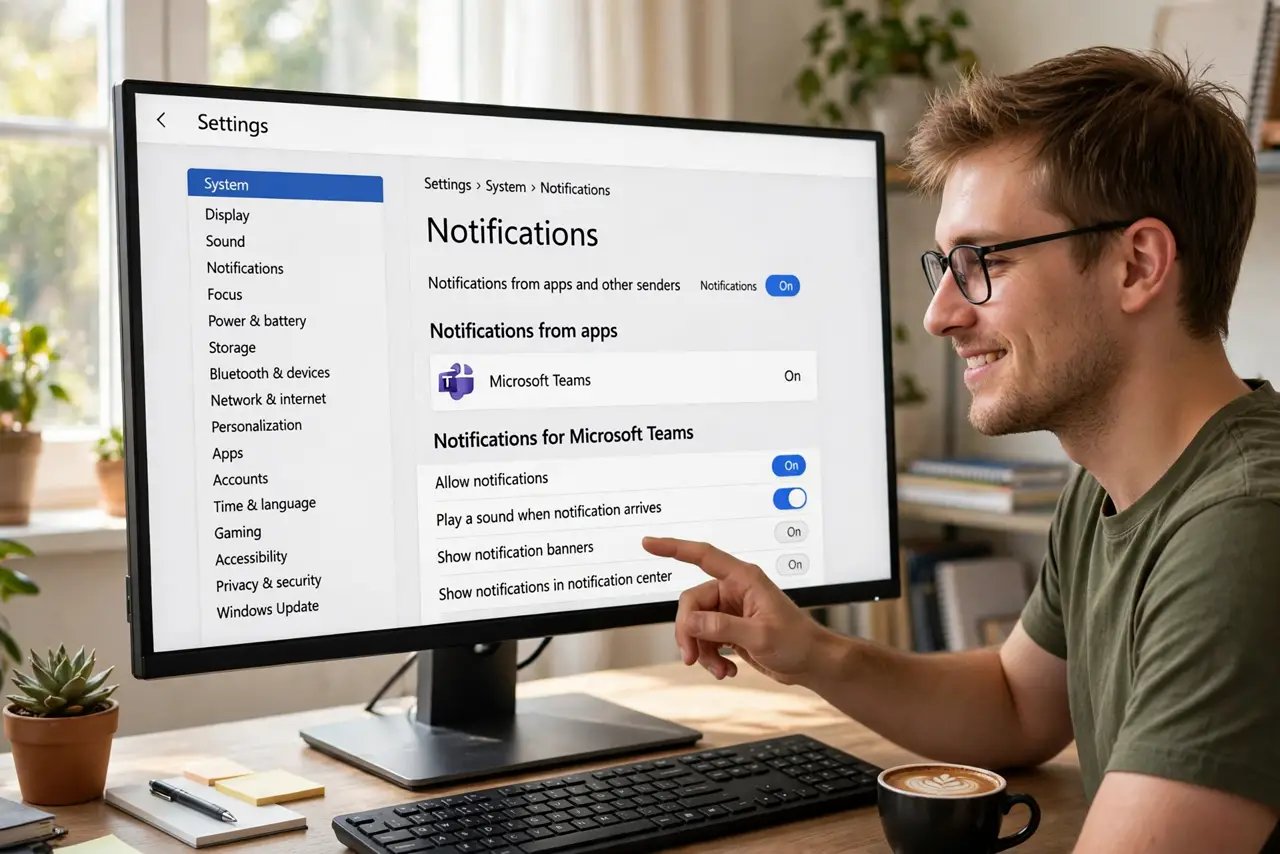
Open Settings > System > Notifications, click the noisy app, and turn off 'Play a sound when a notification arrives' — banners keep working silently. This beats muting the whole PC or blocking the app entirely. The app still badges and lists in Notification Center; only the ding is gone.
Follow these steps
- Open Notifications settings. Press Win + I and go to System > Notifications.
- Click the noisy app. Scroll to the app list and click the offender — each app has its own notification page.
- Turn off its sound. Uncheck 'Play a sound when a notification arrives'. Banners, badges, and Notification Center entries keep working silently.
- Keep the banners if you want them. This change kills only the ding. If the banners annoy too, that's the separate banners switch.
- Check the app's own settings too. Some apps play sounds independently of Windows notifications. If the ding persists, look inside the app's own notification options.
- Test with a real notification. Trigger the app once — send yourself a message — and confirm silence with visibility.
What NOT to do
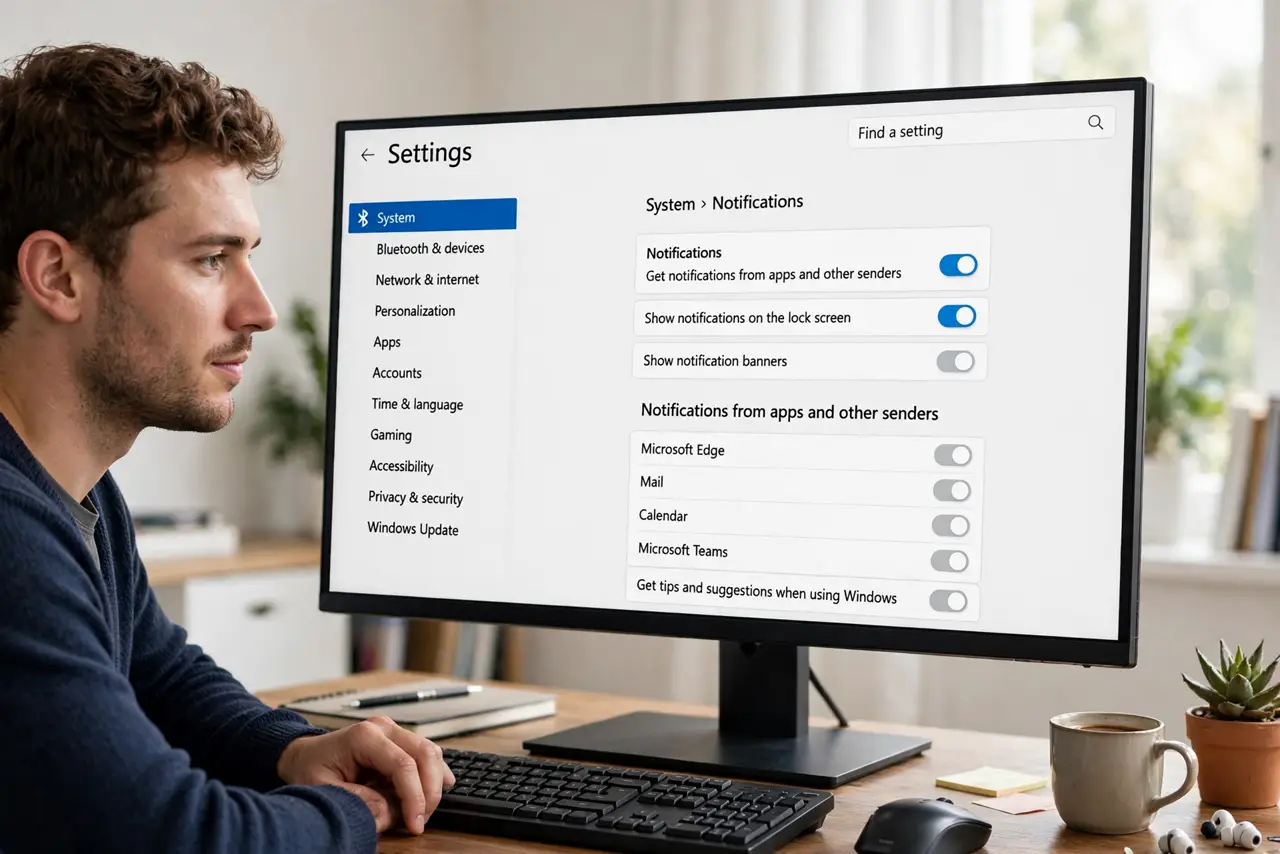
- Do not mute the whole PC for one app. System volume is a sledgehammer; the per-app switch is the scalpel.
- Do not block the app entirely. Turning off all its notifications loses the banners too — sound-only is the gentler fix.
- Do not forget the in-app sounds. Windows can't silence sounds the app plays itself, outside the notification system.
- Do not confuse notification sound with media volume. The mixer controls apps' audio; this toggle controls their notification dings.
Frequently asked questions
Can I change the notification sound instead of silencing it?
Not per app — Windows offers one system notification sound. Third-party tools can remap it, but that's beyond the built-in options.
Why does the app still make sound after I turned it off?
The app is likely playing its own in-app sound, not a Windows notification. Check the app's internal settings.
Does this affect the notification banner?
No. Banners, badges, and the Notification Center list are untouched — only the sound goes quiet.