Get the Old Right-Click Menu
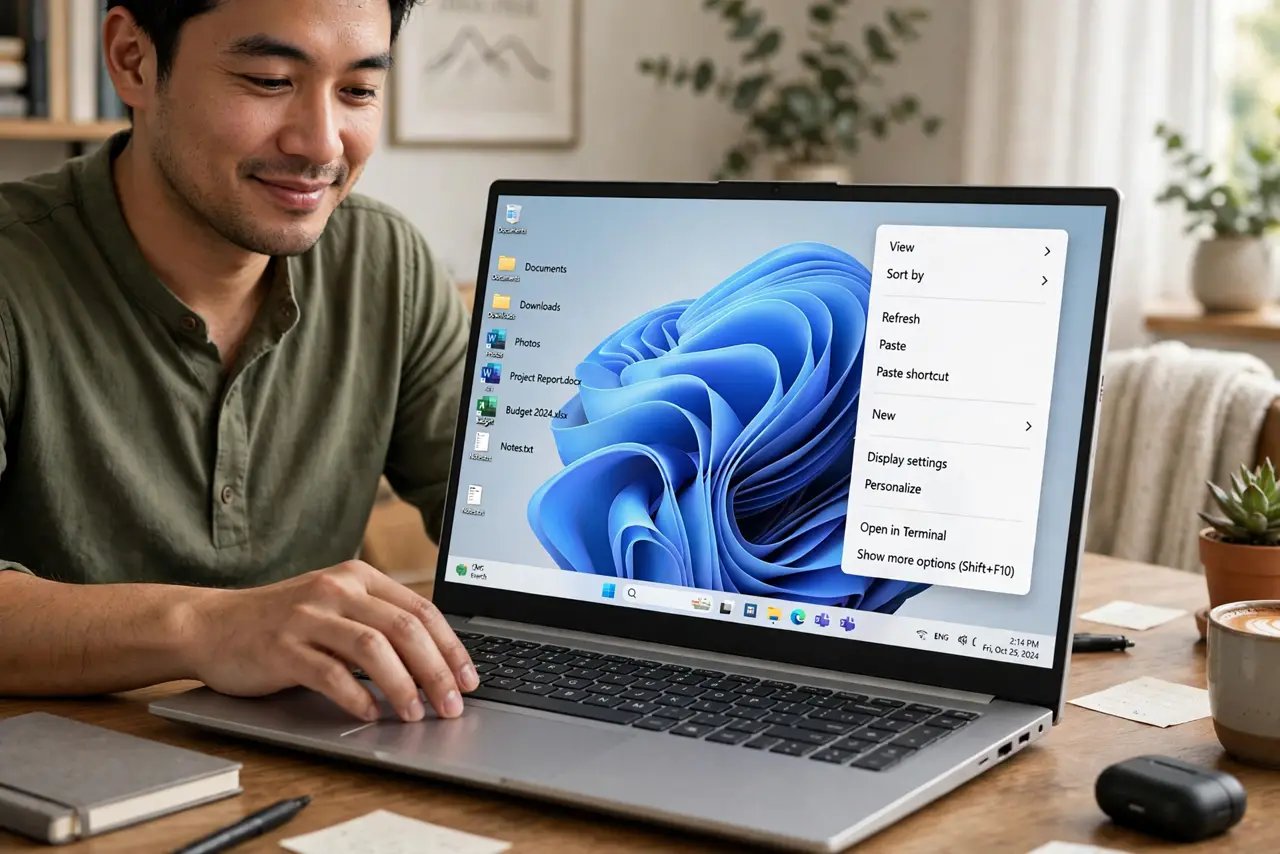
Windows 11 replaced the classic right-click menu with a compact new one — and your favorite options vanished behind 'Show more options.' Two extra clicks, hundreds of times a day. You can get the full classic menu back: instantly per-click with a shortcut, or permanently with a setting. Here is both ways.
TL;DR / Quick Fix
Quick fix: to restore the classic right-click menu in Windows 11, right-click and choose 'Show more options' — or hold Shift while right-clicking to skip straight to it. For the old menu everywhere, a registry edit exists, but the Shift shortcut gives you the classic menu with zero risk.
Follow these steps
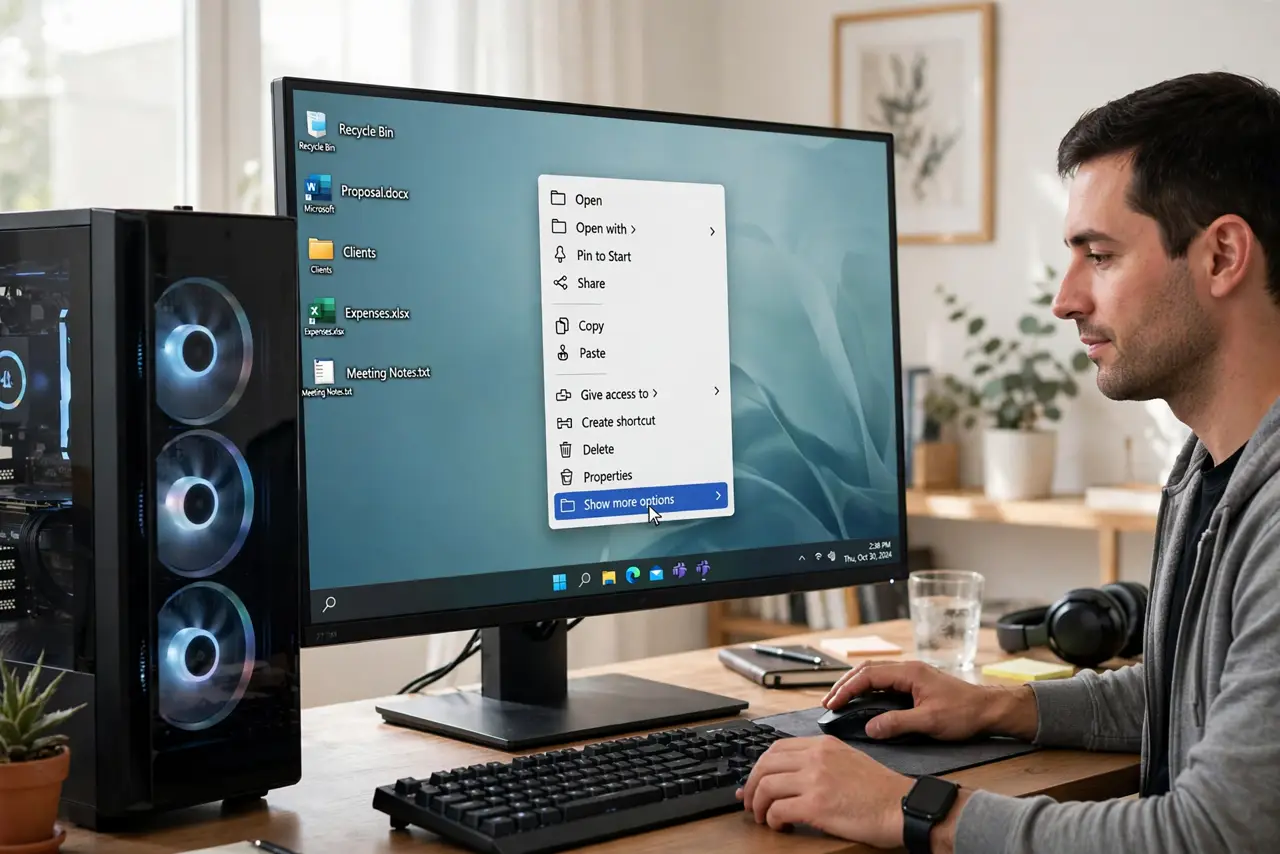
- Use 'Show more options.' Right-click anything, then click 'Show more options' at the bottom — the full classic menu appears. It is one extra click, always available, zero risk. For occasional needs, this is the whole fix.
- Hold Shift for the classic menu directly. Hold Shift while right-clicking and Windows skips the new menu entirely, showing the classic one. This is the power-user move — same muscle memory as the old days, no settings changed.
- Know why Microsoft changed it. The new menu is cleaner and touch-friendlier, but third-party tools hook into the classic one — which is why your options live behind the extra click. Understanding this helps you decide whether the permanent change is worth it.
- Consider the registry route carefully. A registry edit can restore the classic menu everywhere. It works, but registry edits carry risk and Windows updates sometimes revert them. The slow right-click fixes cover safer ground first.
- Back up before any registry change. If you go the registry route, export the key first: File > Export in regedit. A backup turns a scary edit into a reversible experiment — thirty seconds that can save an afternoon.
- Revert if updates break it. Major Windows updates occasionally reset context-menu tweaks. If the classic menu vanishes after an update, re-apply the change — or just embrace the Shift shortcut, which updates cannot take away.
What NOT to do
- Do not download 'classic menu restore' tools from random sites. Most are adware wrappers around a registry edit you can do — or skip — yourself.
- Do not edit the registry without a backup. One wrong keystroke in regedit can do real damage; exporting first is non-negotiable.
- Do not assume the new menu is missing features. Everything is still there behind 'Show more options' — the classic menu is a convenience, not a recovery.
- Do not fight every Windows UI change. Pick your battles — the Shift shortcut solves this one with zero maintenance forever.
Frequently asked questions
Is the Shift shortcut permanent?
Yes — it is built into Windows 11, not a hack. It works in every update and needs no setup.
Will the registry edit break my PC?
The specific well-known edit is low-risk, but any registry change deserves a backup first. When in doubt, stick with Shift+right-click.
Why do some apps still show the old menu?
Apps that have not updated to the new menu API show the classic one automatically. That is normal — not a bug, just stragglers.