The On-Screen Keyboard Pops Up Uninvited
The on-screen keyboard appearing every time you sign in, open a field, or touch the screen is distracting, and it usually comes from a startup setting, a tablet mode trigger, or an accessibility toggle left on. This guide turns those triggers off one by one. If accessibility popups are the wider problem, see the Sticky Keys popup keeps appearing.
TL;DR / Quick Fix
Quick fix: Close it and check if it returns. Check the Ease of Access startup setting. Then work through the remaining steps in order, checking one change at a time, and stop for a technician if you see damage, swelling, or a burning smell.
Follow these steps
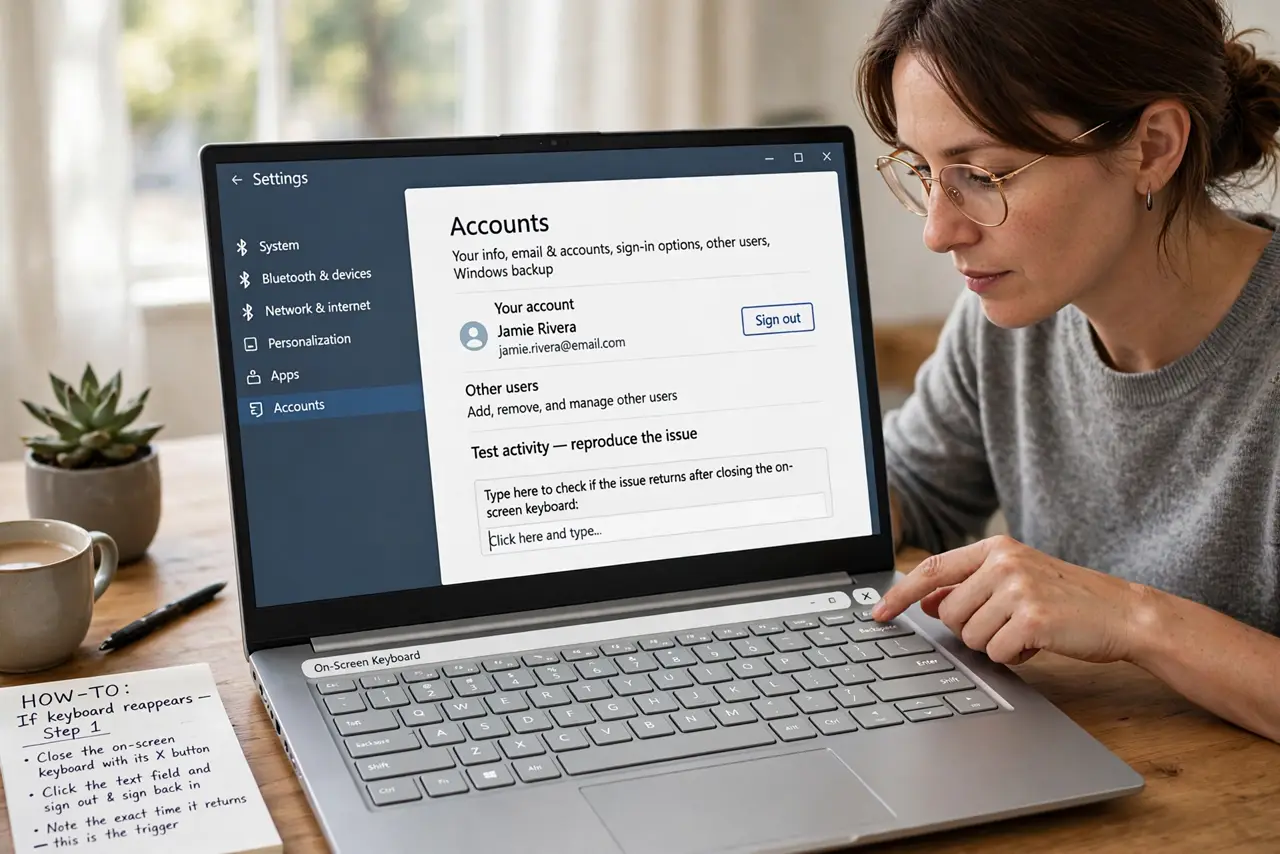
- Close it and check if it returns. Close the on-screen keyboard with its X button, then click a text field and sign out and back in. Note exactly when it returns, because the trigger tells you which setting to change.
- Check the Ease of Access startup setting. Open Settings, then Accessibility, then Keyboard, and confirm the on-screen keyboard is off. Also check Sign-in options for a setting that starts it at sign-in.
- Check tablet and touch triggers. If you have a touchscreen or a convertible laptop, check Settings, then Bluetooth and devices, then Touch, and turn off showing the touch keyboard when no physical keyboard is attached, if that is not what you want.
- Check Task Manager startup apps. Press Ctrl, Shift, and Esc for Task Manager, open Startup apps, and disable any on-screen keyboard entry. A startup entry will relaunch it at every sign-in, no matter how often you close it.
- Check the service trigger. If it still appears, open Services from Start search, find Touch Keyboard and Handwriting Panel Service, and confirm it is set to Manual, not Automatic. Manual means it runs only when asked.
- Restart and test the trigger. Restart Windows and repeat the exact action that used to summon the keyboard. If it stays away, the trigger is fixed, and if it returns, note the action for support.
What NOT to do
- Do not disable the keyboard service entirely without a note. Setting it to Manual is safer, so you can still open the keyboard when you need it.
- Do not install a keyboard blocker app. Built-in accessibility and startup settings already control when the keyboard appears.
- Do not turn off touch support to fix this. Touch and the on-screen keyboard are separate, and losing touch hurts tablet use.
- Do not assume malware summons the keyboard. Accessibility and startup triggers cause this in almost every case, so check settings first.
Frequently asked questions
Can I still open the on-screen keyboard when I need it?
Yes. Open it from Start search or the accessibility menu any time, even with automatic triggers off.
Why does it appear only on the sign-in screen?
A sign-in accessibility setting starts it there. Turn that setting off while keeping the normal keyboard available after sign-in.
Does a touchscreen force the keyboard open?
Only if the touch keyboard setting says so. With that setting off, tapping a field on a touchscreen need not summon it.