Choose What OneDrive Syncs
OneDrive wants to sync everything — your entire Documents folder, years of photos, that 40 GB video project — and suddenly your laptop's drive is full of files you never open on this machine. Selective sync fixes it: you choose which folders actually download, while everything stays safe in the cloud. This guide picks the right folders per device, frees space instantly, and keeps the important stuff available offline. If the cloud is full too, see what to do when OneDrive is full.
TL;DR / Quick Fix
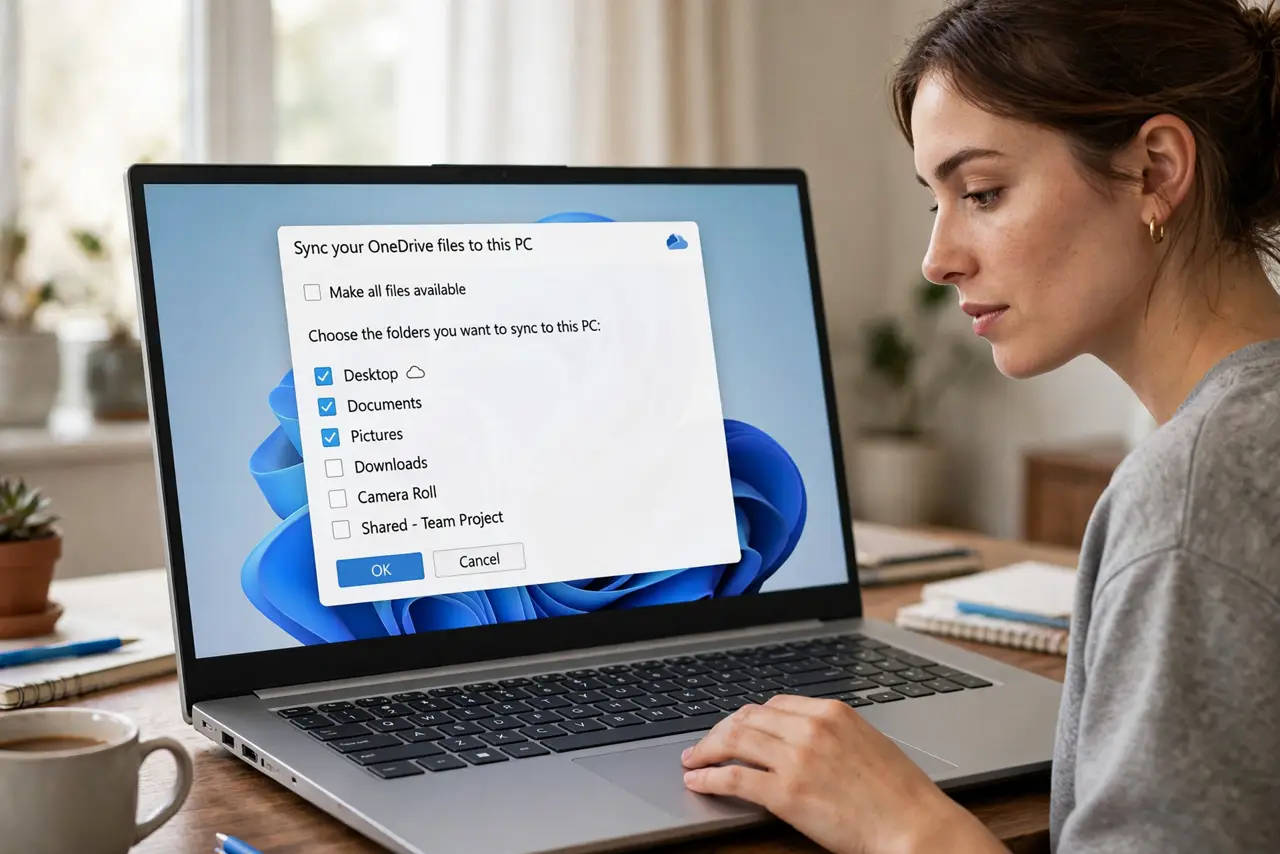
Quick fix: click the OneDrive cloud icon, open Settings, then Account and Choose folders to pick exactly what syncs to this PC. Unchecked folders stay in the cloud, freeing disk space immediately. Keep current projects checked for offline access; archive the rest to cloud-only.
Follow these steps
- Open OneDrive settings. Click the OneDrive cloud icon in the taskbar corner, then the gear icon and Settings. The Account tab holds the Choose folders button — the master switch for this PC.
- Choose which folders sync. Click Choose folders and uncheck everything you do not need locally — old photo archives, completed projects, shared folders you rarely open. Click OK and OneDrive removes the local copies.
- Understand what unchecking does. Unchecked folders leave your PC but stay in OneDrive online, safe and retrievable. Nothing is deleted from the cloud — this is a local space decision, not a deletion.
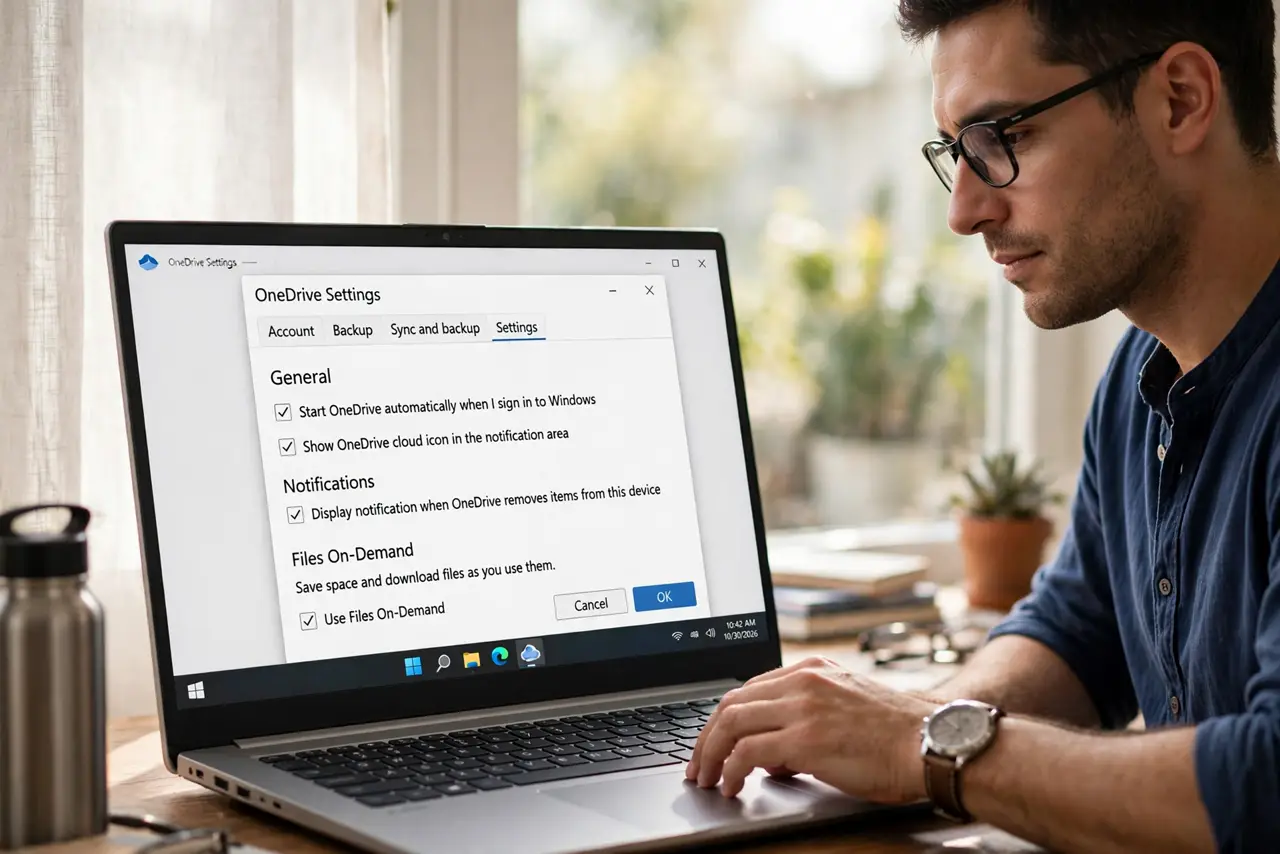
- Use Files On-Demand for the middle ground. In Settings, keep Files On-Demand on. Synced files then show as placeholders until opened, using almost no space while staying one click away — the best of both worlds.
- Set key folders to Always available. Right-click your active project folders in File Explorer and choose Always keep on this device. Current work stays offline-proof; everything else can be cloud-only.
- Repeat per device. Selective sync is per PC, not per account. Set it on each machine — the desktop can sync everything while the small laptop stays lean.
What NOT to do
- Do not uncheck folders to 'delete' them from OneDrive. Unchecking only removes the local copy; the cloud copy remains and still counts toward storage.
- Do not turn off Files On-Demand to fix confusion. It is the feature that makes selective sync painless — placeholders, not full downloads.
- Do not sync the entire photo library to a small drive. That is the number one way laptops fill up; keep archives cloud-only.
- Do not forget which folders are cloud-only before a flight. Open what you will need once beforehand so it downloads while you have Wi-Fi.
Frequently asked questions
Will I lose files if I uncheck a folder?
No. The files stay in OneDrive online. You can re-check the folder anytime or grab individual files from the OneDrive website.
Why is OneDrive still using space after unchecking?
Give it time to process, and check for files marked Always keep on this device — those stay local regardless of folder choices.
Can I choose individual files, not just folders?
Folder-level for syncing, but Files On-Demand handles individual files: right-click any file and free up space to make it cloud-only.