OneDrive Full?
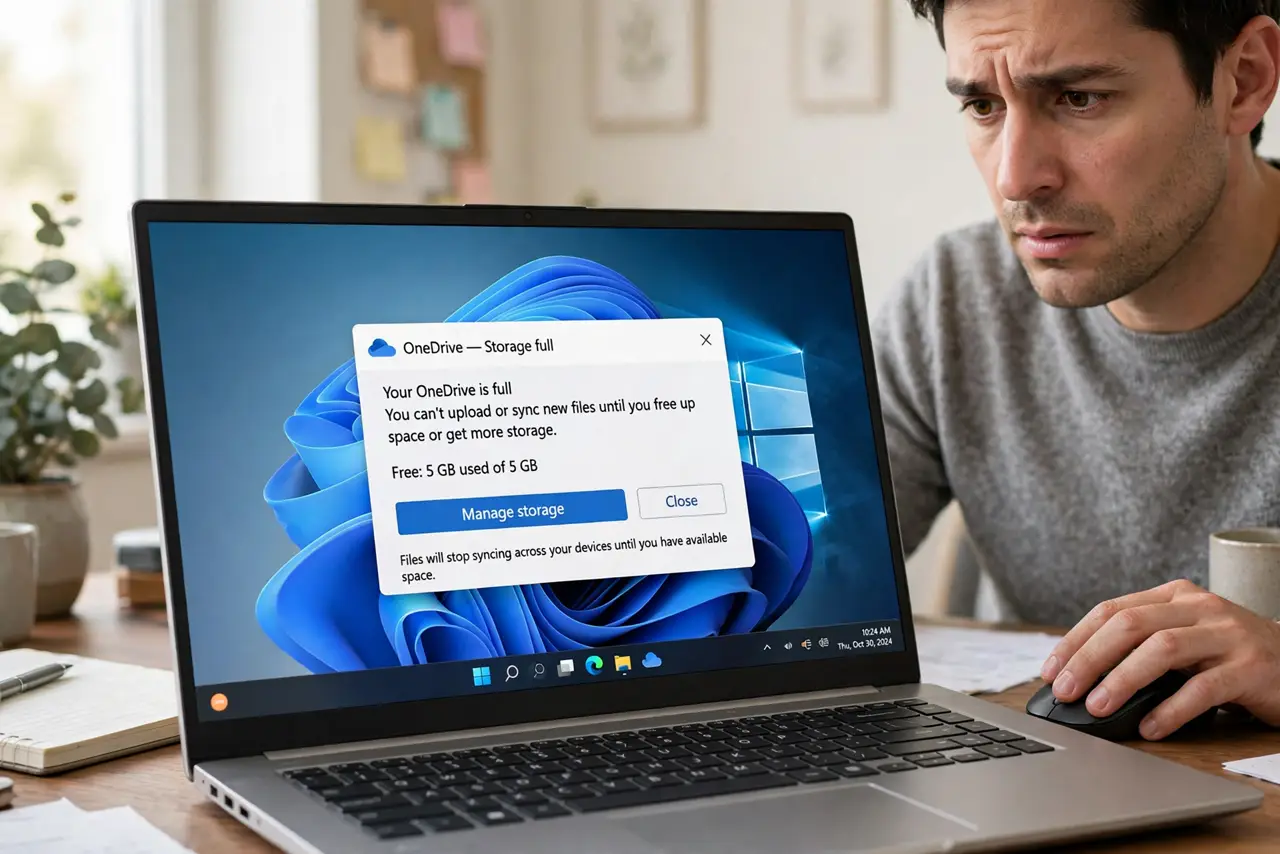
OneDrive announces it is full, syncing stops, and your files sit in limbo — usually right when you need them. The 5 GB free tier fills fast with photos and documents, and the fix is part cleanup, part decision about what deserves cloud space. This guide finds what is eating the storage, clears the safe wins, and helps you decide between trimming and upgrading. To stop the flood at the source, choose what syncs per device.
TL;DR / Quick Fix
Quick fix: open OneDrive storage settings to see what fills it — usually photos and large videos. Empty the OneDrive recycle bin, move archives to an external drive, and use selective sync so bulky folders stay cloud-only. Upgrade the plan only after trimming what you do not need synced.
Follow these steps
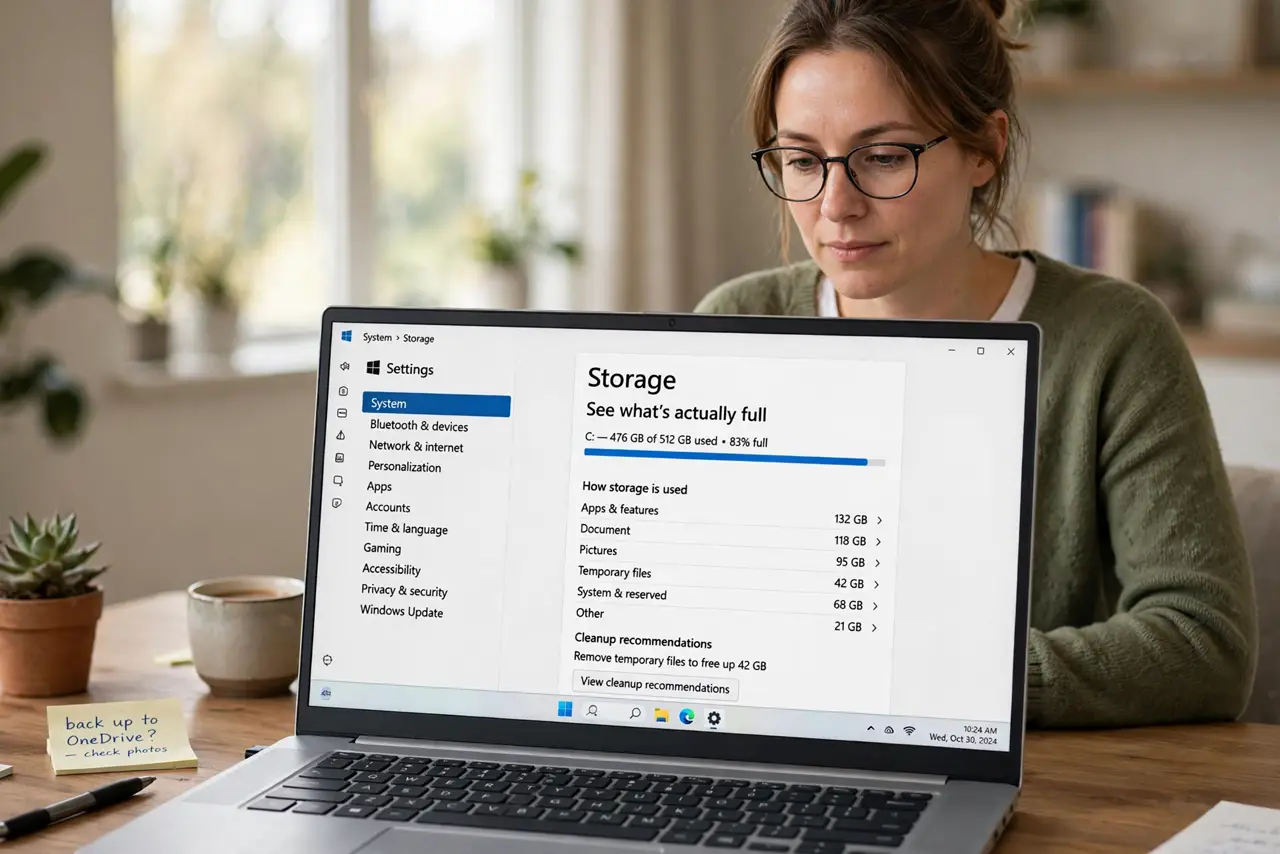
- See what is actually full. Click the OneDrive cloud icon, then Settings, then Account and Manage storage. The breakdown shows exactly which files and folders eat the space — usually camera uploads and big videos.
- Empty the OneDrive recycle bin. Deleted files sit in the OneDrive recycle bin counting against your quota for 30 days. Empty it from the OneDrive website — this alone often frees gigabytes.
- Move archives off the cloud. Old projects, downloaded installers, and duplicate photo exports do not need cloud sync. Move them to an external drive, then delete from OneDrive to reclaim the space.
- Turn off camera upload duplicates. If both your phone gallery app and OneDrive back up photos, you may store everything twice. Pick one backup home for photos and disable the other.
- Use selective sync aggressively. Uncheck bulky folders per device with selective sync so archives stay cloud-only. This frees local disk too — a double win.
- Decide: trim or upgrade. If the remaining files genuinely need syncing everywhere, a paid plan is reasonable. But upgrade after cleanup, not before — paying to store duplicates is the worst option.
What NOT to do
- Do not delete files from the synced folder expecting the cloud copy to stay. Deleting locally deletes from OneDrive too — move, do not delete.
- Do not ignore the full warning for weeks. When sync stops, your devices quietly diverge and 'which version is current' becomes a mess.
- Do not pay for storage before emptying the recycle bin. The cheapest gigabytes are the deleted ones still counting against you.
- Do not store your only copy of anything in OneDrive. Sync is not backup — ransomware or accidental deletion propagates everywhere.
Frequently asked questions
Why is OneDrive full when my hard drive is not?
OneDrive quota is separate from disk space — 5 GB free in the cloud regardless of your terabyte drive. The cloud fills first.
Does emptying the recycle bin delete files forever?
From OneDrive, yes, after confirmation. Make sure anything you empty is truly unwanted or stored elsewhere first.
Can I get more free storage?
Microsoft occasionally offers bonuses, but the reliable paths are cleanup or a paid plan. Third-party 'free storage' offers are usually scams.