Optional Features? Add or Remove
Buried in Windows Settings is a list of components you can add or remove — language packs, media features, virtual machine tools, legacy utilities. Most people never open it, but it's where missing features get installed and bloat gets uninstalled. Knowing it exists saves you from sketchy downloads for things Windows already includes.
TL;DR / Quick Fix
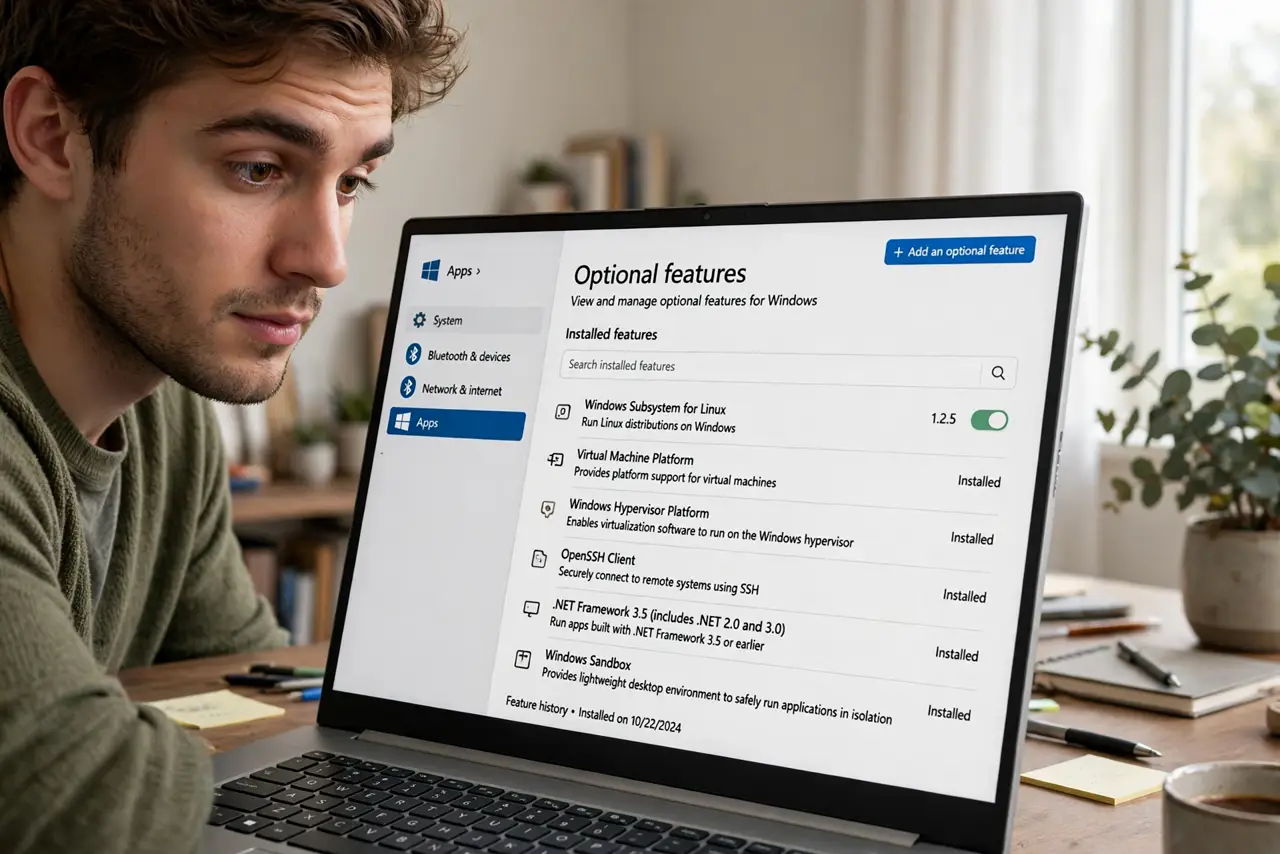
Quick fix: go to Settings, System, Optional features to see what's installed. To add something (like the wireless display feature), click View features and install it. To remove bloat, select a feature and uninstall. Everything here comes from Microsoft — no downloads from random sites needed.
Follow these steps
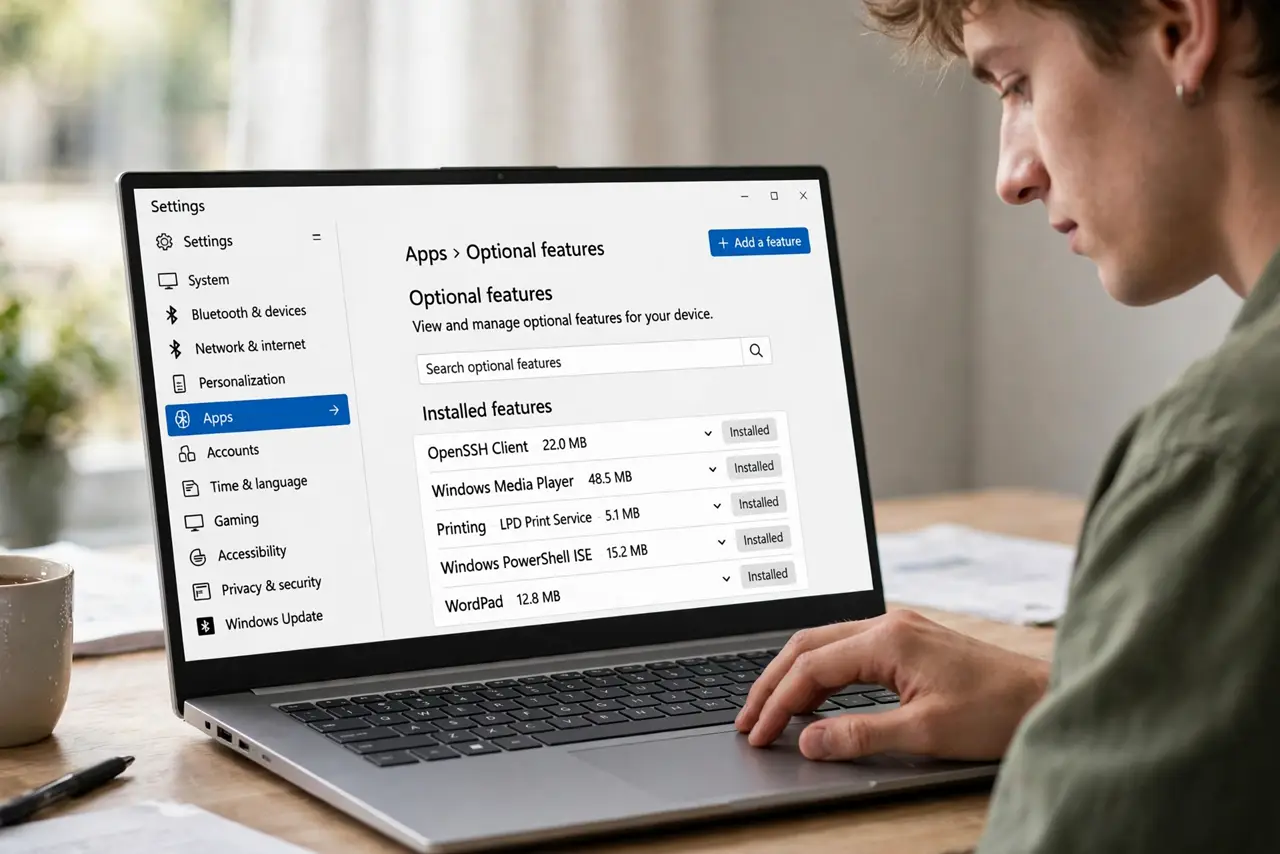
- Open Optional features. Settings, System, Optional features — the list shows every add-on component and its size. It's the official catalog of Windows extras most people don't know exists.
- Add a missing feature. Click View features, search for what you need — wireless display, media features, language packs — check it and install. Windows fetches it from Microsoft directly, no third-party download.
- Remove what you don't use. Select an installed feature you never touch and uninstall it. This frees a little space and reduces attack surface — safe, since you can reinstall anytime.
- Know the big ones. Hyper-V and Windows Subsystem for Linux live here (or in Windows Features) — the virtualization tools developers want. Media Feature Pack fixes the 'missing codec' errors on some editions.
- Use Windows Features for deeper tools. The older Turn Windows features on or off dialog (still in Control Panel) holds heavier components like Hyper-V and .NET versions. Optional features is the modern front; that dialog is the basement.
- Don't remove blindly. If you don't know what a feature does, leave it — most are tiny. Remove only the obvious: languages you don't read, tools you recognize as unused.
What NOT to do
- Do not download features from third-party sites. If Windows offers it in Optional features, that's the safe source — random downloads bundle malware.
- Do not remove features mid-project. Uninstalling a media pack while editing video, or a language pack while traveling, creates problems at the worst moment.
- Do not assume removing features speeds up Windows. Most are dormant when unused — removal saves disk space, not meaningful performance.
- Do not ignore the View features search. Scrolling the full list is slow; search finds the feature by name instantly.
Frequently asked questions
Where is Hyper-V?
It's in the Windows Features dialog (Turn Windows features on or off), not the modern Optional features page — and it needs Windows Pro or higher.
Why is my feature not listed?
Some features need specific Windows editions or updates. Check your edition in Settings, System, About, and run Windows Update first.
Can I break Windows removing these?
Very unlikely — these are optional components by design. Windows won't let you remove anything critical from this list.