Install Optional Driver Updates
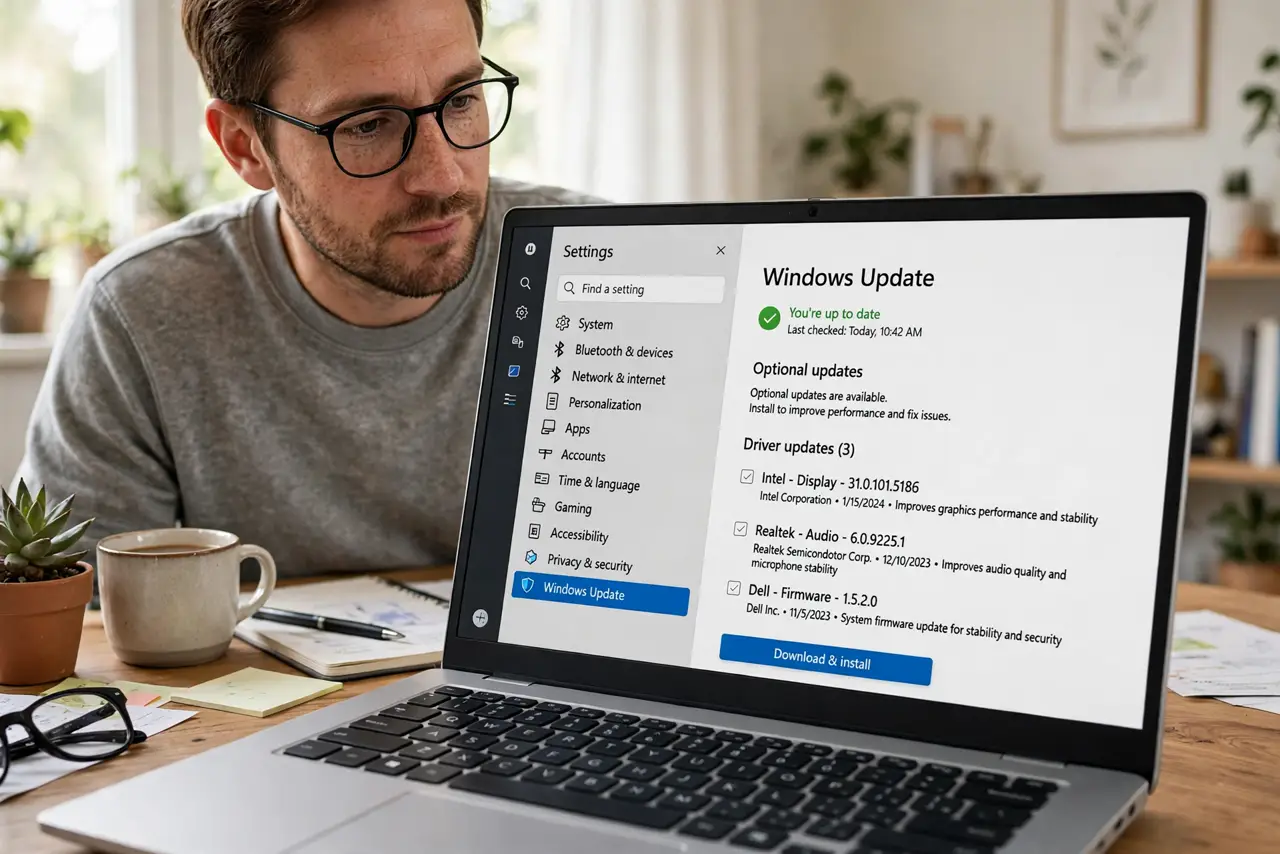
Windows Update shows a section called Optional updates, full of driver updates with cryptic names, and nobody tells you whether to touch them. Most are safe and occasionally fix real hardware quirks — but installing them blindly is how people break working setups. Here is the measured approach.
TL;DR / Quick Fix
Quick fix: check Optional updates when a device misbehaves — a newer driver there sometimes fixes it. If everything works, leave them alone; 'optional' means optional. Install one at a time so you know which change helped or hurt. Create a restore point first.
Follow these steps
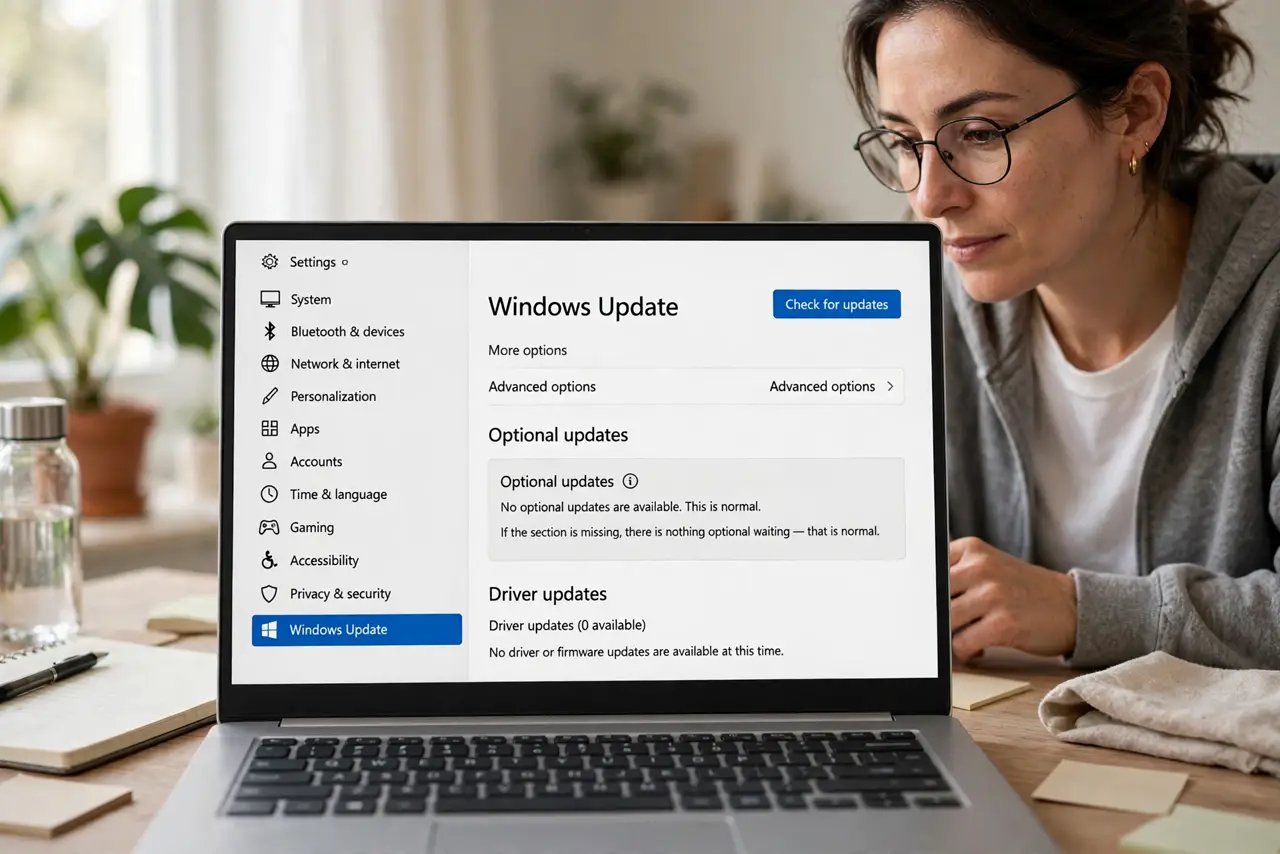
- Find the Optional updates section. Go to Settings > Windows Update > Advanced options > Optional updates. If the section is missing, there is nothing optional waiting — that is normal.
- Read what each update targets. Entries name the hardware — Bluetooth, display, network. If none matches a device you use, there is nothing for you here.
- Only install to fix a problem. Working hardware does not need new drivers. Optional updates earn their keep when something misbehaves — a flaky Wi-Fi card, a glitchy printer.
- Create a restore point first. One click in System Protection gives you an undo button. Driver updates are exactly the kind of change restore points exist for.
- Install one at a time. Pick one driver, install, reboot, and test. Batch-installing five drivers means guessing which one broke things — and optional updates can hide in odd places after major updates.
- Roll back if things worsen. Device Manager lets you roll back a driver to the previous version. If the new driver misbehaves, undo it the same day.
What NOT to do
- Do not install every optional driver just in case. Working drivers are not improved by being newer.
- Do not batch-install multiple drivers at once. One change at a time is how you stay in control.
- Do not skip the restore point. It takes a minute and saves hours when a driver misbehaves.
- Do not confuse optional with important. Optional updates never install themselves — nothing bad happens if you ignore them.
Frequently asked questions
Are optional updates safe?
Generally yes — they come from Microsoft's catalog. But safe and necessary differ; install them to fix issues, not on principle.
Why is Optional updates missing?
There are no pending optional updates for your hardware. It appears only when something is actually available.
Can a driver update break my PC?
Rarely badly, occasionally annoyingly — a device may glitch until you roll back. The blue screen after a driver update guide covers the worst case.