Remove Backgrounds in Paint
Product photos with messy backgrounds look amateur, and you do not need Photoshop to fix them. The new Paint removes backgrounds in one click and lets you touch up the edges. This guide takes a cluttered photo to a clean cutout in minutes.
TL;DR / Quick Fix
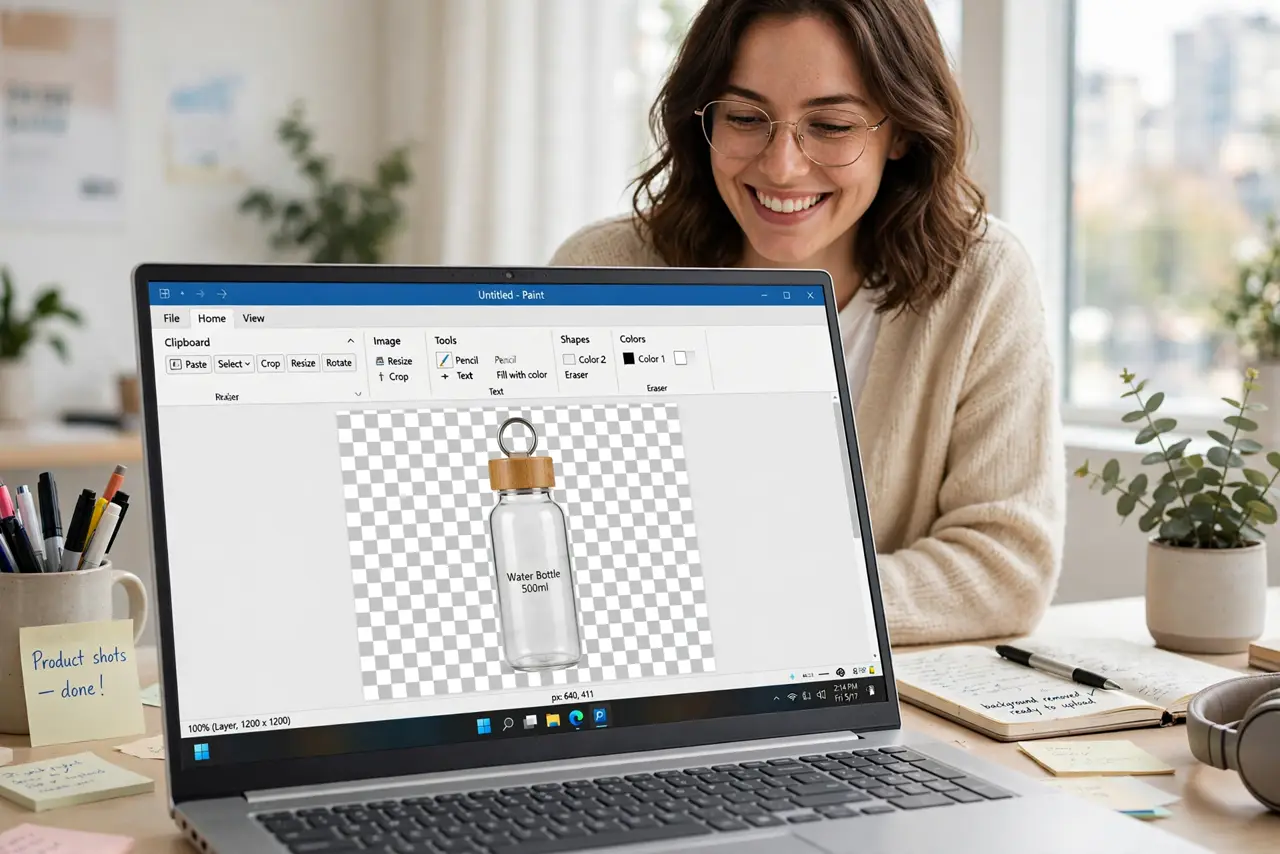
Quick fix: open the image in Paint, select the subject area, and use the background removal tool — Paint cuts the background in one click. Zoom in and touch up edges with the eraser. Save as PNG to keep the transparent background; JPEG will fill it white.
Follow these steps
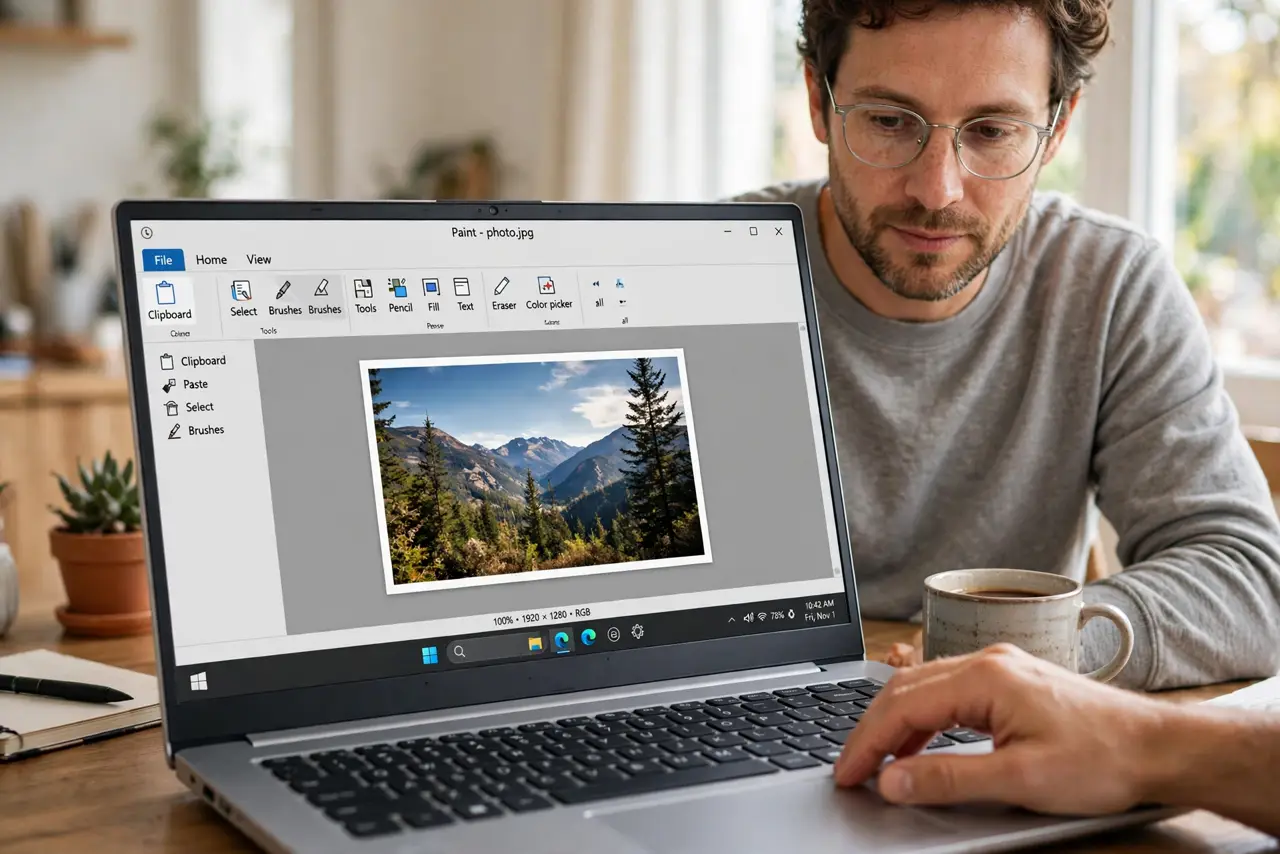
- Open the photo in Paint. Right-click the image, Open with, Paint. Work on a copy so the original stays safe if you overdo the touch-ups.
- Use the background removal tool. Select the subject area loosely, then run the background remover. Paint detects the subject and cuts the background in one pass.
- Zoom in to check the edges. Zoom to 200%+ and inspect hair, fur, and thin edges — that is where auto-removal struggles. This is the step that separates clean from sloppy.
- Touch up with the eraser. Switch to the eraser and clean stray background bits. Small brush, gentle strokes, patience.
- Refine tricky edges manually. For glass, hair, or shadows, erase conservatively — a slightly soft edge looks more natural than a harsh cutout.
- Save as PNG to keep transparency. PNG preserves the transparent background for listings and slides. Pair it with layers if you want to composite the cutout onto a new background.
What NOT to do
- Do not save the cutout as JPEG. JPEG fills transparency with white — your careful cutout work vanishes.
- Do not skip the zoom check. Edges that look fine at 25% can be ragged at full size on a product page.
- Do not expect miracles on busy backgrounds. Low contrast between subject and background defeats auto-removal — pick cleaner source photos.
- Do not overwrite the original. Save the cutout as a new file; you cannot un-remove a background.
Frequently asked questions
Where is the background remover in Paint?
In the redesigned Windows 11 Paint toolbar. Update Paint from the Microsoft Store if your version lacks it.
Why are the edges rough?
Low resolution or low contrast confuses the detection. Start with the highest-resolution photo you have.
Can I change the background color instead?
Yes — remove the background, add a new layer beneath with a solid fill, and save. That is the layers workflow.