Go Passwordless
You type passwords dozens of times a day, and every one is phishable, forgettable, and reusable. Passwordless sign-in replaces the typed password with your face, fingerprint, or PIN tied to the device — faster to use and far harder to steal. Here is how to make the switch safely.
TL;DR / Quick Fix
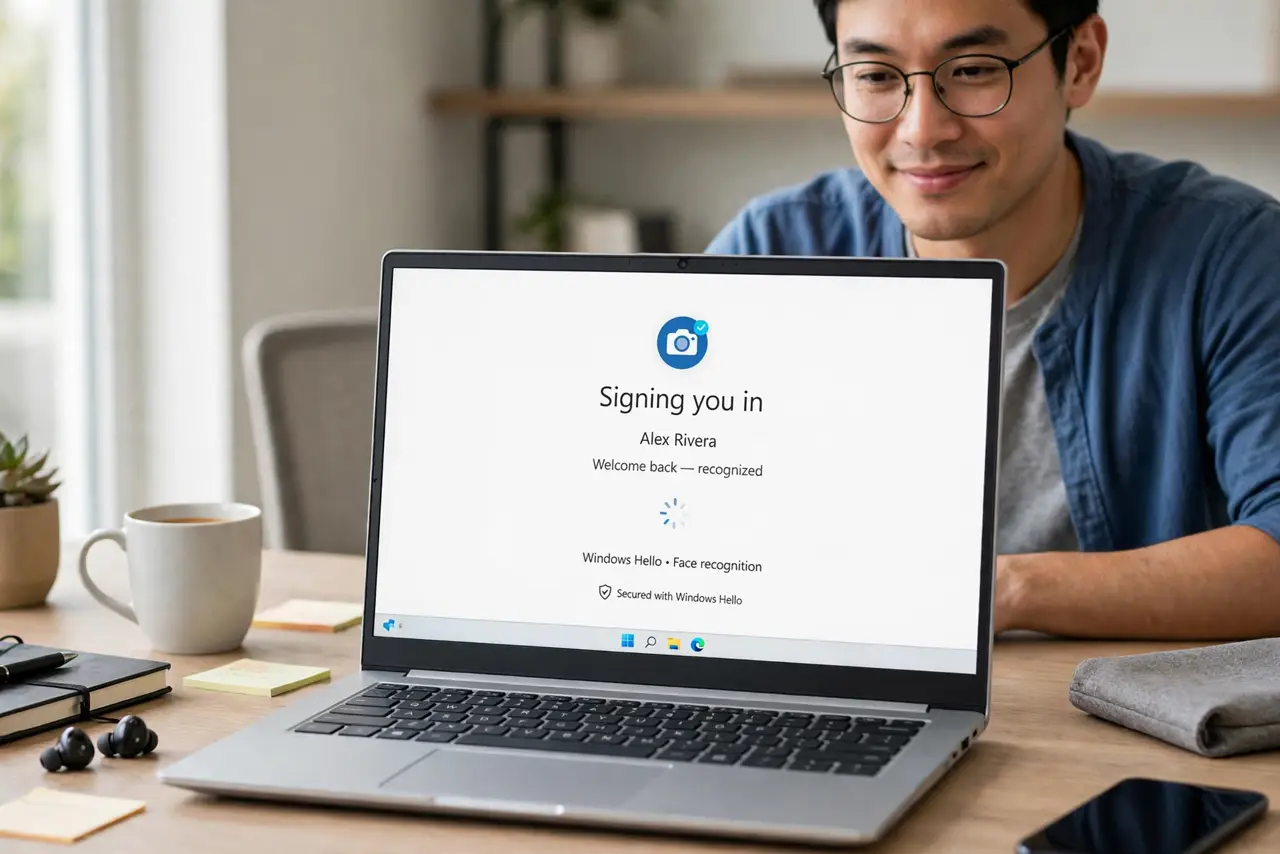
Quick fix: open Settings, Accounts, Sign-in options, and turn on passwordless sign-in for your Microsoft account. Set up Windows Hello face or fingerprint first so you have a fast unlock ready. Keep a recovery method like the authenticator app. Once passwordless, phishing your login gets dramatically harder.
Follow these steps
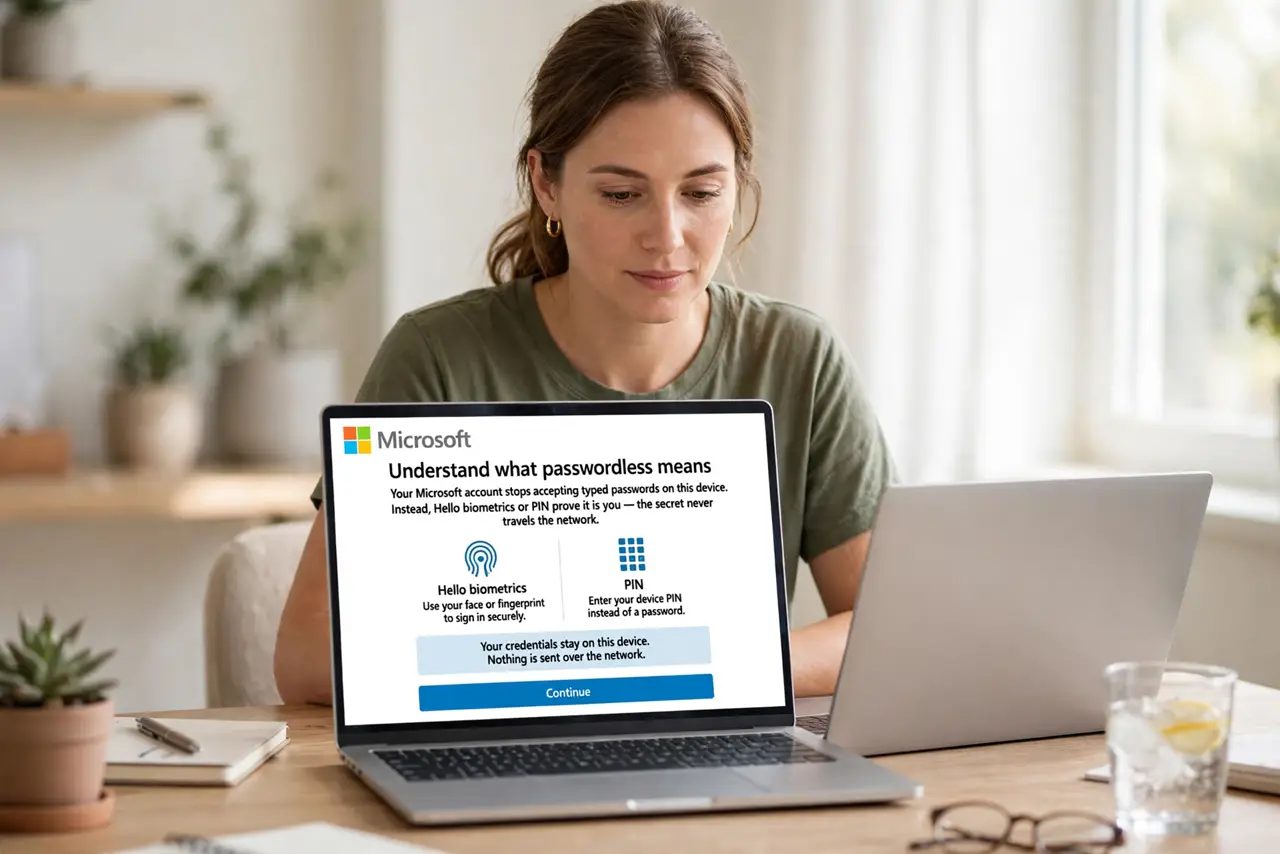
- Understand what passwordless means. Your Microsoft account stops accepting typed passwords on this device. Instead, Hello biometrics or PIN prove it is you — the secret never travels the network.
- Set up Windows Hello first. Enable face, fingerprint, or PIN in Sign-in options. Hello is the engine passwordless runs on — the Hello setup covers cameras and readers.
- Turn on passwordless for the account. In Sign-in options, enable the passwordless option for your Microsoft account. Confirm with your current credentials one last time.
- Set up the authenticator app. Install the authenticator as your recovery method. If biometrics fail while traveling, the authenticator app gets you back in.
- Test on another device. Sign in on a second device to confirm the flow works everywhere. Passwordless changes the experience on each device you enable it on.
- Keep sign-in options tidy. Review all methods afterward — the sign-in options page lists them. A clean list of working methods beats a graveyard of half-configured ones.
What NOT to do
- Do not go passwordless without a recovery method. A failed sensor with no backup is a lockout, not security.
- Do not assume it works on every site. Passwordless covers your Microsoft account; other sites need their own passkeys.
- Do not share the device casually anymore. Biometrics are personal — passwordless devices should not be shared logins.
- Do not skip the Hello PIN. It is the fallback when biometrics fail — set it before you need it.
Frequently asked questions
Is passwordless really safer?
Yes — there is no password to phish, guess, or leak. The credential is bound to your device and unlocked by you.
What if someone steals my laptop?
They still need your face, fingerprint, or PIN. A passwordless laptop without your biometrics is a brick to a thief.
Can I go back to passwords?
Yes — you can re-enable password sign-in anytime. Nothing about passwordless is one-way.