Pick Sign-In Options
Typing your full password forty times a day is a tax on your patience — and weak passwords are the result. Windows offers PIN, fingerprint, face, and passwordless sign-in, each faster than the last. Picking the right mix makes logging in instant without making it insecure.
TL;DR / Quick Fix
Quick fix: open Settings, Accounts, Sign-in options, and set up Windows Hello PIN first — it is fast and stays on your device. Add fingerprint or face if your hardware supports it. Keep your account password as the fallback. Faster sign-in means you will actually lock your PC every time.
Follow these steps
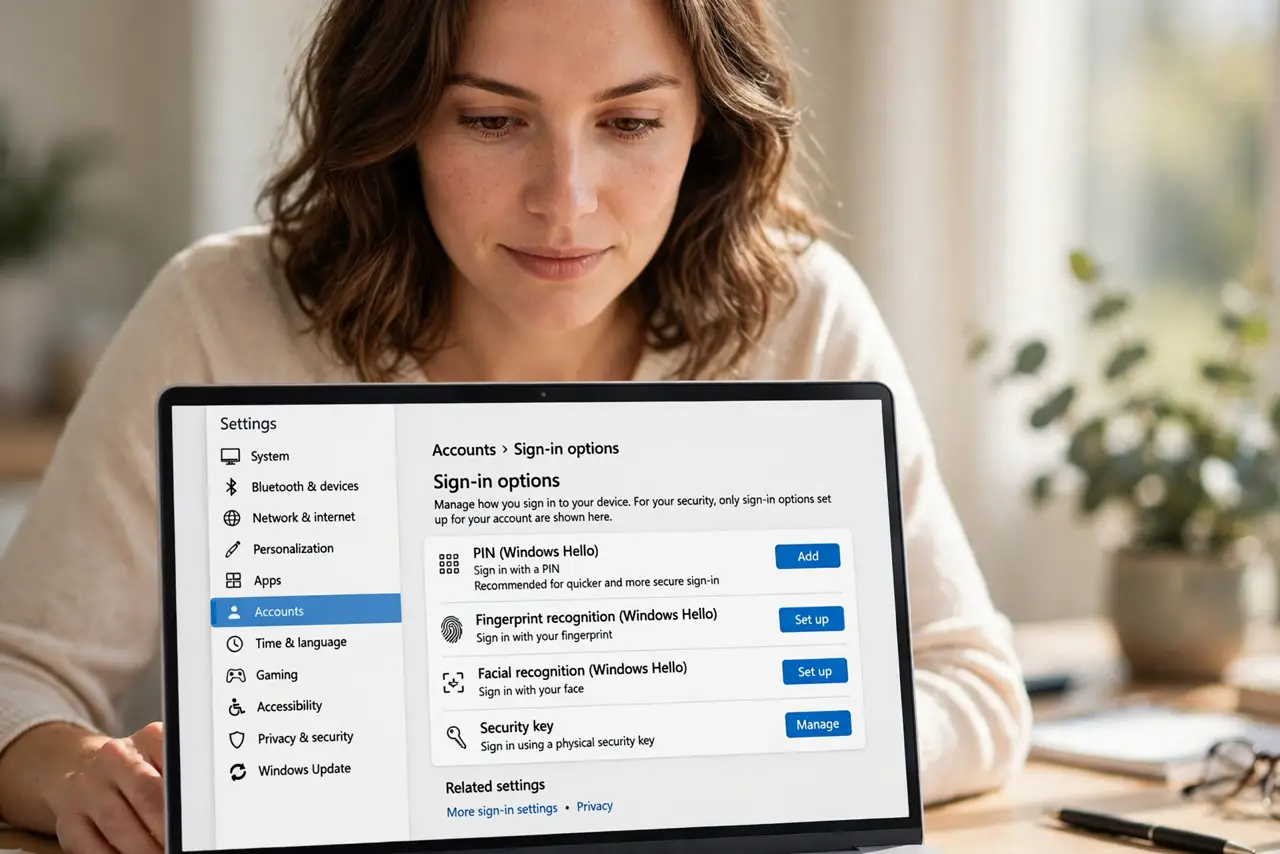
- Open Sign-in options. Go to Settings, Accounts, Sign-in options. Every method — PIN, fingerprint, face, security key — lives here.
- Set up a PIN first. Windows Hello PIN is device-bound and fast. It is the foundation other Hello methods build on — see the PIN setup if it is missing.
- Add biometrics if available. Fingerprint or face unlock beats typing daily. The Hello setup guide walks through cameras and readers.
- Consider going passwordless. The passwordless path removes the password entirely for Microsoft accounts. Fewer passwords, fewer phishing targets.
- Keep a fallback method. Biometrics fail with wet fingers and bad lighting. Keep the PIN working so you are never locked out by a sensor.
- Pair with fast locking. Quick sign-in makes locking every time painless — and locking every time is the point.
What NOT to do
- Do not use a 1234 PIN. A short obvious PIN on a stolen laptop is barely better than no PIN.
- Do not disable the password entirely without a fallback. One failed sensor with no backup means a very bad day.
- Do not share your PIN like a password. It unlocks your device specifically — keep it as private as the password was.
- Do not skip setup on a shared PC. Every user needs their own sign-in — shared accounts destroy accountability.
Frequently asked questions
Is a PIN less secure than a password?
No — the PIN is bound to the device and never travels the network. A stolen PIN alone unlocks nothing without the laptop.
What if my fingerprint reader stops working?
Fall back to the PIN. If that fails too, the Microsoft account password recovers everything.
Can I use a security key instead?
Yes — Sign-in options supports FIDO2 keys. It is the strongest option for the security-minded.