Pen Settings? Basics
A stylus on Windows can be a precise drawing tool or a frustrating laggy stick — the difference is usually settings, not hardware. Windows has a dedicated Pen and Windows Ink page for button shortcuts, handwriting, and which hand you use. This guide walks through the settings that make a pen feel right.
TL;DR / Quick Fix
Quick fix: tune your Windows pen under Settings, Bluetooth and devices, Pen and Windows Ink — set which hand you write with, what the shortcut button opens, and handwriting options. Pair over Bluetooth if the button should work. If strokes feel off, recalibrate and check the pen tip for wear.
Follow these steps
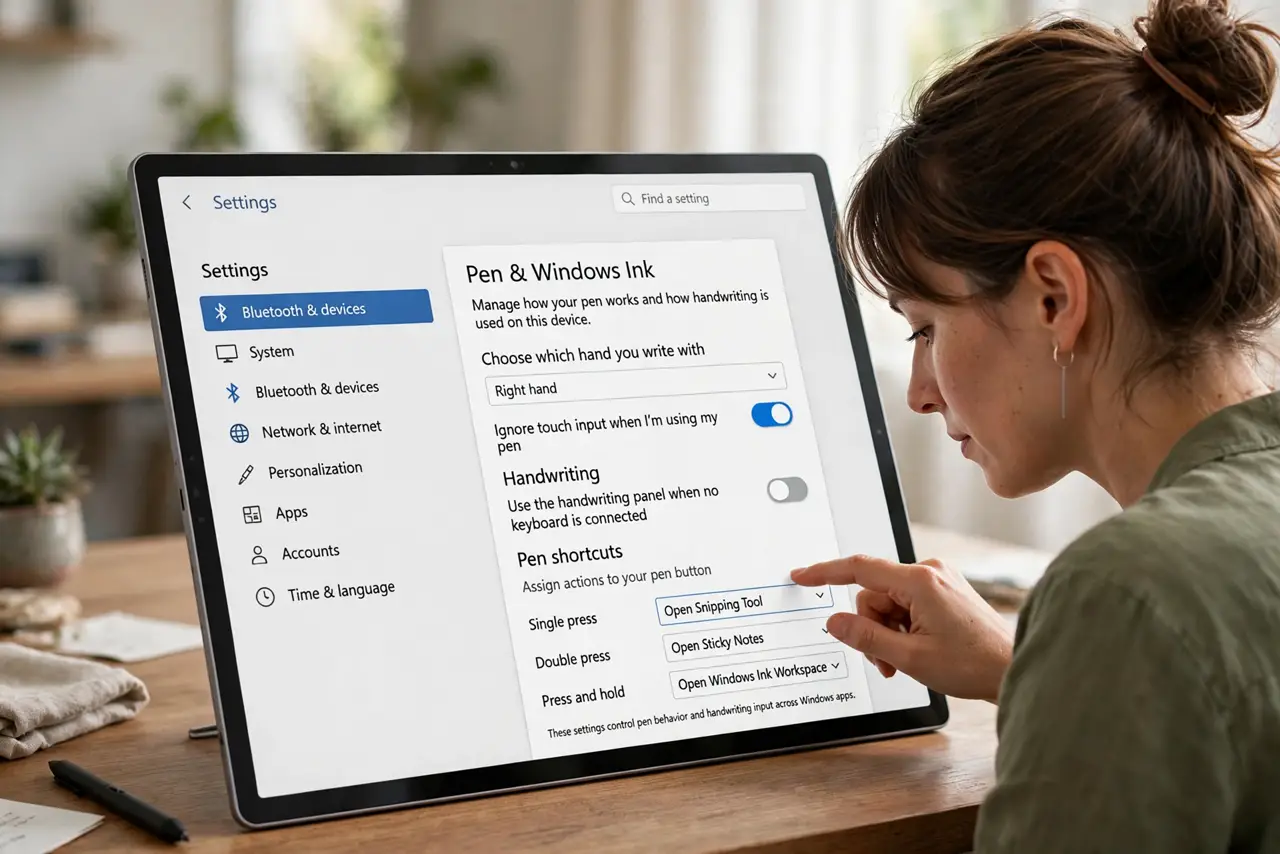
- Open Pen and Windows Ink. Go to Settings, Bluetooth and devices, Pen and Windows Ink. Everything pen-related lives here — shortcuts, handwriting, and visual effects.
- Set your writing hand. Tell Windows whether you write left- or right-handed. This tunes palm rejection and where menus appear — wrong-hand settings cause most 'ghost touch' complaints.
- Configure the pen button. Set what single-click, double-click, and press-and-hold do — open an app, take a screenshot, launch the whiteboard. Pick actions you will actually use daily.
- Pair over Bluetooth for the button. The pen draws without pairing, but the shortcut button needs a Bluetooth connection. Pair it in Bluetooth settings if clicks do nothing.
- Tune handwriting recognition. Adjust the handwriting panel options and train it with your writing if recognition struggles. Block letters beat cursive for accuracy while it learns you.
- Pair it with the touch keyboard. Pen for drawing, touch keyboard for tapping — the two input methods complement each other. Pin the touch keyboard icon so both are one tap away.
What NOT to do
- Do not blame the pen before checking settings. Nine times out of ten, lag or missed strokes trace to palm rejection, the wrong hand setting, or a worn tip — not a broken pen.
- Do not write with a damaged tip. A scratched or worn nib skates and scratches the screen — replacement tips cost little and change everything.
- Do not disable Windows Ink to 'fix' an app. Some apps need Ink enabled to see pressure at all — disabling it system-wide breaks more than it fixes.
- Do not expect phone-level palm rejection on old hardware. Newer tablets reject palms far better; on older ones, a drawing glove helps more than any setting.
Frequently asked questions
Why does my pen button do nothing?
The button needs a Bluetooth pairing separate from drawing. Pair the pen in Bluetooth settings, then assign the button actions in Pen and Windows Ink.
Can I use any stylus with Windows?
Basic capacitive styluses work for tapping, but pressure and tilt need an active pen using the right protocol (MPP for most Windows tablets). Check compatibility before buying.
Why is handwriting recognition so bad?
It learns from corrections — use it consistently for a week, write clearly, and check the language matches what you write. It improves noticeably.