Call from Your PC
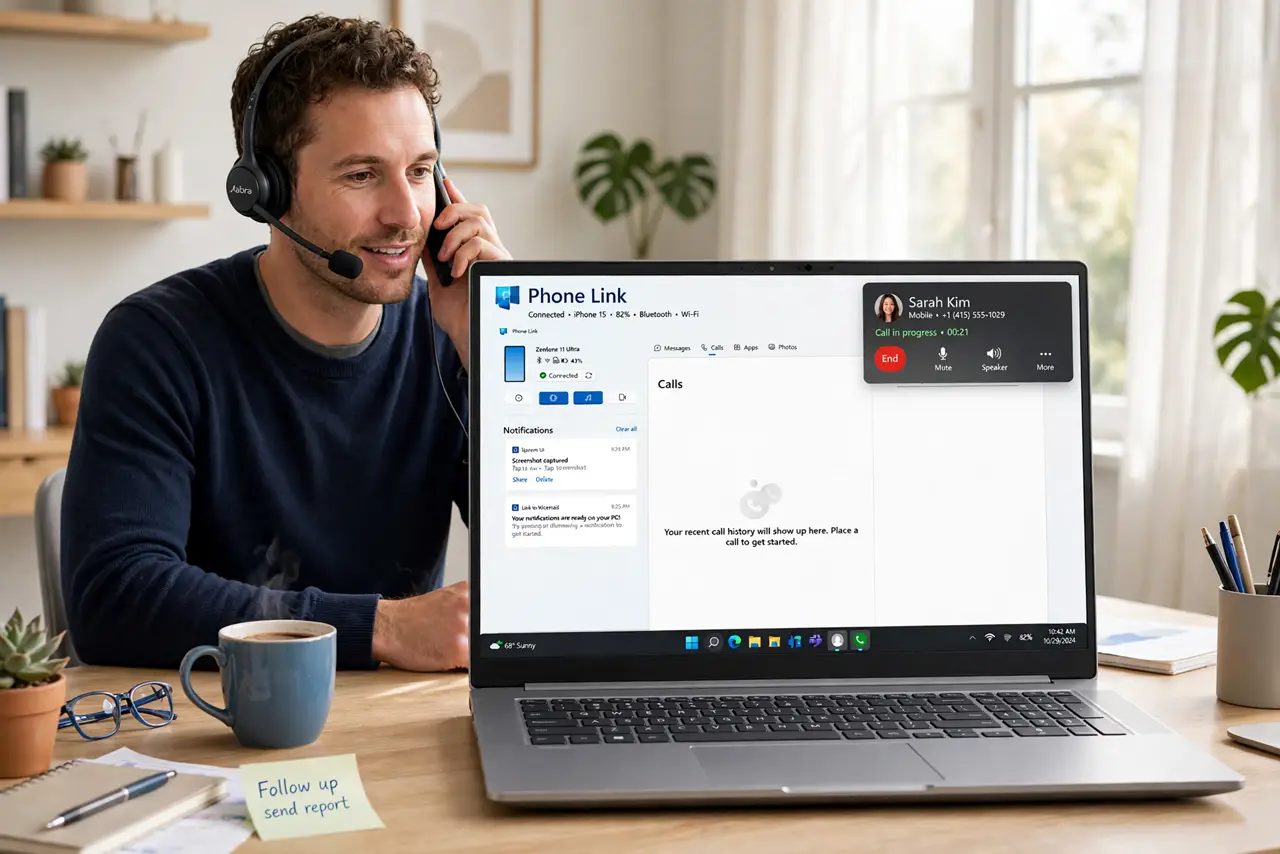
Your phone buzzes across the room mid-work — the old dance of standing up, finding it, missing the call. Phone Link puts calling on your Windows PC: answer from your headset, dial from the keyboard, keep working. This guide pairs it once and makes calls seamless.
TL;DR / Quick Fix
Quick fix: with Phone Link on Windows, pair your Android or iPhone once via Bluetooth, then make and answer calls from the PC — the phone can stay across the room. Grant the call permissions during setup and keep Bluetooth on. Audio routes through your PC speakers or headset automatically.
Follow these steps
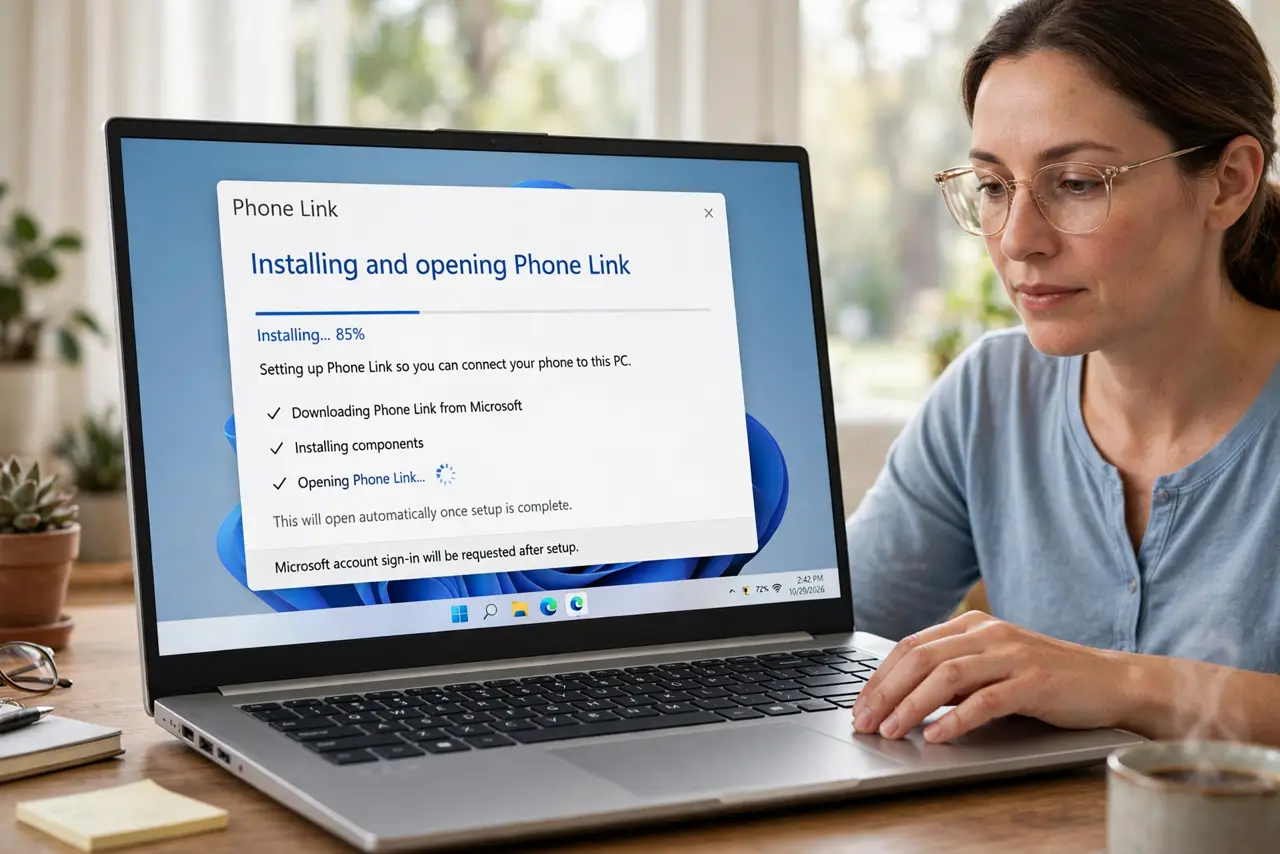
- Install and open Phone Link. Phone Link ships with Windows 11 — search for it in Start. Open it on the PC to begin pairing.
- Pair your phone. Choose Android or iPhone and follow the on-screen steps — a QR code or Bluetooth pairing links the two. Grant the requested permissions; calls need them.
- Allow call permissions. On the phone, approve Bluetooth call access for the link app. Without this, the PC cannot see or answer calls — the most common setup miss.
- Make a call from the PC. Use the Phone Link dialer to call from your contacts or keypad. Audio routes through PC speakers or your headset automatically.
- Answer incoming calls on the PC. Incoming calls pop up on the PC with answer and decline. Your phone can stay in another room — the PC is now the handset.
- Keep the link healthy. Bluetooth on, both devices on the same Wi-Fi, phone reasonably charged. If calls stop appearing, re-pair — and grab phone photos the same way while you are at it.
What NOT to do
- Do not expect iPhone feature parity. iPhone pairing supports calls and messages; Android gets the deeper integration including apps.
- Do not disable Bluetooth to 'save battery' and wonder why calls stopped. The link lives on Bluetooth — it must stay on.
- Do not pair on public PCs. Phone Link mirrors calls and messages — only link devices you personally control.
- Do not forget the phone still needs signal. The PC is a remote control, not a phone — no cellular signal, no calls.
Frequently asked questions
Why do calls not show on my PC?
Bluetooth off, permissions denied, or the link app needs re-pairing. Check all three in order.
Can I use my headset?
Yes — PC audio routes to whatever output you choose: headset, speakers, or earbuds.
Does it work with iPhone?
Yes for calls, messages, and photos. Android adds notification mirroring and app streaming on supported models.