Grab Phone Photos on PC
Emailing yourself photos to get them on the PC is a ritual from 2012 that needs to die. Phone Link surfaces your recent phone photos directly in Windows — drag them into documents, edit them, file them. This guide sets it up once and ends the email-to-self era.
TL;DR / Quick Fix
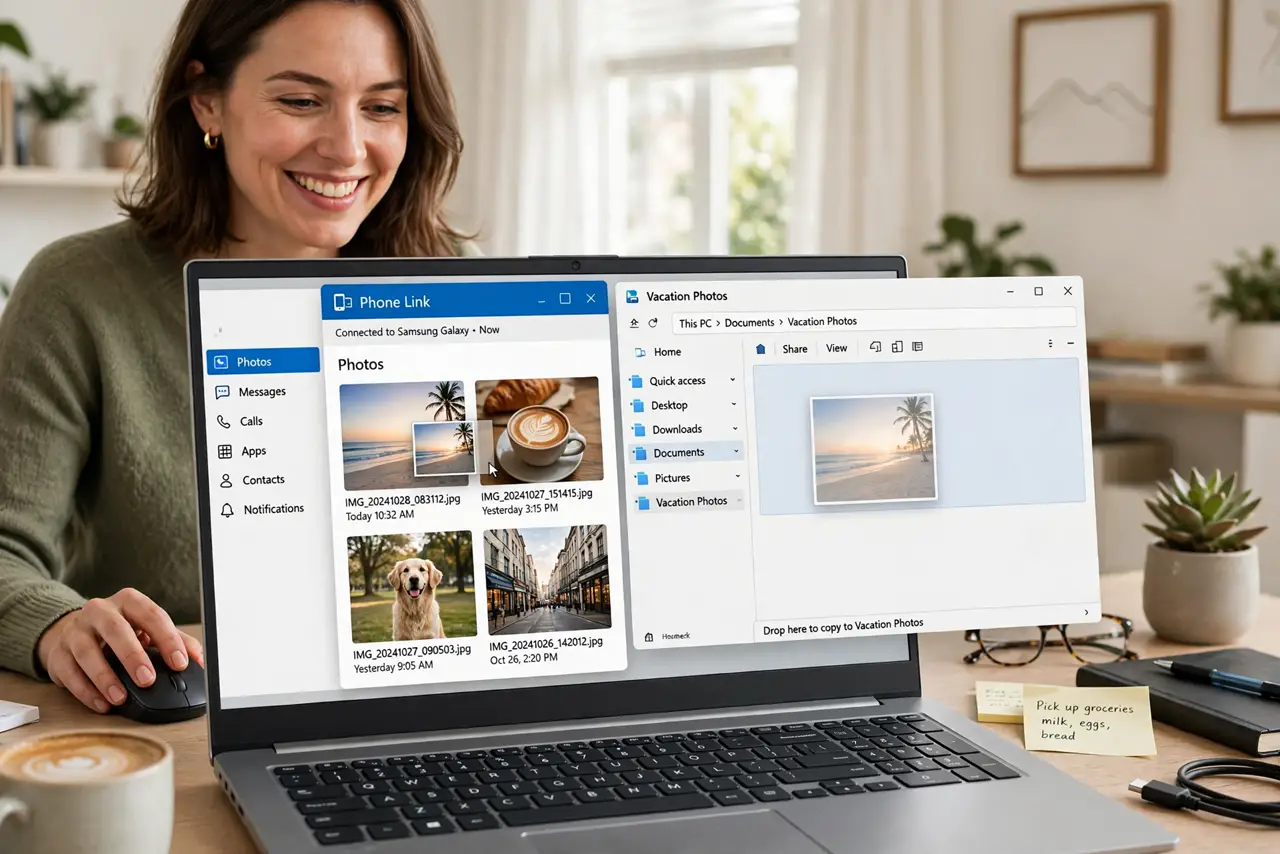
Quick fix: stop emailing yourself photos — with Phone Link set up, your recent phone photos appear in the Windows app, ready to drag into documents or folders. Pair once via the Phone Link app and keep Bluetooth and Wi-Fi on. Copy-paste even works across devices on recent versions.
Follow these steps
- Open Phone Link on the PC. Search 'Phone Link' in Start. The Photos section is one of its main tabs — no extra app needed.
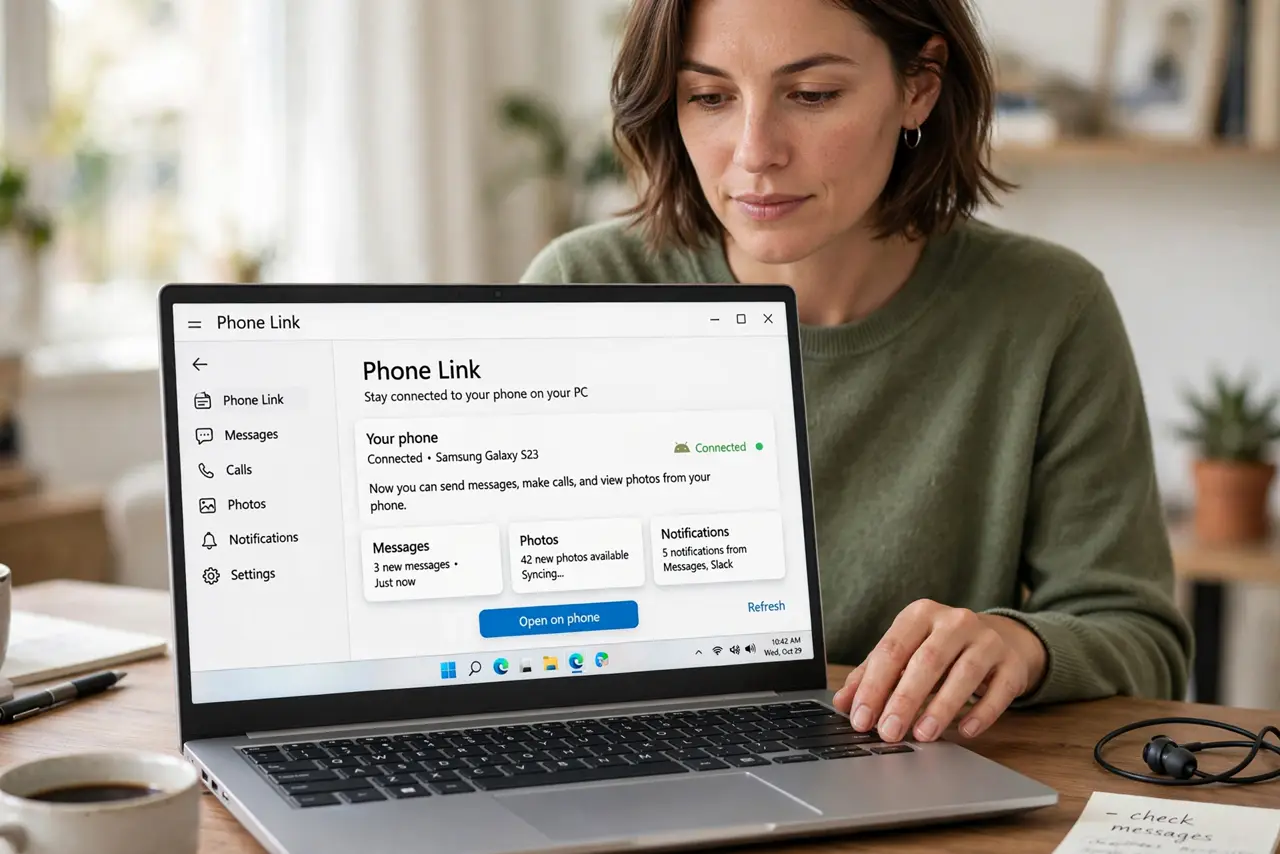
- Pair your phone if you have not. Follow the pairing flow with Bluetooth and the companion app on the phone. Photos need the same link that calls use — one pairing covers everything.
- Browse recent photos. The Photos tab shows recent shots from the phone's camera roll. Scroll, preview, and pick without touching the phone.
- Drag into folders or apps. Drag a photo straight into File Explorer, Word, or an editor. It copies over Wi-Fi in seconds — no cables, no email.
- Copy text from photos too. Recent versions let you copy text out of phone photos on the PC. Snap a document with the phone, extract the text on the PC.
- Keep the link healthy. Same Wi-Fi, Bluetooth on, companion app updated. If photos stop refreshing, toggle the link off and on — the universal Phone Link fix.
What NOT to do
- Do not expect the full camera roll. Phone Link shows recent photos — deep archive browsing still needs the phone or cloud.
- Do not transfer RAW files this way for critical work. Compression can apply — use a cable for full-quality originals that matter.
- Do not pair on shared PCs. Photo access is personal — link only devices you control.
- Do not forget cloud alternatives. OneDrive or Google Photos auto-upload achieves the same end with different tradeoffs.
Frequently asked questions
Why are only some photos showing?
Phone Link shows recent camera-roll photos. Screenshots and older shots may not appear — check the companion app's permissions.
Is the transfer full quality?
Generally yes for typical sharing, but verify for professional work — cloud or cable for pixel-critical originals.
Does it work with iPhone?
Yes — recent versions support iPhone photo access, though Android integration remains deeper.