Phone Link Stuck Connecting?
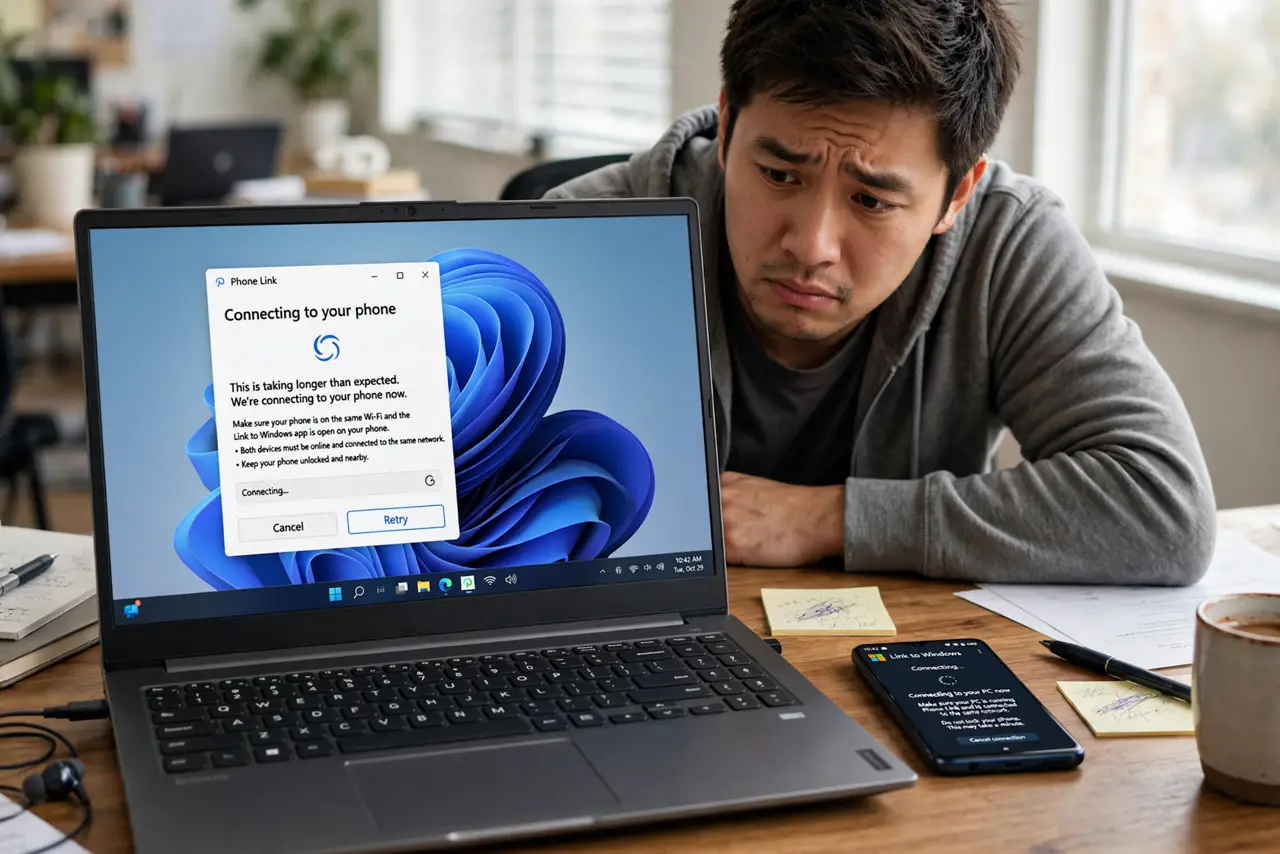
Phone Link promises your Android's texts, photos, and notifications on your PC — then spins on 'connecting' forever. The link depends on three things agreeing: the same Wi-Fi network, the companion app on the phone, and matching Microsoft accounts. Walk the chain in order and the spinner usually surrenders.
TL;DR / Quick Fix
Phone Link stalls when the PC and phone are not on the same Wi-Fi network, the companion app is outdated, or the Microsoft accounts differ. Put both devices on the same network, update the companion app, and sign both into the same account. The won't-connect guide covers deeper cases.
Follow these steps
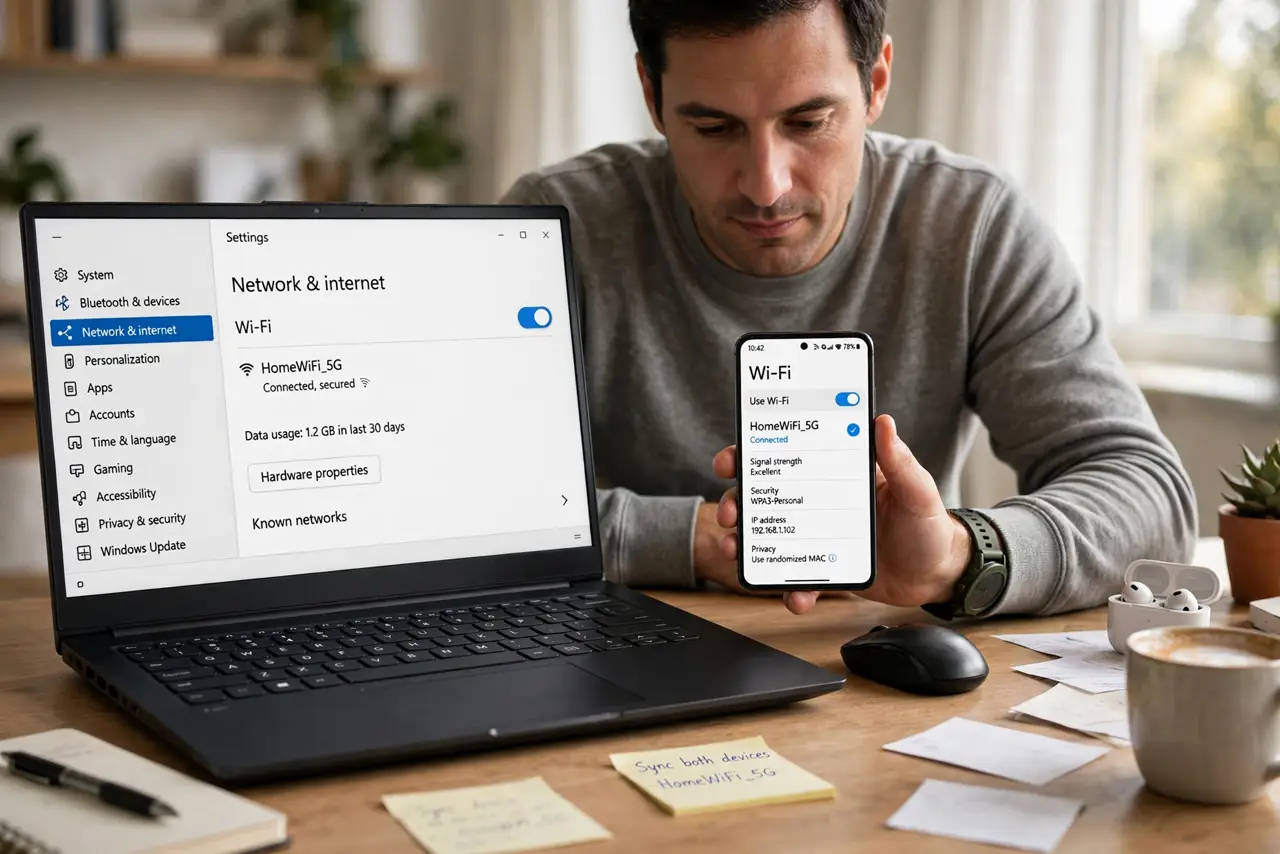
- Put both devices on the same Wi-Fi. Phone Link needs the PC and phone on the same network. A phone on mobile data or a guest network will never find the PC — this is the most common cause.
- Update the companion app on the phone. Open the Play Store and update Link to Windows (or Phone Link companion). An outdated companion app is the second most common stall cause.
- Sign both into the same Microsoft account. The PC's Phone Link and the phone's companion app must use the identical Microsoft account. A personal-versus-work account mix-up silently breaks pairing.
- Toggle Bluetooth on both devices. Phone Link uses Bluetooth for parts of the handshake. Turn Bluetooth off and on again on both the phone and the PC, then retry the connection.
- Unlink and re-link as a last resort. In Phone Link settings, remove the device, then pair fresh by scanning the QR code. A clean pairing resolves corrupted link states that settings tweaks cannot.
- Check battery optimization on the phone. Aggressive battery savers kill the companion app's background connection. Exempt Link to Windows from battery optimization so it stays alive.
What NOT to do
- Do not troubleshoot on different networks. Phone on 5 GHz and PC on 2.4 GHz of the same router is fine; phone on cellular data is not.
- Do not ignore the companion app updates. The PC app updates itself; the phone side does not — check the Play Store manually.
- Do not use two Microsoft accounts. One personal, one work, split across devices — the link will never complete.
- Do not let battery saver strangle the app. 'It worked yesterday' often means an overnight optimization update started killing the background link.
Frequently asked questions
Does Phone Link work with iPhone?
Partially — recent versions support iPhone calls, messages, and notifications over Bluetooth, but Android gets the fuller experience with photos and apps.
Why do notifications arrive late?
Battery optimization delaying the companion app is the usual cause. Exempt it, and keep the phone off aggressive power-saving modes.
Is my data safe with Phone Link?
The connection is local between your devices via your Microsoft account. Keep both devices' software updated as you would anyway.