Pick Your Sound Output Device
Sound comes from the laptop speakers while your headphones sit plugged in, or the video call audio blasts from the monitor instead of your headset. Windows juggles every audio output you have ever connected and does not always pick the one you want. Taking thirty seconds to choose explicitly ends the roulette.
TL;DR / Quick Fix
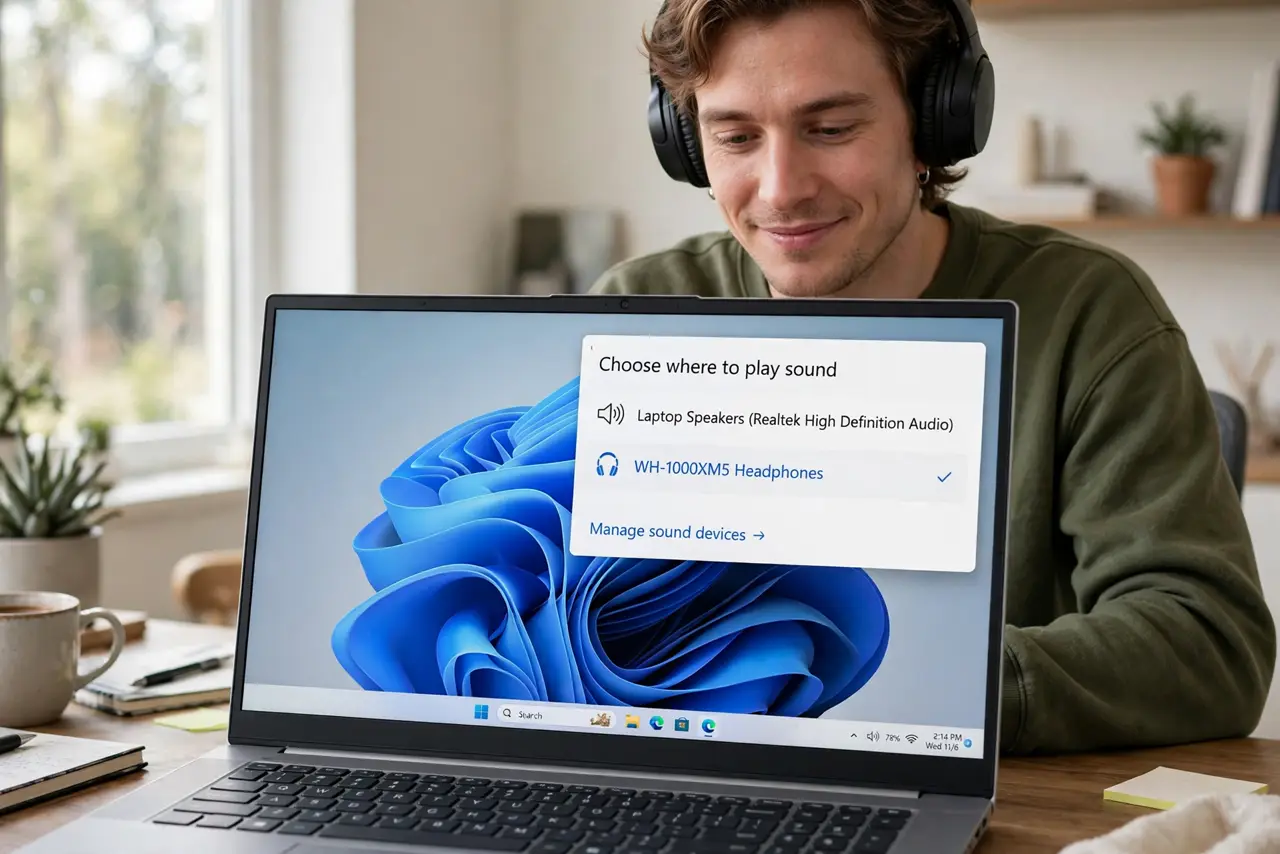
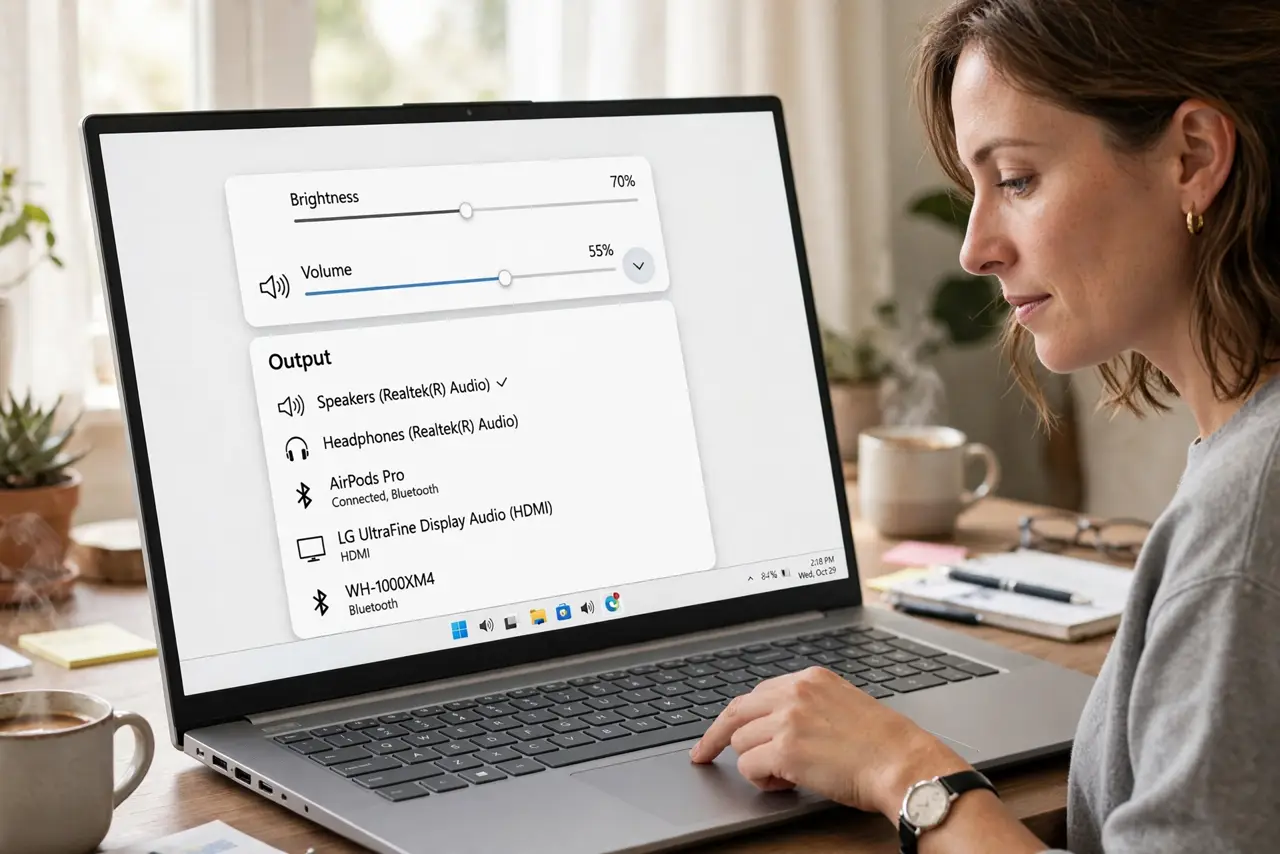
Quick fix: click the speaker icon in the taskbar, then the arrow by the volume slider, to see all outputs — pick your headphones, speakers, or headset explicitly. For a permanent default, set it in Sound settings. If your device is missing, check its connection and drivers.
Follow these steps
- Use the quick switcher. Click the speaker icon, then the small arrow by the volume slider. Every available output lists here — click the one you want. This is the fastest fix.
- Set a lasting default. In Settings > System > Sound, choose your preferred device under Output. Windows remembers — until an update shuffles things, anyway.
- Separate input from output. Your mic and your speakers are chosen independently. A headset can be the input while speakers stay the output — check both dropdowns.
- Rename confusing devices. In the classic Sound control panel, rename 'Speakers (Realtek Whatever)' to 'Desk Speakers.' Future-you picks correctly at a glance.
- Disable outputs you never use. Right-click monitor speakers or old headsets in the Sound panel and disable them. Fewer choices means fewer wrong guesses by Windows.
- Check per-app routing for stubborn apps. Some apps remember their own device. Right-click the speaker icon > Sound settings > Volume mixer to route individual apps — see per-app volume.
What NOT to do
- Do not assume plugging in switches automatically. Windows tries, but Bluetooth quirks and monitor audio often win the race unexpectedly.
- Do not leave five dead devices enabled. Every ghost output is another chance for Windows to pick wrong — disable the ones you retired.
- Do not confuse output with input in calls. 'They can't hear me' is the microphone dropdown; 'I can't hear them' is this one.
- Do not reinstall drivers before checking the dropdown. The device usually works fine — it is just not selected.
Frequently asked questions
Why does Windows keep switching my output?
Newly connected devices often grab default status, and updates reset choices. Setting an explicit default and disabling ghosts minimizes the roulette.
My headphones are not in the list — why?
They are not connected as far as Windows knows: check Bluetooth pairing, the cable, or the USB dongle. No connection, no listing.
Can different apps use different outputs?
Yes — the volume mixer routes per app. Game audio to speakers while the call stays on the headset is entirely possible.