No Sound After an Update? Fix It
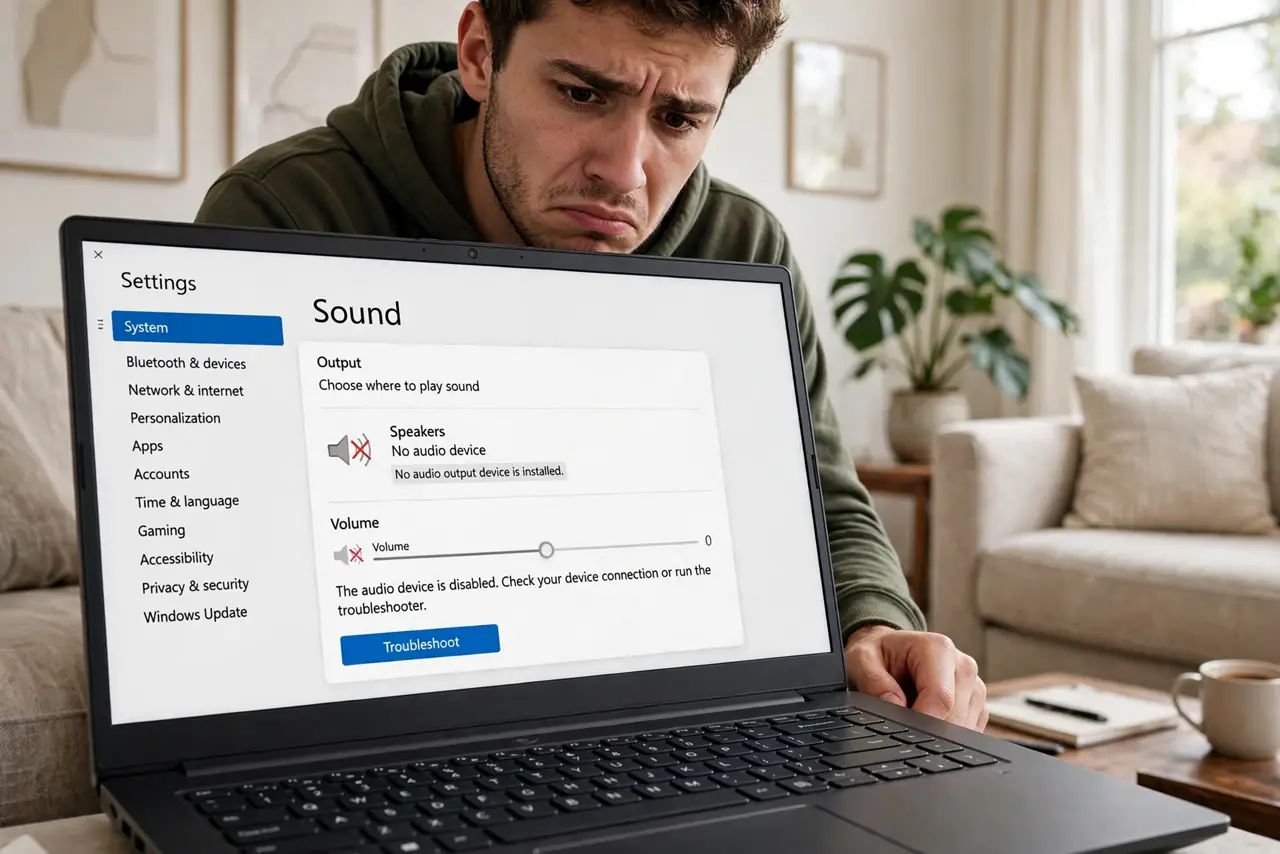
Yesterday the speakers worked; today — right after Windows updated — silence. Updates sometimes replace a working audio driver with a broken one, or quietly switch the output device. Before you buy new speakers, work this ladder: most post-update silence is a driver or a setting, fixed in minutes.
TL;DR / Quick Fix
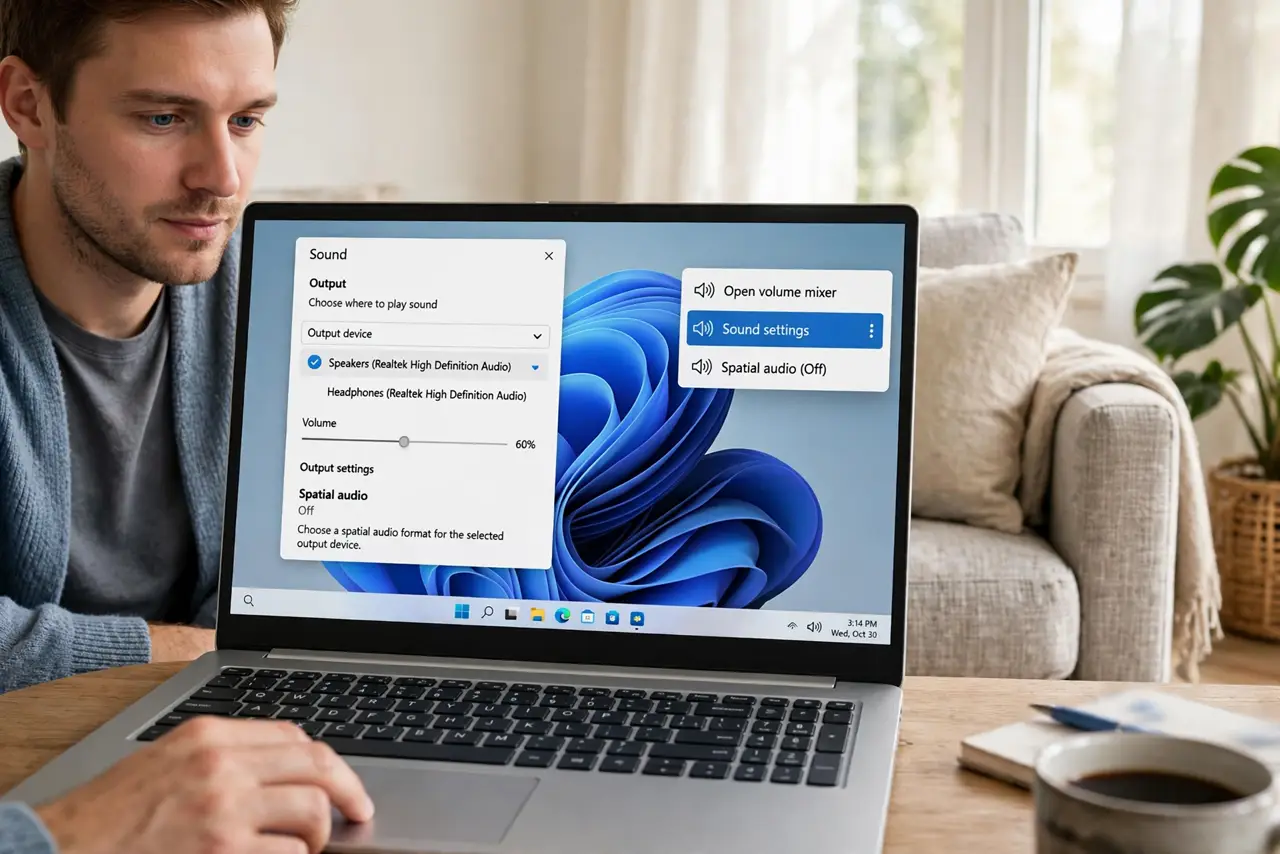
Quick fix: right-click the speaker icon, open Sound settings, and confirm the right output device is selected — updates love to switch it. If that fails, open Device Manager, roll back the audio driver, or uninstall the latest update. Most post-update silence is a driver swap, not dead hardware.
Follow these steps
- Check the output device first. Right-click the speaker icon > Sound settings and look at the output dropdown. Updates often switch to a monitor or a disconnected device — pick the right one.
- Unmute and raise the volume. Check the volume mixer for a muted app or master mute. Obvious, but updates have been known to reset levels silently.
- Run the audio troubleshooter. Settings > System > Sound > Troubleshoot. It re-detects devices and restarts the audio service — quick and harmless.
- Roll back the audio driver. In Device Manager, open your audio device > Properties > Driver > Roll Back Driver. If the button is gray, the update did not touch the driver — move on.
- Uninstall the offending update. If sound died the same day an update installed, undo that update and pause updates briefly.
- Reinstall the maker's driver. As a last resort, download the audio driver from your PC or motherboard maker's site. Fresh-from-the-source beats Windows' generic pick.
What NOT to do
- Do not buy new speakers first. Post-update silence is software in the vast majority of cases — hardware did not die overnight.
- Do not reinstall Windows over lost sound. The ladder above fixes it with far less destruction.
- Do not disable the audio device in frustration. Disabling hides it from every tool and makes diagnosis harder.
- Do not ignore the output dropdown. Half of all 'no sound' cases are Windows playing audio to the wrong device.
Frequently asked questions
Why do updates break sound?
Updates sometimes install a newer-but-buggier audio driver, or reset the default output device. Both are settings problems, not hardware failures.
The troubleshooter found nothing — now what?
Work the driver steps: roll back, then reinstall from the maker. If a specific update correlates, uninstall it.
Sound works in some apps but not others.
That is per-app volume, not the update. Open the volume mixer and unmute the silent apps — see per-app volume.