Set Up a Picture Password
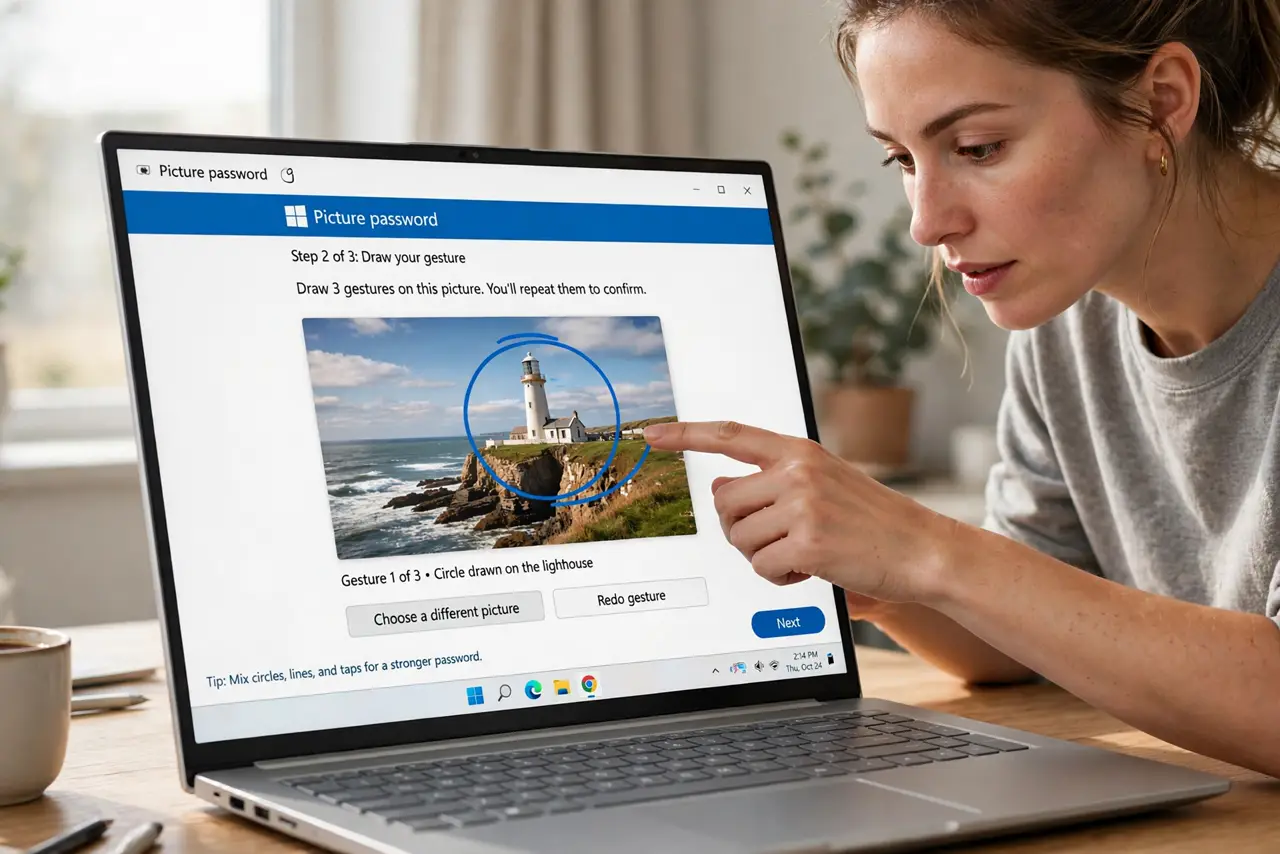
Typing a password on a touchscreen is miserable — hunting tiny keys with a fingertip. A picture password replaces typing with three gestures on a photo you choose: tap the dog's nose, circle the sun, swipe the horizon. Fun, fast, and genuinely secure when done right.
TL;DR / Quick Fix
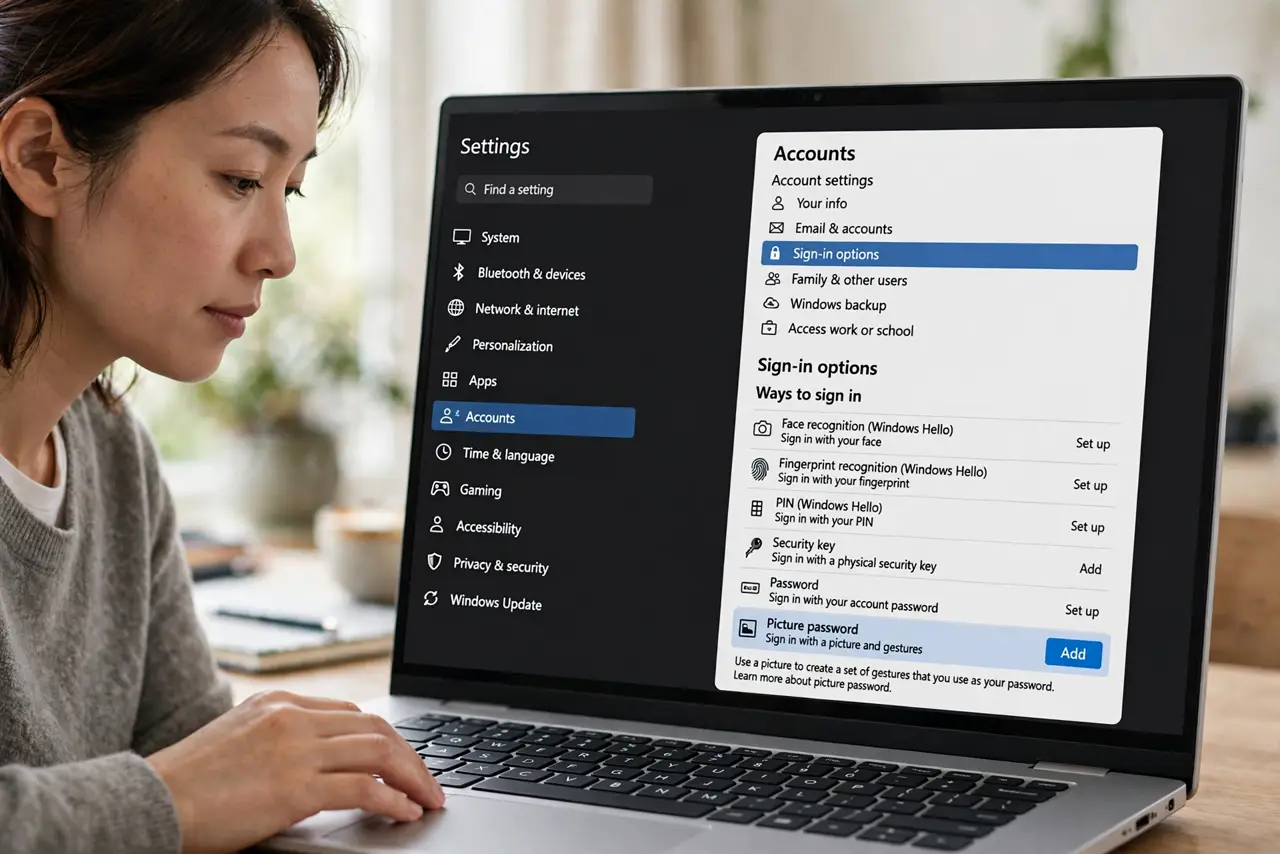
Open Settings > Accounts > Sign-in options > Picture password, choose a photo, and draw three gestures — taps, lines, circles — on spots. Replay them to sign in. It shines on touchscreens; with a mouse it is fiddly. Keep your PIN as backup, since gestures are easy to forget.
Follow these steps
- Open Picture password settings. Press Win + I, go to Accounts > Sign-in options, and choose Picture password > Add.
- Confirm your current password. Windows asks for your existing password first — proof it's really you setting this up.
- Choose a memorable photo. Pick a picture with distinct landmarks: faces, objects, horizons. Busy photos make memorable gesture spots.
- Draw three gestures. Combine taps, lines, and circles on meaningful spots. Windows records the shape, order, and location of each.
- Replay to confirm. Draw the same three gestures again exactly. Consistent replay is what makes it secure — sloppy gestures are guessable.
- Keep your PIN as backup. If you forget the gestures, the PIN or password still unlocks the PC. Never remove all other sign-in methods — see PIN trouble if that's already happened.
What NOT to do
- Do not choose obvious gestures. Tapping three faces left-to-right is the first thing a snoop tries — be less predictable.
- Do not use it on a shared screen. Gestures are visible; anyone watching learns your pattern in one viewing.
- Do not skip the confirmation replay. If you can't reproduce your own gestures twice, you'll lock yourself out daily.
- Do not remove your PIN afterward. Picture passwords are forgettable; the PIN is your way back in.
Frequently asked questions
Is a picture password actually secure?
Yes, when gestures are non-obvious. Three gestures with position, direction, and order create a large combination space — smudge attacks are the main weakness.
Can I use picture password with a mouse?
You can, but it's fiddly. The feature was designed for touchscreens; mouse users are happier with a PIN.
What if someone watches me draw the gestures?
They learn it — shoulder surfing defeats picture passwords completely. Use it where nobody overlooks your screen.