Windows Rejects Your Simple PIN? Fix It
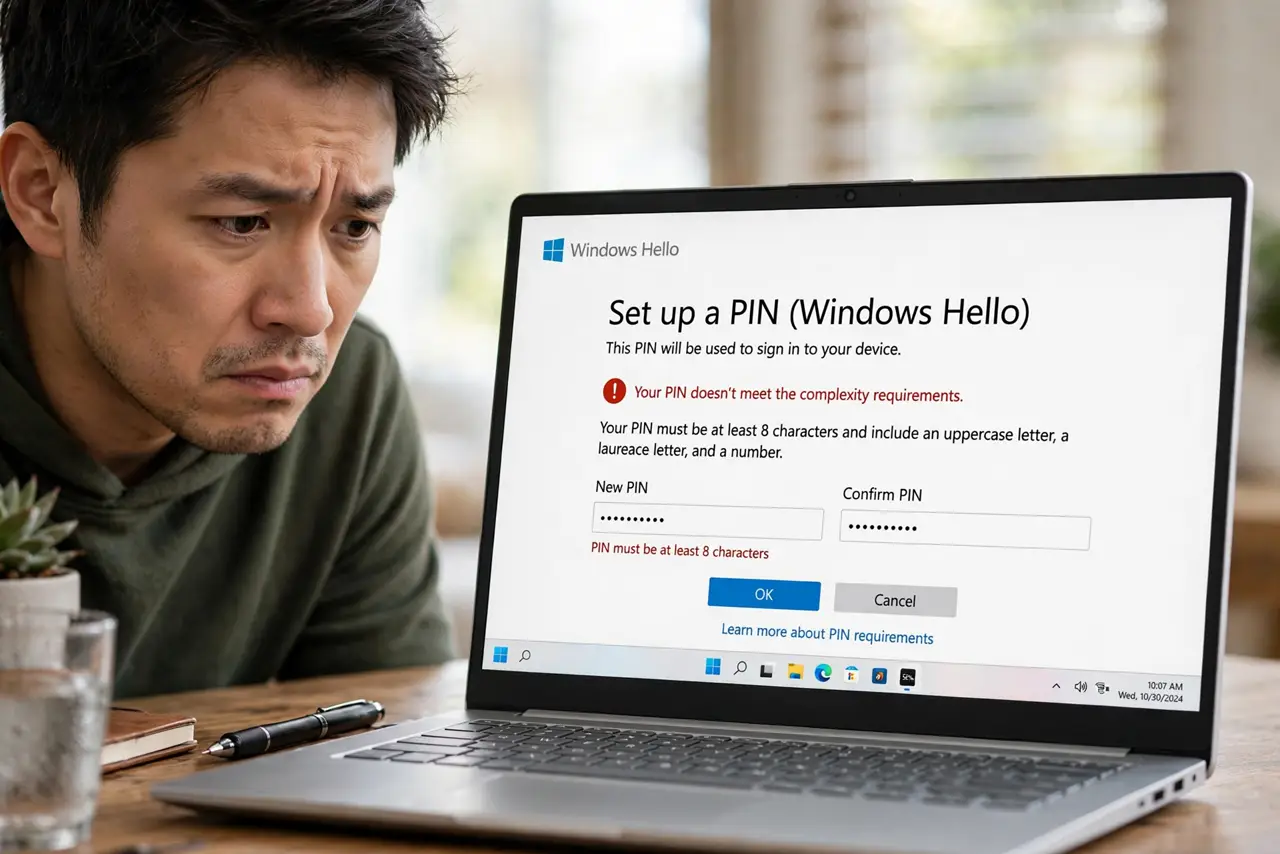
A PIN you can remember beats a complex one you keep forgetting, yet Windows sometimes rejects simple PINs and demands a longer, mixed one. That rule usually comes from a policy set by the PC maker or left over from a school or work account. This guide shows how to find the policy and set a PIN that works for you.
TL;DR / Quick Fix
Quick fix: in Settings > Accounts > Sign-in options > PIN, check whether complexity rules are enforced. A school or work account linked to the PC can impose them — remove it or review the policy. Then set a simpler PIN, keeping your password as backup.
Follow these steps
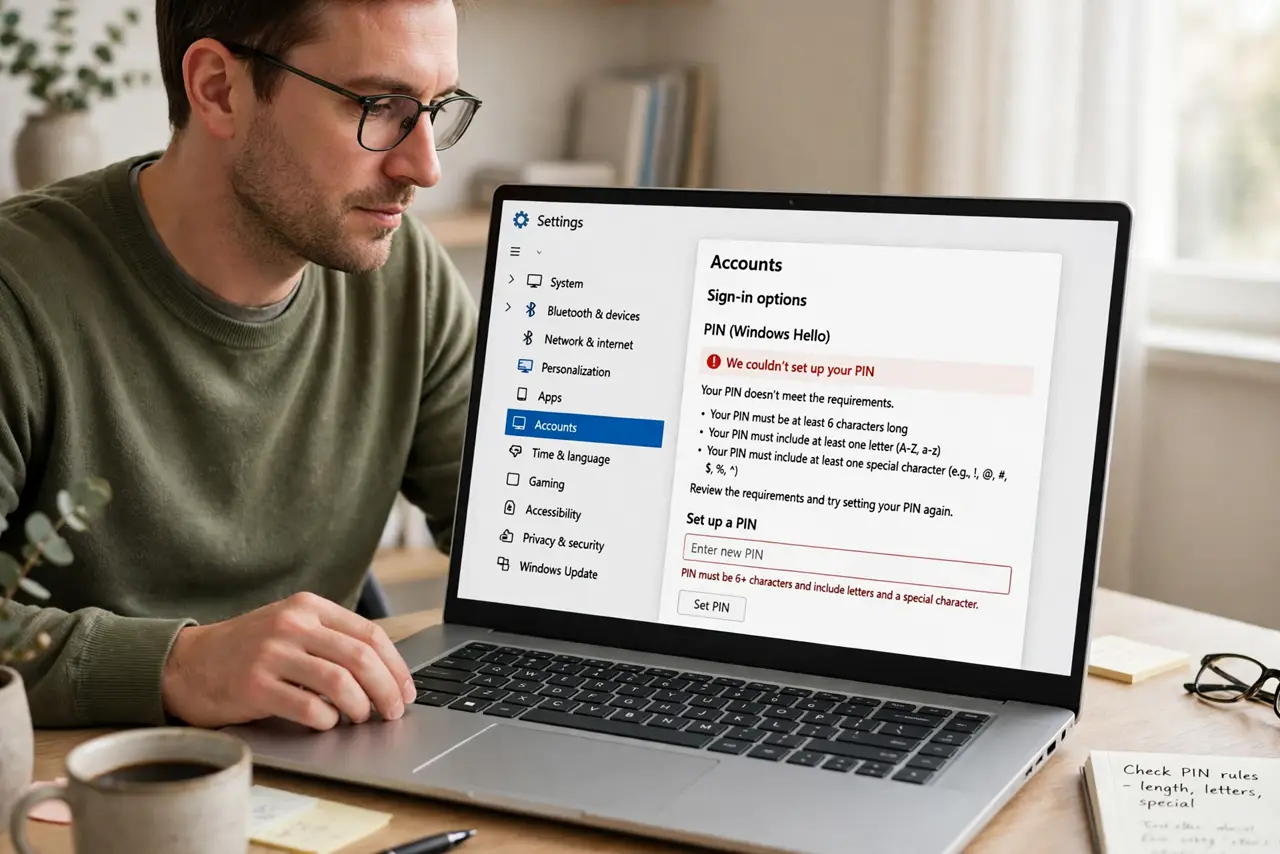
- Read the exact rejection message. Open Settings > Accounts > Sign-in options > PIN and try setting your PIN. The message tells you which rule blocks it — length, letters, or special characters — so you know what to change.
- Check for a work or school account. Go to Settings > Accounts > Access work or school. An old school or employer account can leave a complexity policy behind even after you stop using it, and that policy overrides your personal settings.
- Disconnect the account you no longer use. Select the old work or school account and choose Disconnect. Confirm you only remove the account link, not your personal files, then restart the PC so the policy clears.
- Set a new PIN from Sign-in options. Back in Settings > Accounts > Sign-in options > PIN, choose Change PIN. Enter a PIN you will remember — four to six digits you do not use anywhere else — and save it.
- Restart and test the new PIN. Restart the computer and sign in with the new PIN. Testing after a restart confirms the old policy is truly gone and the PIN works from a cold boot.
- Keep a password as backup. Make sure your Microsoft account password still works before you rely on the PIN alone. If the PIN ever stops working, the password is your way back in.
What NOT to do
- Do not turn off the password entirely. A PIN is a convenience layer, and removing the password leaves you locked out if the PIN breaks.
- Do not reuse a PIN from your bank card or phone. A guessable PIN defeats the point of the complexity rule you just removed.
- Do not edit the registry to kill the policy unless you know what you are doing. A wrong registry change can break sign-in completely.
- Do not ignore a policy on a PC your employer manages. If the computer belongs to work, the complexity rule is intentional and you should leave it alone.
Frequently asked questions
Why does Windows suddenly want a complex PIN?
Usually a policy changed — a new school or work account link, a fresh Windows install from the PC maker, or an update that reapplied the default rule.
Can I use a 4-digit PIN on Windows 11?
Yes, on a personal PC with no policy enforcing complexity. Four digits are allowed once the blocking policy is removed.
Will removing a work account delete my files?
No, disconnecting the account link keeps your personal files. Only the organization's policies and access are removed.