Pin Apps to the Taskbar?
Your most-used apps are buried in the Start menu or lost on a cluttered desktop, and you open the same five programs every single day. Pinning puts them on the taskbar — one click, always visible, always in the same spot. It is the single biggest daily time-saver in Windows. Here is how to pin, arrange, and unpin like a pro.
TL;DR / Quick Fix
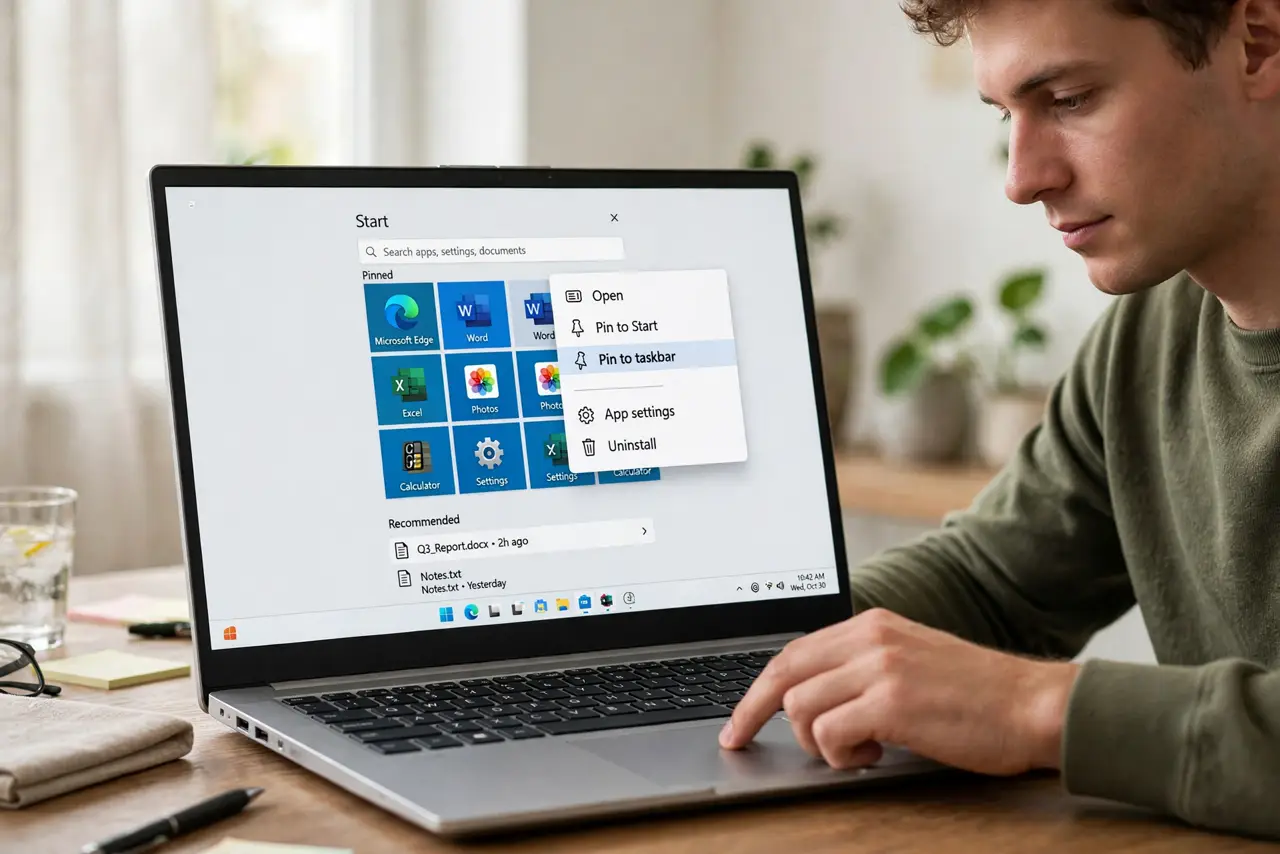
Quick fix: right-click any app — in Start, in search results, or on its running taskbar icon — and choose Pin to taskbar. Drag pinned icons to reorder them. Right-click again and choose Unpin to remove. Pinned apps stay put across restarts.
Follow these steps
- Pin from Start or search. Find the app in the Start menu or type its name in search, right-click it, and choose Pin to taskbar. The icon appears on the taskbar immediately, in the next free slot.
- Pin a running app. Already have it open? Right-click its taskbar icon and choose Pin to taskbar. This is the fastest way — open it once, pin it, done forever.
- Pin websites and folders too. In Edge or Chrome, use the browser menu to install or 'create shortcut' for a site, then pin the result. For folders, drag the folder to the taskbar — or pin File Explorer and right-click it for jump-list folders.
- Arrange your pinned icons. Drag pinned icons left and right to order them. Put daily apps first, in muscle-memory order — your fingers will learn the positions within a week.
- Use jump lists. Right-click a pinned icon to see its jump list: recent files, frequent tasks, pinned documents. It is a hidden second launcher most people never discover.
- Unpin the clutter. Right-click any pinned icon and choose Unpin from taskbar. Unpinning removes the shortcut only — the app stays installed and untouched.
What NOT to do
- Do not pin everything you own. A taskbar with thirty icons is a second Start menu — pin the handful you open daily.
- Do not confuse pinning with installing. Pinning only adds a shortcut; unpinning never uninstalls anything.
- Do not ignore the overflow on small screens. Too many pins on a narrow taskbar hide behind arrows — keep the count sane.
- Do not forget jump lists exist. Right-clicking pinned icons reveals recent files — it doubles what pinning does for you.
Frequently asked questions
Why did my pinned apps disappear?
Usually after a major Windows update or a corrupted user profile. Re-pin them — and check you are signed into your usual account.
Can I pin apps to the top of the Start menu instead?
Yes — right-click and choose Pin to Start. Taskbar pins are one click away; Start pins take two. Use both for different frequency tiers.
How many apps should I pin?
As many as fit comfortably without crowding — typically 5 to 10. If you scroll the taskbar, you have pinned too many.