Precision Touchpad Settings Missing? Fix It
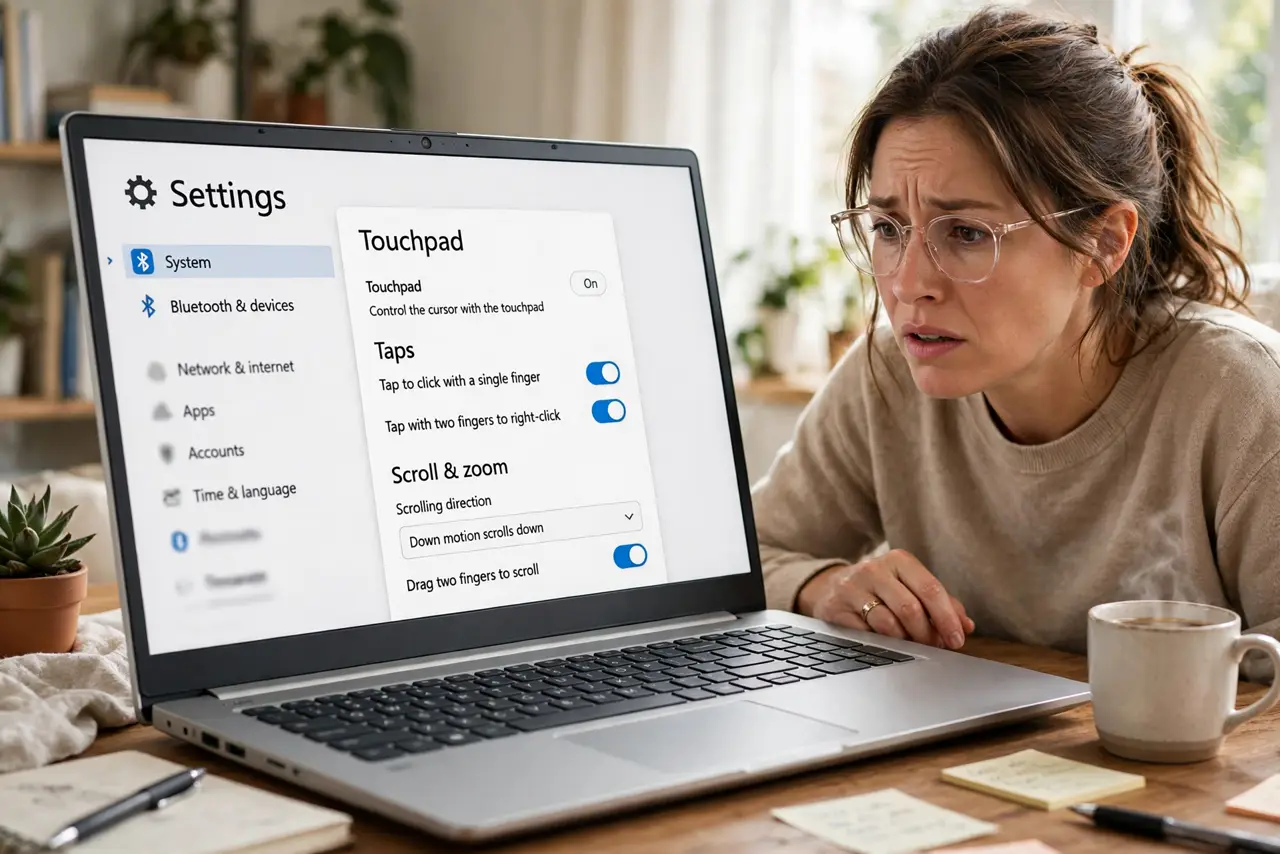
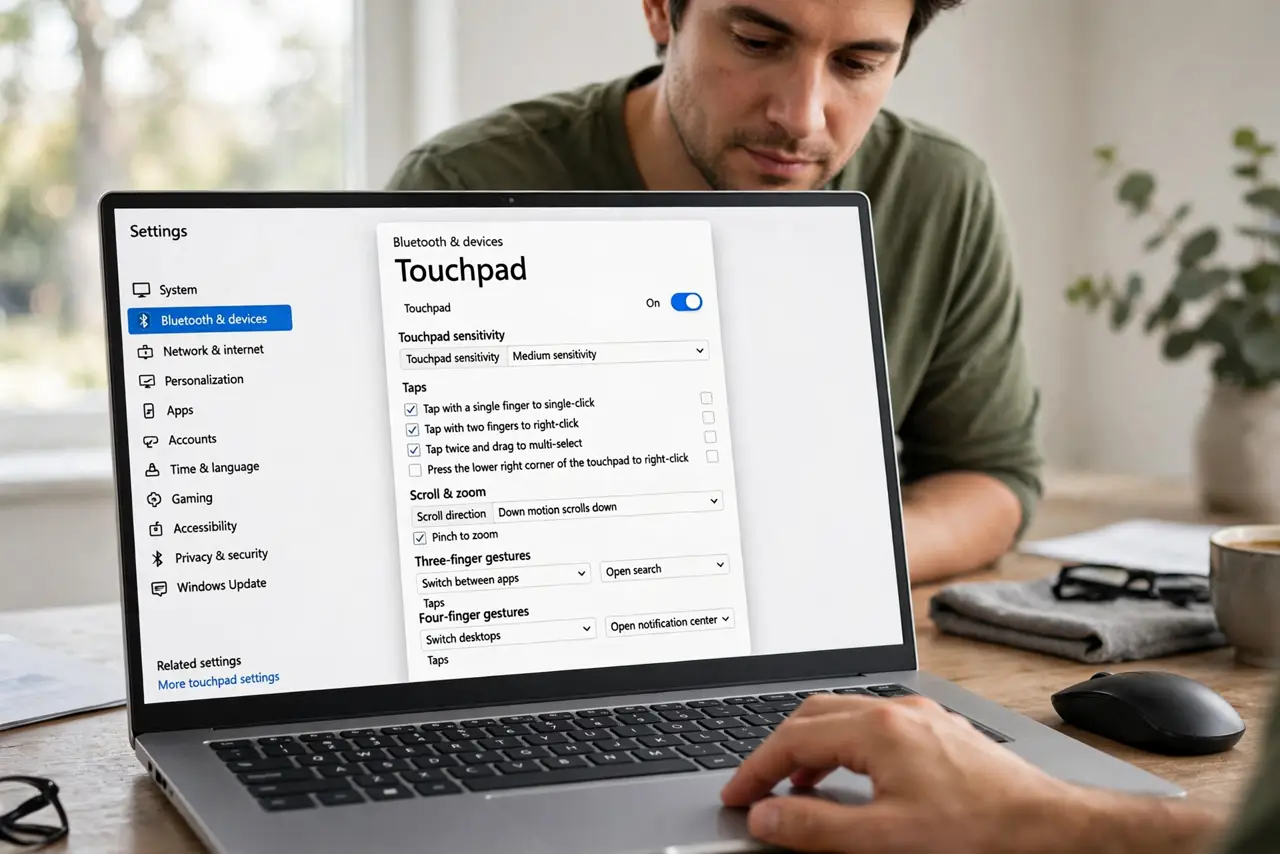
Your friend's laptop shows a rich Touchpad settings page with gestures and sensitivity; yours shows three lonely checkboxes. That means your laptop runs the manufacturer's basic driver instead of Microsoft's precision driver. Sometimes you can switch — sometimes the hardware simply cannot.
TL;DR / Quick Fix
Quick fix: if Touchpad settings show only basic options, your laptop uses the manufacturer's driver instead of Microsoft's precision driver. Open Device Manager, update the touchpad driver, and choose the precision-compatible one if offered. Some older laptops simply lack precision hardware — gestures stay limited there.
Follow these steps
- Confirm what you are seeing. Open Settings > Bluetooth & devices > Touchpad. A precision pad shows sensitivity, taps, scroll, and gestures sections; a basic one shows far less.
- Update the driver in Device Manager. Open Device Manager, expand Human Interface Devices or Mice, right-click the touchpad, and choose Update driver > Search automatically. Windows sometimes finds the precision driver itself.
- Try the manufacturer's driver page. If Windows finds nothing, check your laptop maker's support page for a precision or updated touchpad driver. Install only drivers meant for your exact model.
- Check whether the hardware qualifies. Precision needs a compatible touchpad controller. Budget laptops from several years back often lack it — no driver creates hardware that is not there.
- Use the vendor utility meanwhile. Synaptics and ELAN control panels offer their own gesture settings. They are clunkier than precision, but they beat nothing.
- Plan around the limit. If the hardware cannot do precision, an external mouse plus the basic gestures you do have is a workable daily setup.
What NOT to do
- Do not force-install a precision driver meant for another laptop. Wrong touchpad drivers can kill the pad until you roll back.
- Do not trust random driver-updater tools. They bundle junkware; Device Manager and the manufacturer's page are the safe sources.
- Do not expect a software fix for missing hardware. If the controller is not precision-capable, no setting unlocks gestures.
- Do not confuse this with a dead touchpad. A basic-settings pad still moves the cursor — if nothing moves at all, see the not-working guide instead.
Frequently asked questions
What is a precision touchpad, exactly?
Microsoft's standard that guarantees consistent gestures, sensitivity, and settings across laptops. Precision pads behave the same everywhere; vendor pads vary wildly.
Can I convert my touchpad to precision?
Only if the hardware controller supports it and a compatible driver exists. Many mid-range and newer laptops qualify; older budget ones do not.
Will an external mouse fix this?
For desk work, completely. A decent mouse sidesteps every touchpad limitation — the pad only matters on the go.