Restore a Previous File Version
You overwrote the report, saved the wrong spreadsheet, or edited the photo into ruin — and there is no undo left. Windows quietly keeps earlier copies of files through Previous Versions, powered by restore points and File History. If it was enabled, your 'lost' version may be two clicks away.
TL;DR / Quick Fix
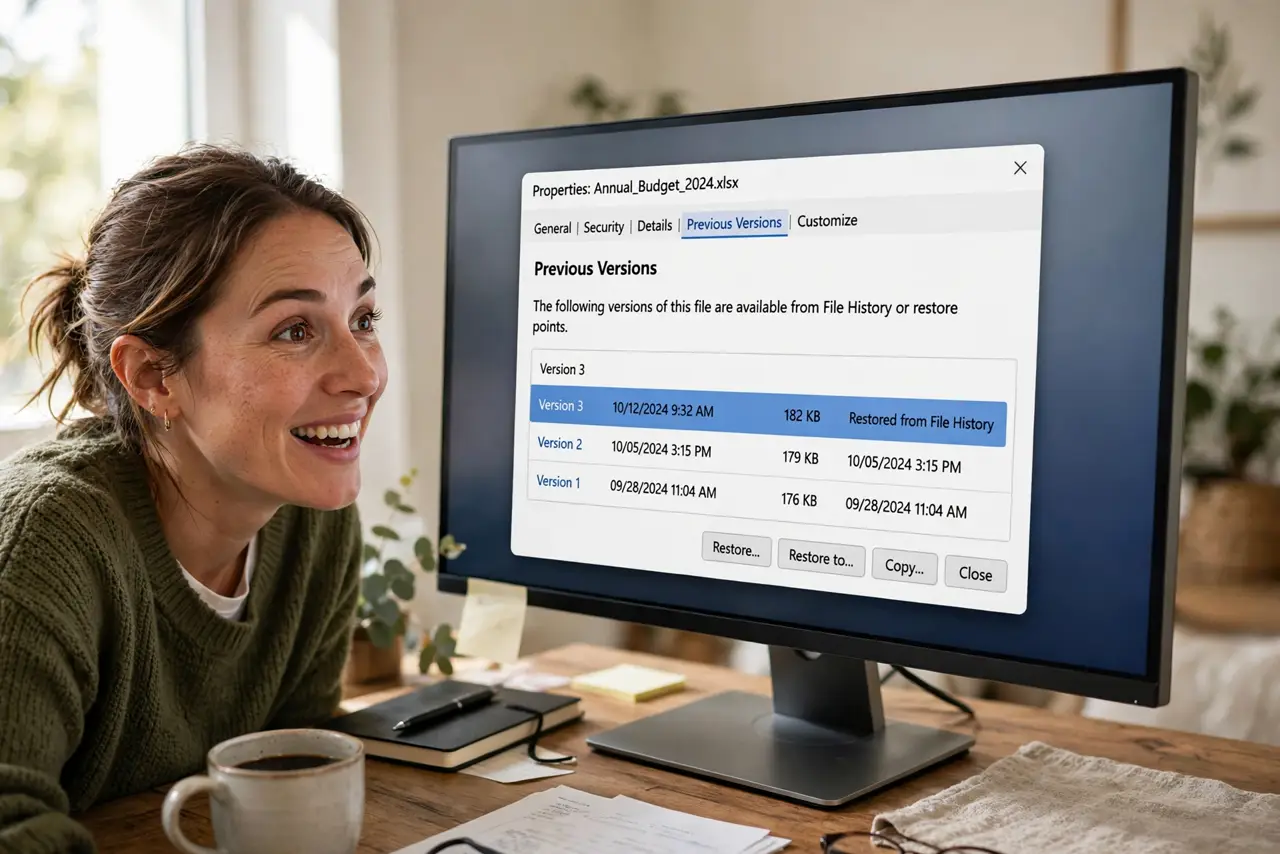
Quick fix: right-click the file or folder, choose Properties, and open the Previous Versions tab — pick a dated copy from before the mistake and click Restore or Copy. This only works if restore points or File History were enabled beforehand. No versions listed means the feature was off.
Follow these steps
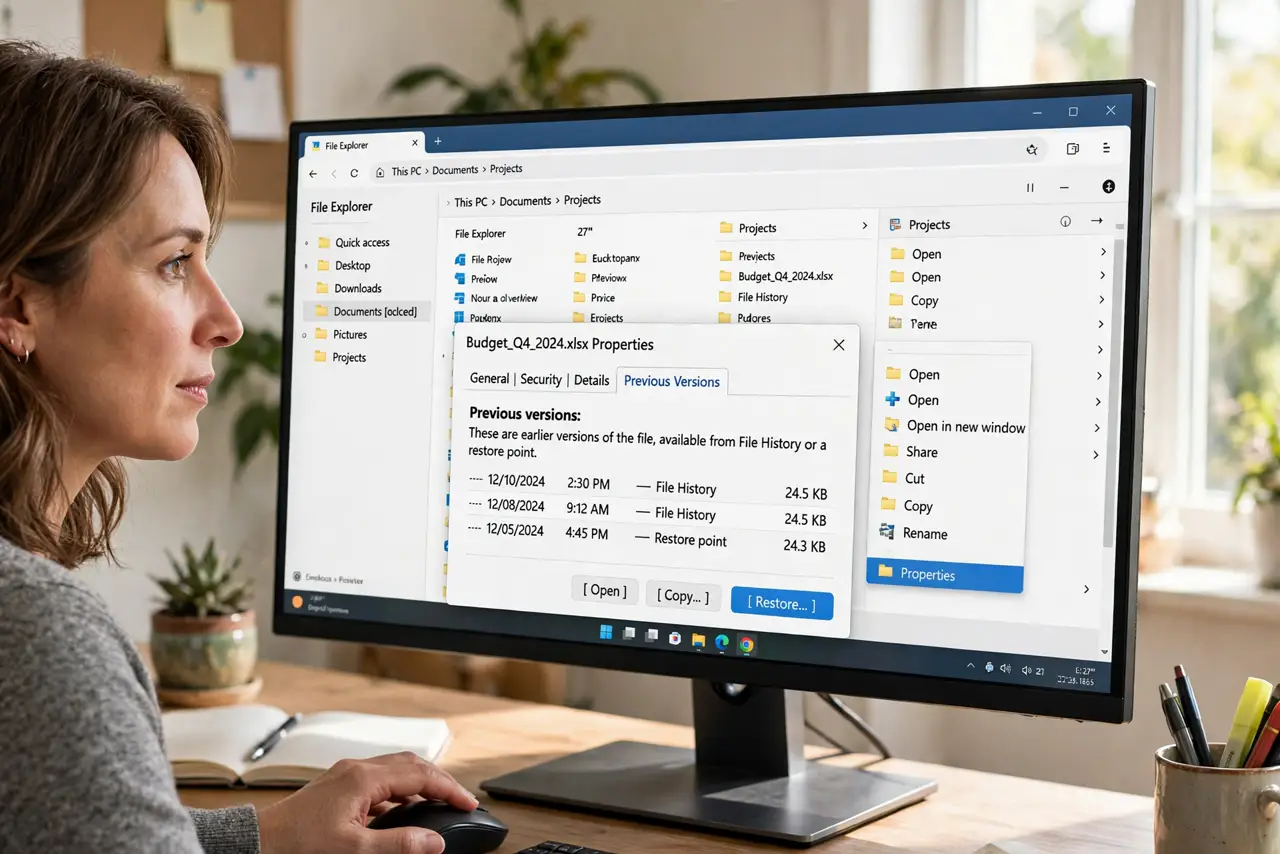
- Open Previous Versions. Right-click the file — or the folder it lives in — choose Properties, and click the Previous Versions tab. Windows lists every snapshot it holds.
- Pick the right dated copy. Choose a version from before your mistake. The dates tell the story; pick the newest one that predates the damage.
- Copy instead of restore when unsure. The Copy button puts the old version somewhere safe without touching the current file. Compare both, then decide — no risk either way.
- Restore when you are certain. Restore replaces the current file with the old version. Use it when the current file is pure damage and the old one is gold.
- Check the whole folder too. Folder-level previous versions can resurrect deleted files inside it. If the file itself shows nothing, check its parent folder.
- Enable File History for next time. Search File History and turn it on with an external drive. It keeps rolling copies of your files so this rescue always exists.
What NOT to do
- Do not restore blindly over the current file. Copy first and compare — the 'damaged' version sometimes holds work the old one lacks.
- Do not assume the feature was on. Previous Versions needs restore points or File History enabled beforehand; it cannot time-travel retroactively.
- Do not confuse this with a backup. It protects against your own edits, not against drive failure or ransomware — keep a real backup.
- Do not wait to enable File History. Every day without it is a day your files have no safety net.
Frequently asked questions
Why are there no previous versions?
Restore points or File History were not enabled when the change happened. Enable File History now so future mistakes are recoverable.
Does this work for deleted files?
Sometimes — check the parent folder's Previous Versions tab, which can contain copies of files deleted since the snapshot.
Previous Versions vs File History — what is the difference?
Previous Versions is the viewer; restore points and File History are the engines that feed it snapshots. You use the tab, they do the work.