Create a System Restore Point
Before a driver install, a settings deep-dive, or a big update, a restore point is your undo button. It snapshots system files and settings — not your documents — so you can roll the PC back if the change goes wrong. Creating one takes less than a minute, and the habit saves hours.
TL;DR / Quick Fix
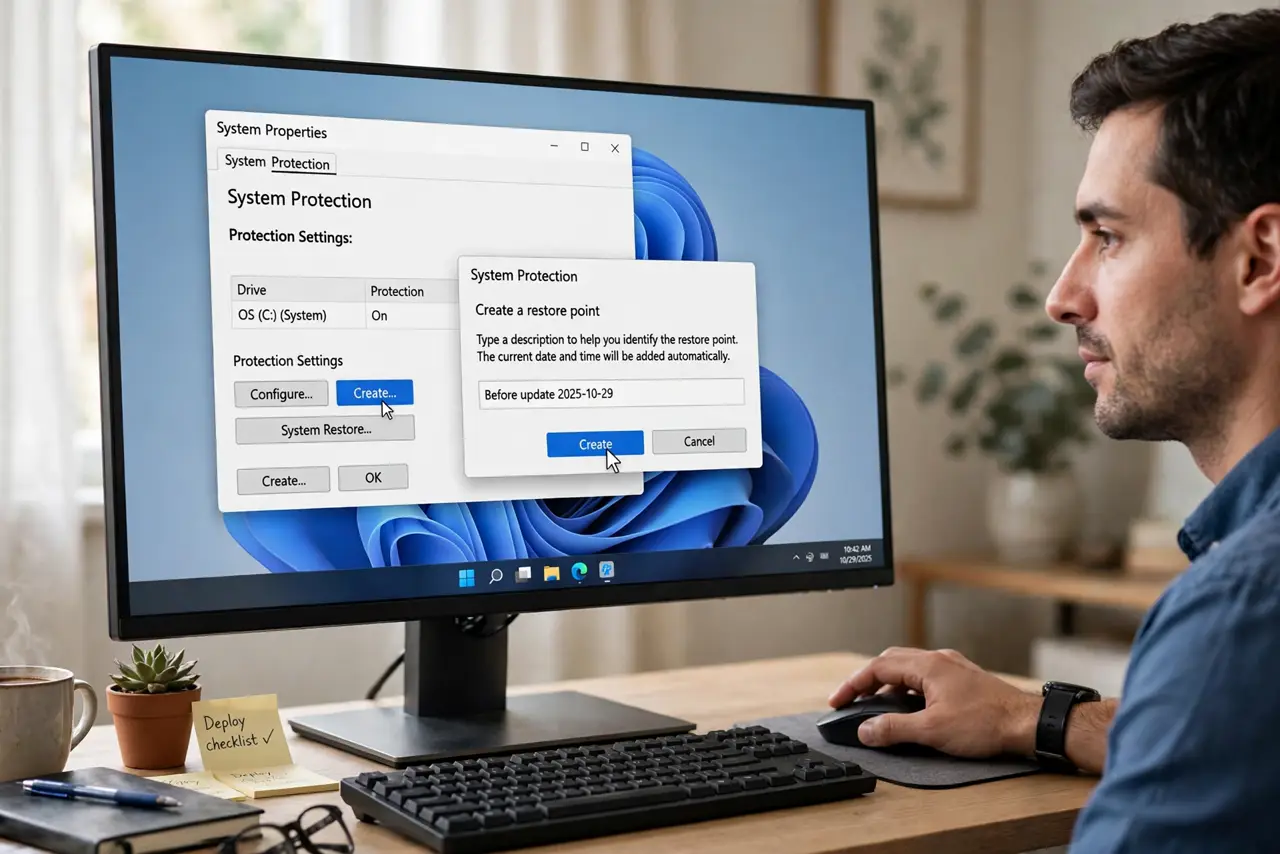
Quick fix: search 'Create a restore point,' open System Protection, confirm protection is on for the system drive, then click Create and name it with date and reason. If a change breaks things, System Restore rolls files back. It never touches personal files — a safety net, not a backup.
Follow these steps
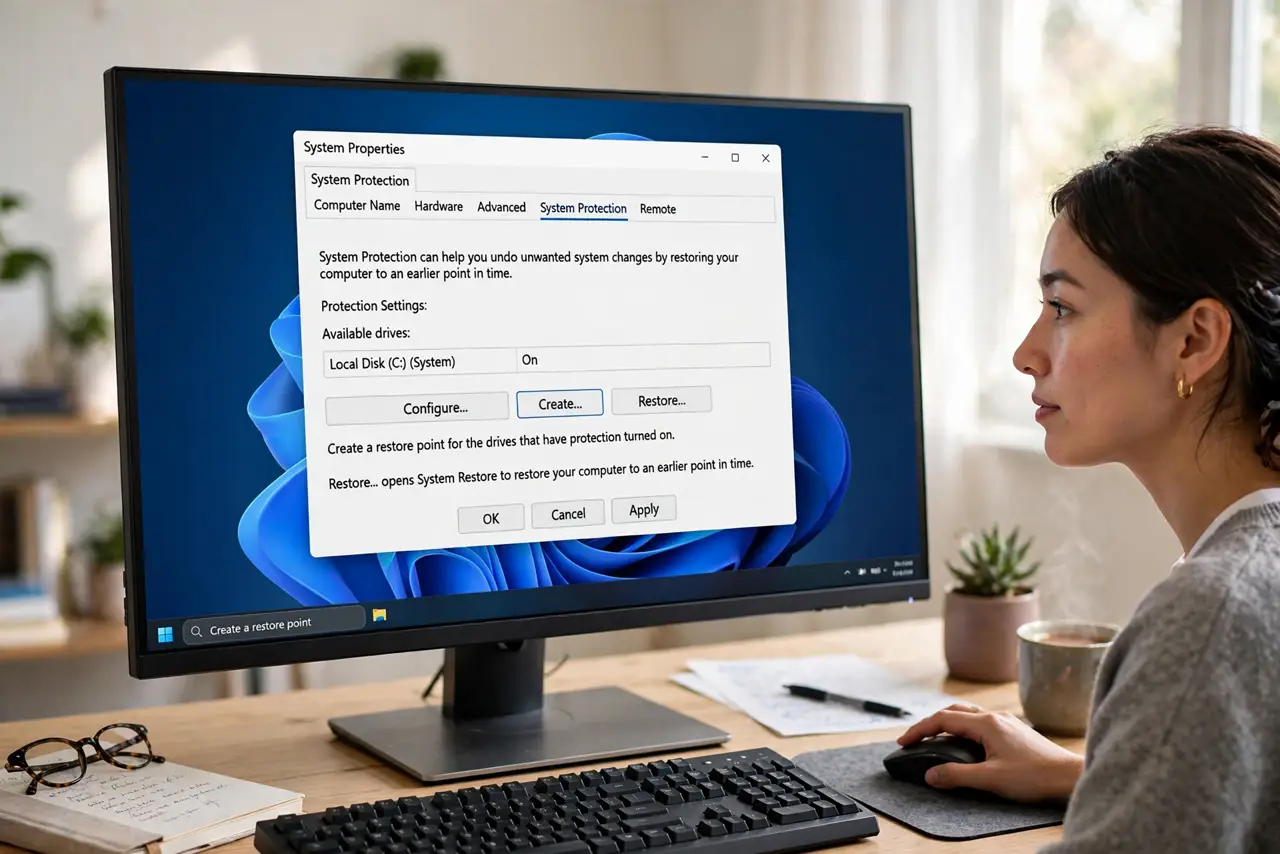
- Open System Protection. Search for Create a restore point and open the result. The System Protection tab is the control room for this feature.
- Turn on protection. Select your system drive, click Configure, and choose Turn on system protection. Without this, no points are created automatically or manually.
- Create the point. Click Create, then name it with the date and the reason — 'Before printer driver change' beats 'Point 1' when you are stressed later.
- Name every point well. Future-you will thank present-you. Include what you are about to change so the right point is obvious in the restore list.
- Know how to use it later. If trouble strikes, return here and click System Restore, or reach it from Advanced startup. Pick your point and let it roll back.
- Make it a habit before changes. Driver updates, registry edits, big software installs — thirty seconds now beats three hours of repair later.
What NOT to do
- Do not expect personal files back from a restore. It rolls back system files and settings — documents, photos, and downloads are untouched, for better or worse.
- Do not treat it as a backup. A real backup copies your files elsewhere; a restore point only rewinds system state.
- Do not disable protection to save a little disk space. The space it uses is small; the rescue it provides is large.
- Do not create a restore point while the PC is infected and expect a clean escape. Restoring can bring the malware right back — clean first.
Frequently asked questions
How much disk space does it use?
A few percent of the drive by default, managed automatically — old points delete themselves as space is needed. You will rarely notice it.
Does it slow down my PC?
No. Points are created in moments and sit idle until needed. There is no background drag in daily use.
System Restore failed — now what?
Try an older point, or boot into Advanced startup and run it from there. If every point fails, the next step is a reset.