Print Screen Key? Basics
You press Print Screen expecting a screenshot, and nothing seems to happen — no flash, no file, no clue where the picture went. On modern Windows the key still works, but it often sends the capture to the clipboard instead of saving a file, or opens the Snipping Tool instead of the old behavior. This guide sorts out what each press actually does and how to get the result you want.
TL;DR / Quick Fix
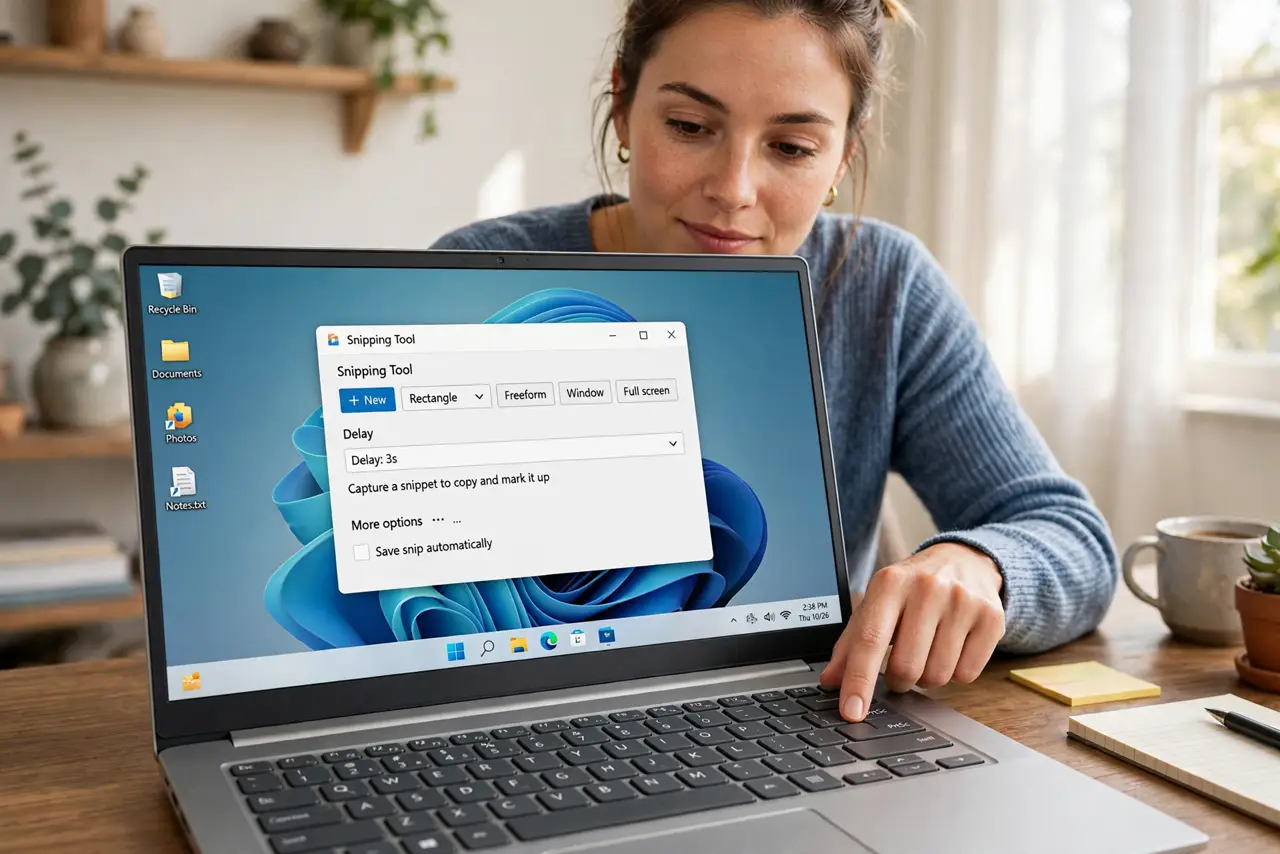
Quick fix: Print Screen copies the screen to the clipboard — open Paint and paste to save it. If the key opens Snipping Tool instead, that is the new default; change it in Settings. For instant files, use Windows key + Print Screen, which saves to Pictures, Screenshots.
Follow these steps
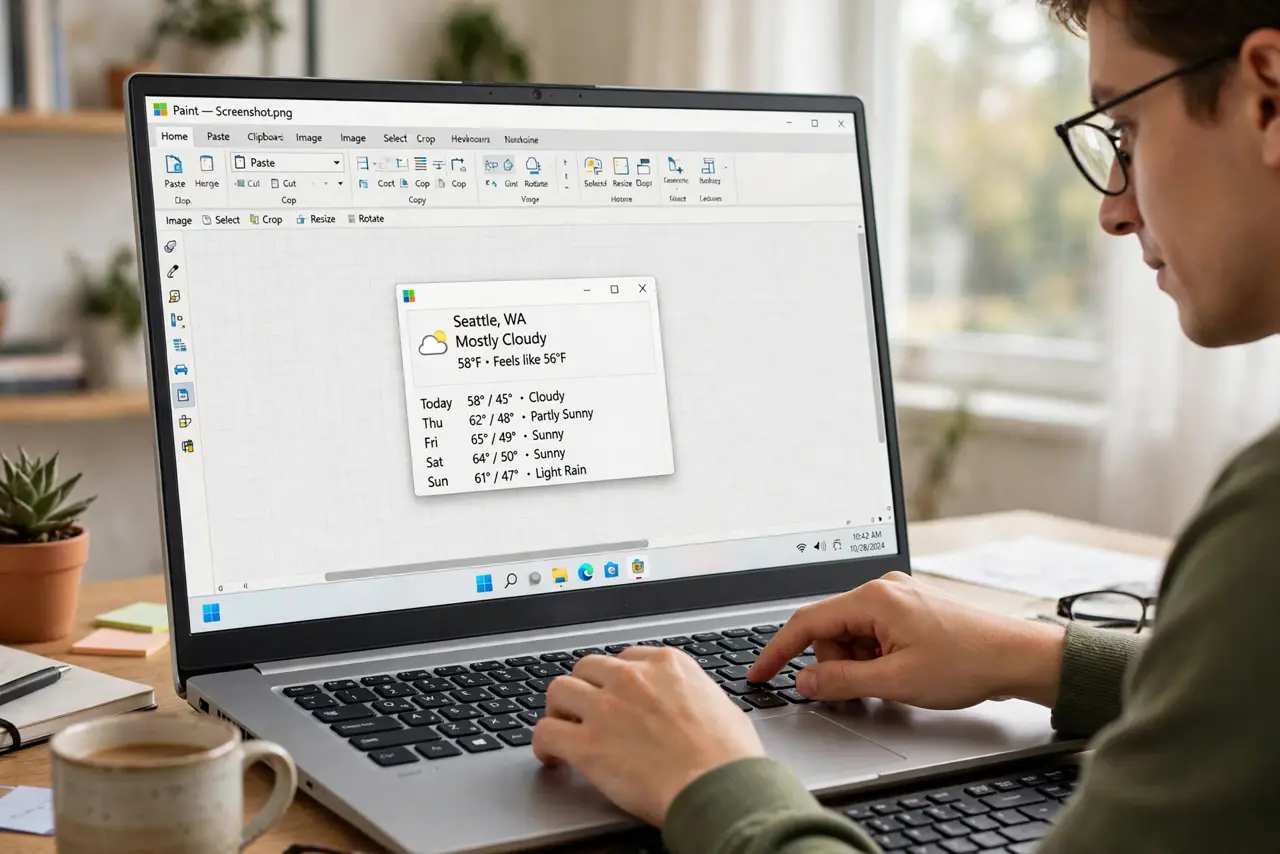
- Try the clipboard paste test. Press Print Screen, open Paint, and press Ctrl+V. If your screen appears, the key works fine — it just copies instead of saving. Save the pasted image as PNG and you are done.
- Use Windows key + Print Screen for instant files. Holding the Windows key while pressing Print Screen saves a PNG straight to your Pictures, then Screenshots folder, with a brief screen dim to confirm. This is the fastest route to an actual file.
- Check the Snipping Tool shortcut setting. Windows 11 can assign Print Screen to open the Snipping Tool overlay. In Settings, then Accessibility, then Keyboard, look for the Print Screen toggle — turn it off to restore the classic clipboard behavior.
- Capture just one window with Alt + Print Screen. Holding Alt while pressing Print Screen copies only the active window to the clipboard, not the whole screen. Paste into Paint or any editor the same way.
- Look for the Fn key on laptops. Many laptop keyboards bury Print Screen behind a function layer — you may need Fn + Print Screen, or the BIOS may swap the default. The key legend on the keycap tells you what it does without Fn.
- Check clipboard history if the paste is empty. Windows key + V opens clipboard history, which keeps recent copies. If Print Screen copied but something else overwrote it, your screenshot may still be sitting in the history list.
What NOT to do
- Do not assume the key is broken because no file appeared. The classic behavior copies to the clipboard — the file step is separate.
- Do not install a random screenshot app first. Windows already covers clipboard, files, and region capture without extra software.
- Do not screenshot passwords or private data casually. Screenshots save as plain images — treat them like the data they show.
- Do not hold Print Screen expecting repeats. It is a single-press key; mashing it just overwrites the clipboard with the same image.
Frequently asked questions
Where do Print Screen images go?
Nowhere by default — they go to the clipboard. Windows key + Print Screen is the combo that actually saves a file to Pictures, Screenshots.
Why does Print Screen open Snipping Tool now?
Windows 11 made that the default. You can switch it back in Accessibility keyboard settings if you prefer the old clipboard behavior.
How do I screenshot just part of the screen?
Press Windows key + Shift + S to open the snip overlay and drag a region. It copies to the clipboard and offers a save option.