Print Anything to PDF
You need to send a document, save a receipt, or archive a web page — and printing it on paper just to scan it back is absurd. Windows has a built-in PDF printer that turns anything printable into a PDF file in seconds, no extra software needed. This guide uses it from any app, picks the right settings, and combines it with multi-page scanning for a paperless workflow. For the scanning half, see how to scan multiple pages.
TL;DR / Quick Fix
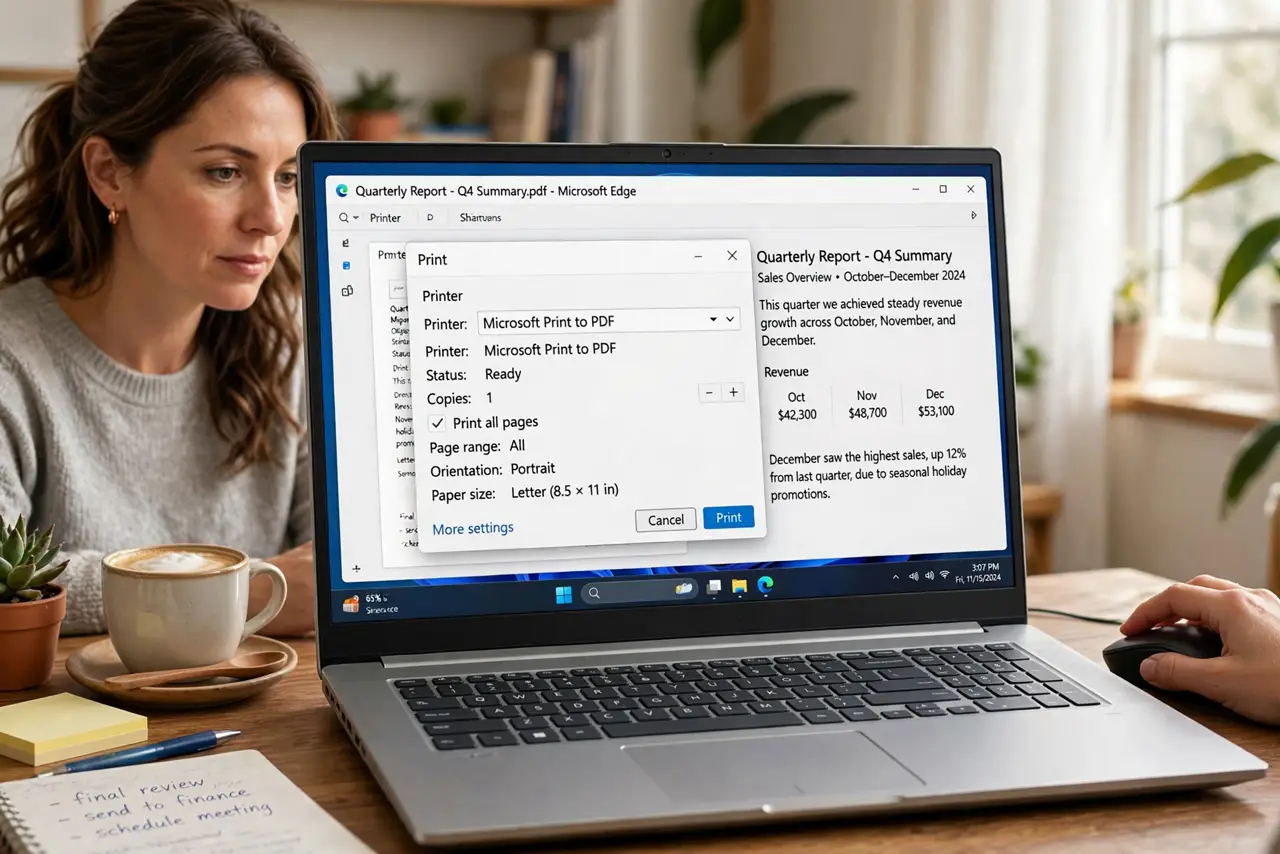
Quick fix: in any app, press Ctrl+P and choose Microsoft Print to PDF as the printer, then save. It is built into Windows — no downloads needed. For web pages, use the Save as PDF destination in the browser print dialog. Name files clearly at save time.
Follow these steps
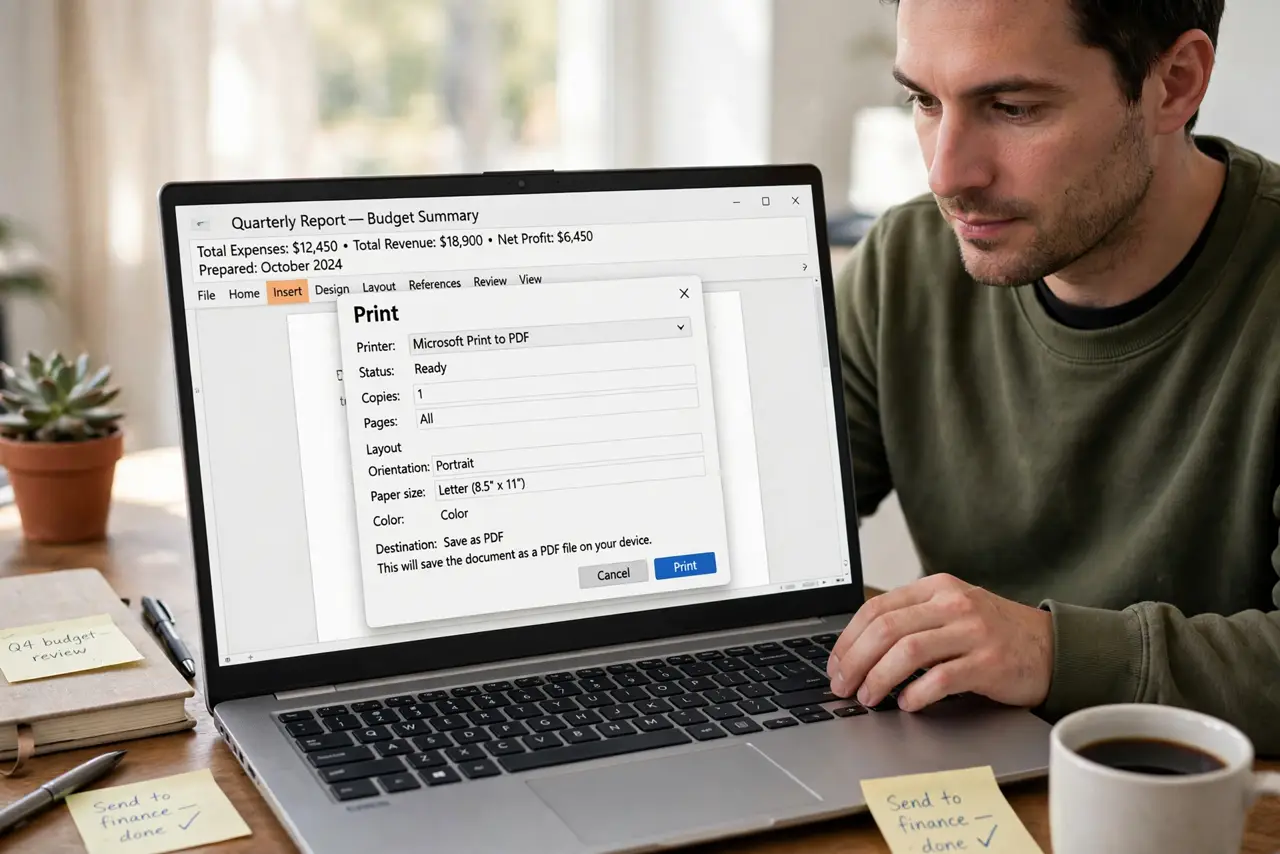
- Print to PDF from any app. Press Ctrl+P in Word, your browser, or any program. In the printer list, choose Microsoft Print to PDF instead of your real printer, then click Print.
- Choose where it saves. Windows asks for a location and filename. Save to the folder where the document belongs now — a PDF named Document1 in Downloads is a future headache.
- Check the page settings first. In the print dialog, confirm orientation, margins, and which pages. A web page printed with the wrong settings becomes a ten-page mess instead of a tidy two.
- Use it in the browser too. Browsers offer Save as PDF or the same Microsoft Print to PDF destination. Enable background graphics if the page's colors and images matter.
- Combine PDFs when needed. Need one file from several prints? Print each to PDF, then merge with the free tools in your PDF reader or the browser-based options — no paid software required.
- Name and file immediately. The thirty seconds you spend naming the PDF and moving it to the right folder saves the archaeological dig through Downloads next month.
What NOT to do
- Do not install a 'free PDF printer' from a random site. Windows includes one — third-party installers are a classic bundleware trap.
- Do not print sensitive documents to PDF on a shared computer and leave them in Downloads. Save to your own folder and delete strays.
- Do not expect perfect fidelity from complex web pages. Print stylesheets vary; check the preview before saving anything important.
- Do not forget PDFs can be large. For emailing, check the file size first — huge scans may need compressing.
Frequently asked questions
Where did my PDF go?
Wherever you chose in the save dialog — the default is often Documents. Search File Explorer for the filename if you clicked through too fast.
Can I password-protect the PDF?
Not with the built-in printer alone — it makes plain PDFs. Your PDF reader app usually offers protection when saving or exporting.
Why is the text not selectable in my PDF?
Some apps print pages as images. Printing from the original document (not a scan of it) usually keeps text selectable.