Print to PDF? Page Size Tips
You 'print' a document to PDF and it comes out with cut-off margins, the wrong paper size, or tiny text floating on a huge page. Microsoft Print to PDF is a real printer driver with real printer settings — including paper size, orientation, and margins. The fix is treating it like the printer it pretends to be.
TL;DR / Quick Fix
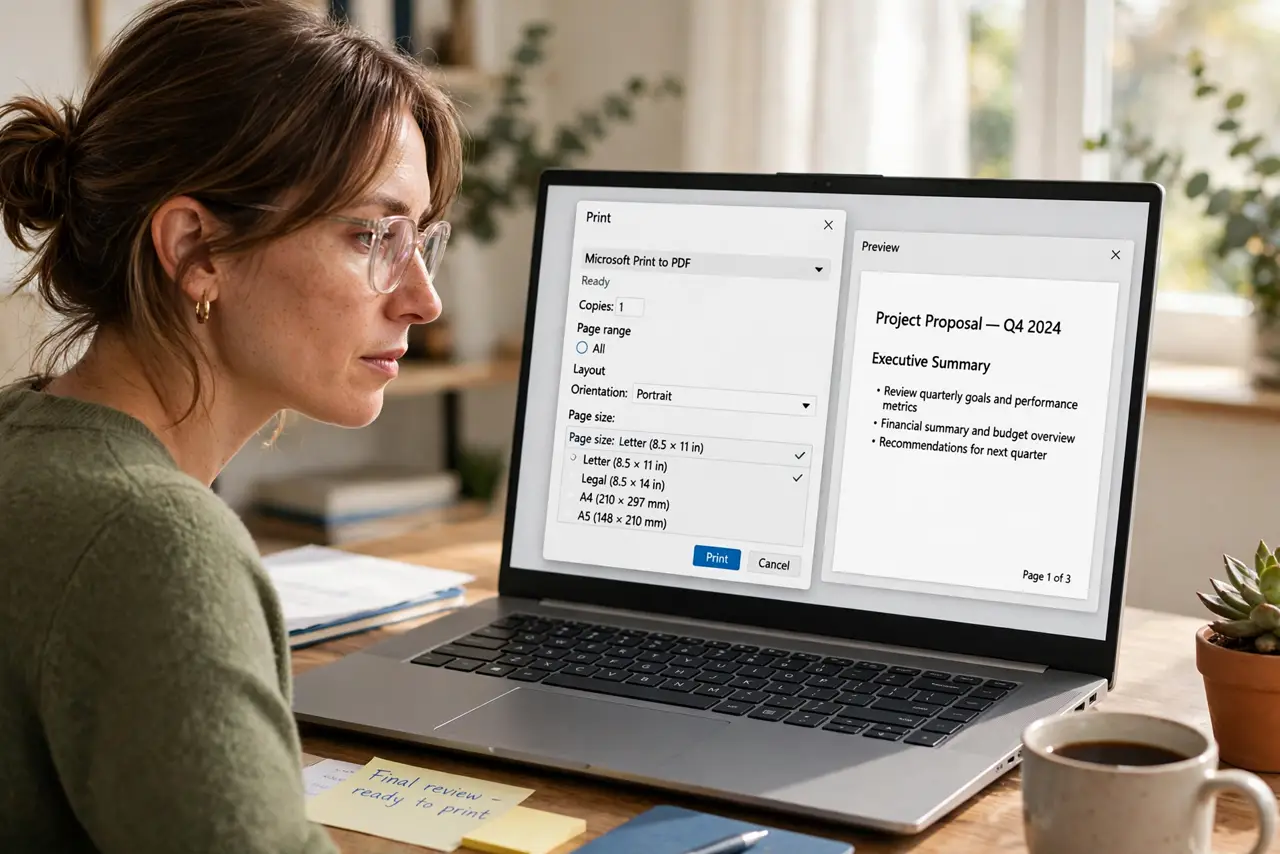
Quick fix: in the Print dialog select Microsoft Print to PDF, then open Preferences or More settings — set the paper size to match your document (Letter or A4), check orientation, and adjust margins. Preview before saving. Most bad PDFs trace to a paper-size mismatch with the virtual printer.
Follow these steps
- Select Microsoft Print to PDF. In any program's Print dialog, choose Microsoft Print to PDF from the printer list. It is built into Windows — no install needed.
- Open its preferences. Click Preferences or More settings in the dialog. Paper size, orientation, and quality live here — the virtual printer has real settings.
- Match the paper size. Set Letter or A4 to match the document. A US Letter document printed to A4 PDF (or vice versa) shrinks or crops — the classic mismatch.
- Check orientation and margins. Landscape documents need landscape selected. Tighten margins if content clips at the edges — the preview shows the truth.
- Preview before saving. Use the print preview to confirm every page looks right. Re-printing a PDF is free, but finding the error later is not.
- Name the file deliberately. The save dialog defaults to the document title. Rename now — 'Document1.pdf' in Downloads helps no one next month.
What NOT to do
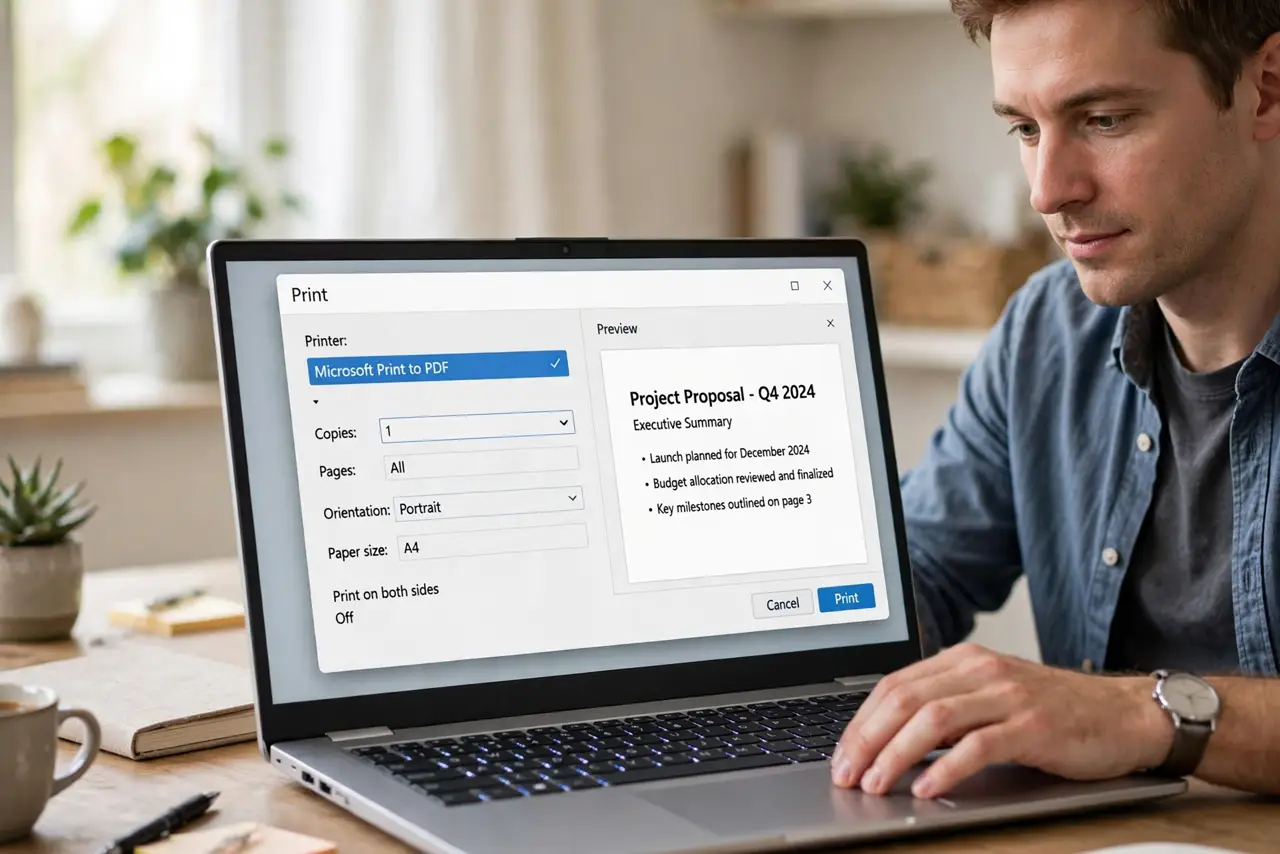
- Do not accept the first PDF without previewing. One glance catches the paper-size mismatch that ruins the whole file.
- Do not mix Letter and A4 blindly. Pick the size your recipient expects — Americans print Letter, most of the world prints A4.
- Do not screenshot instead of printing to PDF. Screenshots of documents are blurry, unsearchable, and unprofessional — use the real tool.
- Do not forget where it saved. Note the save location in the dialog, or the perfect PDF vanishes into Downloads.
Frequently asked questions
Where did my PDF go?
Wherever the save dialog pointed — usually Documents or Downloads. Check the dialog's location bar next time before clicking Save.
Why is the text tiny on a huge page?
Paper-size mismatch: the document is small-paper and the PDF is large-paper, or the reverse. Match them in Preferences.
Can I make the PDF smaller?
Print at standard quality instead of high, and avoid image-heavy originals. For big reductions, a dedicated PDF tool compresses better.