Fix the Print Spooler
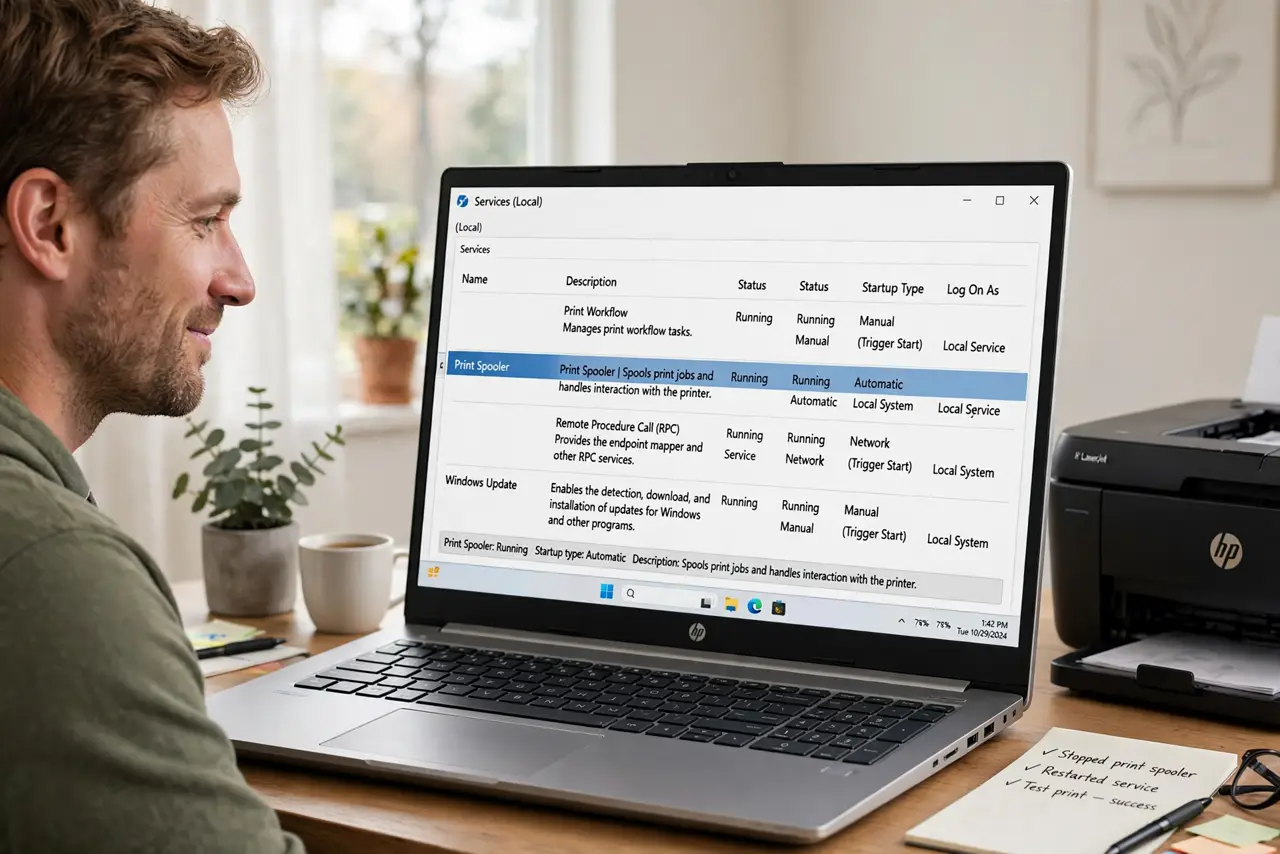
You hit Print, nothing happens, and the queue shows a job stuck on deleting that will not go away. The culprit is usually the Print Spooler — the Windows service that manages print jobs — jammed on a corrupted file. Restarting it clears the jam in seconds. Here is the fix, plus what to do when it keeps happening.
TL;DR / Quick Fix
Quick fix: stuck print jobs usually mean the Print Spooler is jammed — open Services, restart the Print Spooler, and the queue clears. If jobs keep sticking, clear the spool folder and update the printer driver. Five minutes fixes most spooler problems. See the spooler guide for details.
Follow these steps
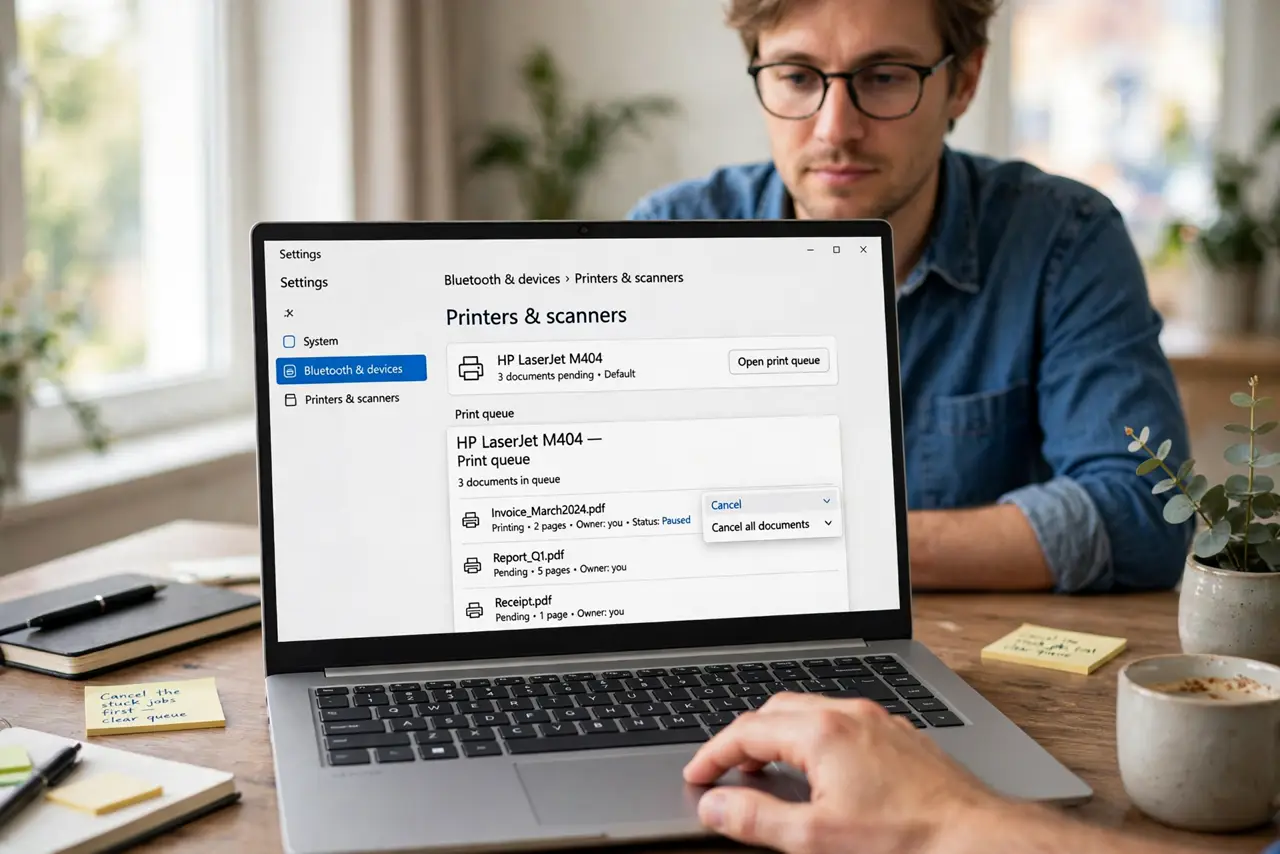
- Cancel the stuck jobs first. Open Settings > Bluetooth & devices > Printers, open the print queue, and cancel all documents. If they refuse to clear — the classic symptom — the spooler itself is stuck.
- Restart the Print Spooler service. Press Windows key + R, type services.msc, find Print Spooler, right-click > Restart. The queue should clear within seconds — this fixes the large majority of cases.
- Clear the spool folder manually. If restart does not help: stop the spooler service, delete the files in C:\Windows\System32\spool\PRINTERS, then start the service again. Those orphaned files are the jam.
- Update or reinstall the printer driver. Chronic spooler crashes point at a bad driver. Download the latest from the manufacturer's site — Windows Update drivers lag behind. The stuck queue guide covers driver purging.
- Check for the app causing it. One specific program's print jobs always jamming the queue? Print from it to PDF first, then print the PDF — the app's print output, not the spooler, is the culprit.
- Set the spooler to auto-recover. In the service's Recovery tab, set all failures to Restart the Service. Future jams then fix themselves instead of waiting for you to notice.
What NOT to do
- Do not delete the PRINTERS folder itself. Delete the files INSIDE it — removing the folder breaks the spooler until Windows recreates it.
- Do not keep hammering Print. Each retry adds another stuck job to the jam — cancel first, then fix, then print once.
- Do not disable the spooler permanently. Some guides suggest it; it breaks all printing and PDF creation — restart, do not disable.
- Do not ignore recurring jams. A spooler that jams weekly has a driver or software cause — the restart is treatment, the driver update is the cure.
Frequently asked questions
What does the Print Spooler actually do?
It manages the queue between your apps and the printer — receiving jobs, ordering them, feeding them to the printer. When it crashes, everything print-related freezes.
Why do print jobs get stuck deleting?
The spooler is waiting on a file lock or a dead printer connection. Restarting the service releases the lock — the manual folder clear is the backup plan.
Can I just reinstall the printer instead?
Sometimes that works, but it is slower than a spooler restart and often leaves the same bad driver behind. Restart first, reinstall second.