Printer Queue Stuck? Clear the Spooler Safely
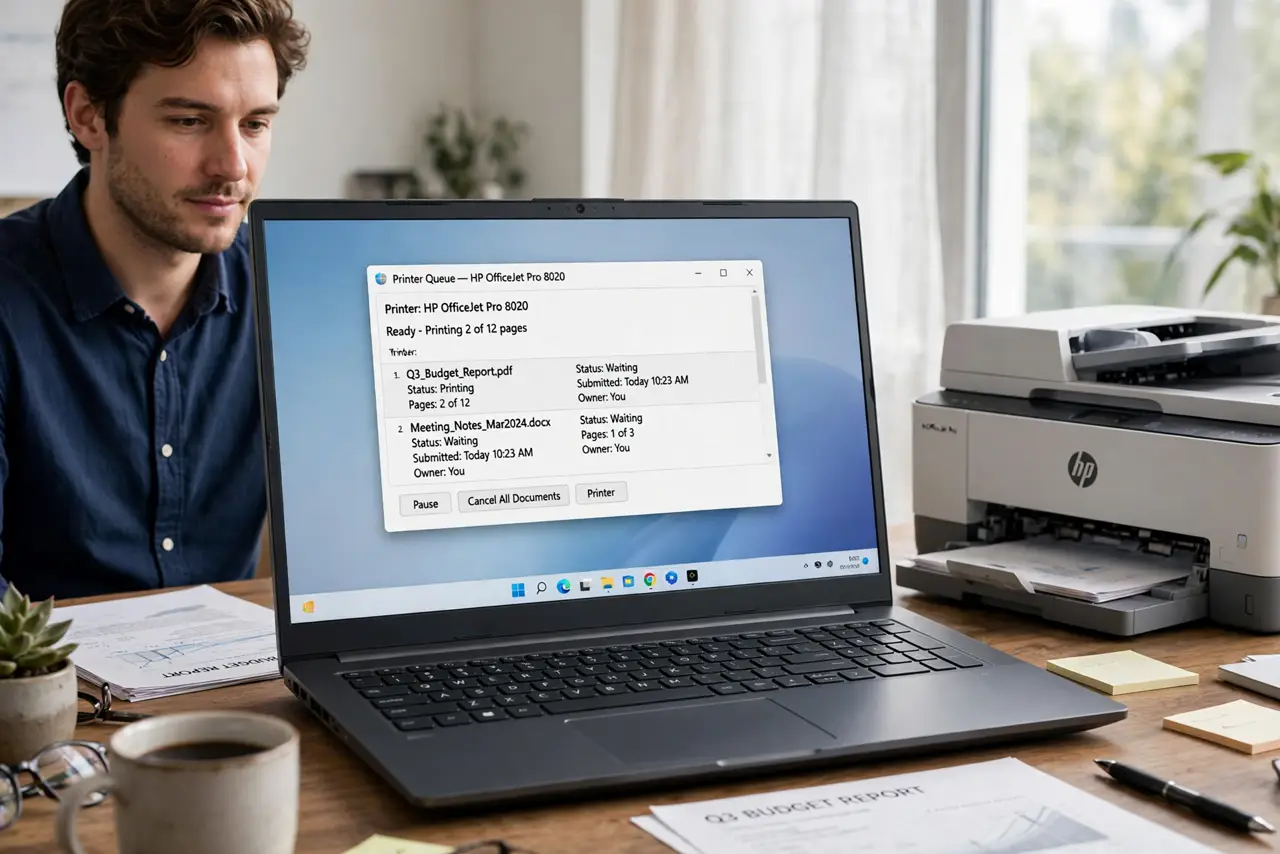
When a print job sticks in the queue, every job behind it waits, and cancelling from the queue often does nothing. The spooler service holds those jobs, so the safe fix is to stop the spooler, clear its queue, restart it, and then print one test page.
TL;DR / Quick Fix
Quick fix: open Services, stop the Print Spooler, delete the files in the spooler printers folder only, start the Print Spooler again, and then send one small test print. If the test prints, the queue is clear and you can resend the real job.
Follow these steps
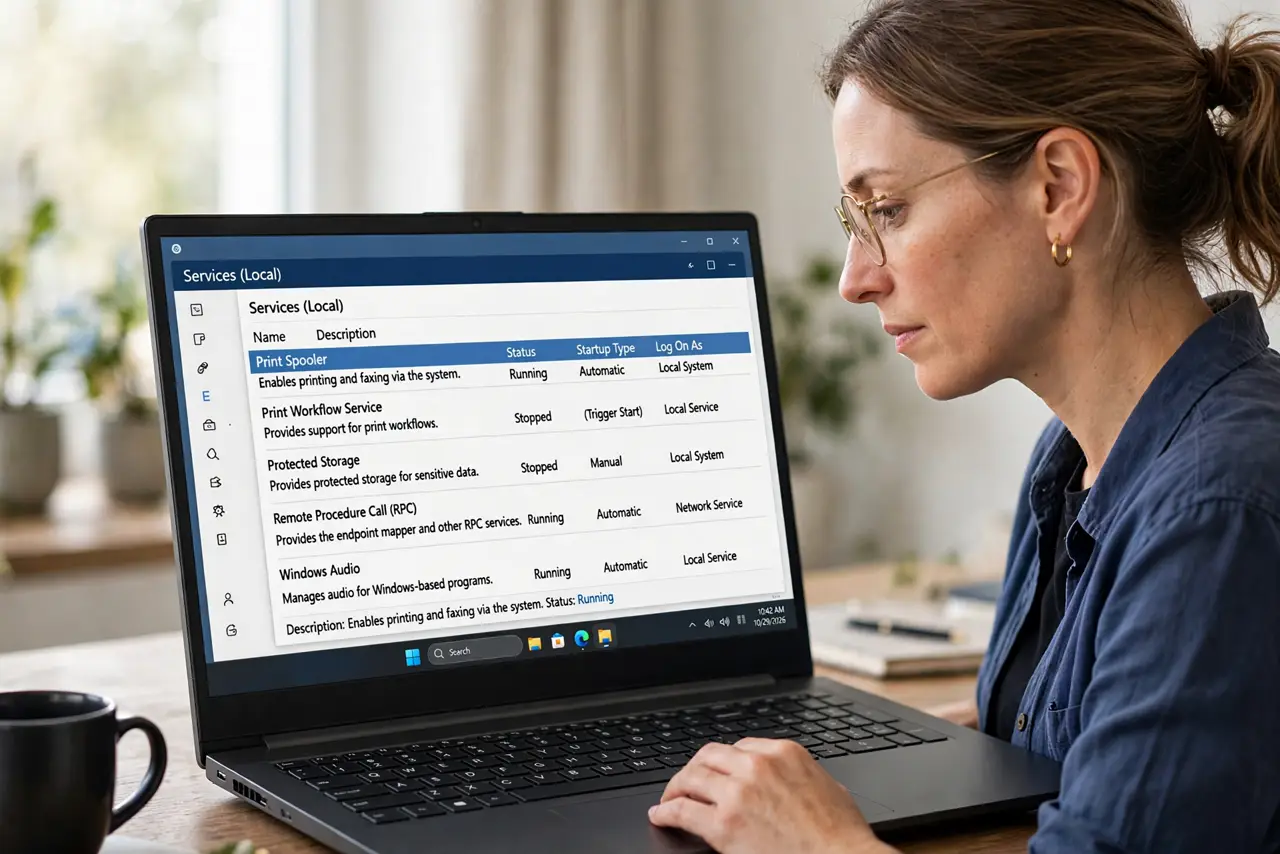
- Open Services. Press Windows and R, type services.msc, and press Enter. Find Print Spooler in the list, and do not change any other service.
- Stop the Print Spooler. Right-click Print Spooler and choose Stop. The queue window may close or empty on screen, but the stuck files are still held until the next step.
- Clear only the spooler printers folder. Open File Explorer, go to the spooler printers folder, and delete the files inside that folder only. Do not delete the folder itself, and do not touch other system folders.
- Start the Print Spooler again. Go back to Services, right-click Print Spooler, and choose Start. Wait a few seconds for the service to report that it is running.
- Send one small test print. Print a single short test page first. If it prints cleanly, the queue is clear and the printer is ready again.
- Resend the original job once. Send the original document again, just once. If it sticks again, the document itself may be the problem, so try a simpler file before you repeat the spooler steps.
What NOT to do
- Do not keep clicking Cancel on a stuck job for an hour. If cancelling worked, the job would already be gone, and repeated clicks will not clear a spooler hold.
- Do not delete files from other system folders while clearing the queue. Only the spooler printers folder holds queued print jobs, and other folders hold Windows itself.
- Do not reinstall the printer before you try the spooler steps. Reinstalling takes far longer and leaves the same stuck job waiting in the queue.
- Do not unplug the printer mid-print to clear the queue. Unplugging stops the printer, but the stuck job stays queued and will try again when you reconnect.
Frequently asked questions
Why does cancelling not clear a stuck job?
Because the spooler service still holds the job file. Stopping the service releases that hold, which is why clearing the folder works when cancelling does not.
Will clearing the queue delete my document?
No. It deletes the queued print copy, not your original document. You can print the original again once the queue is clear.
What if the same job sticks again?
Try a simpler file, such as a one-page test. If simple files print but one document always sticks, that document, not the printer, is the problem.