A Program Refuses to Uninstall on Windows
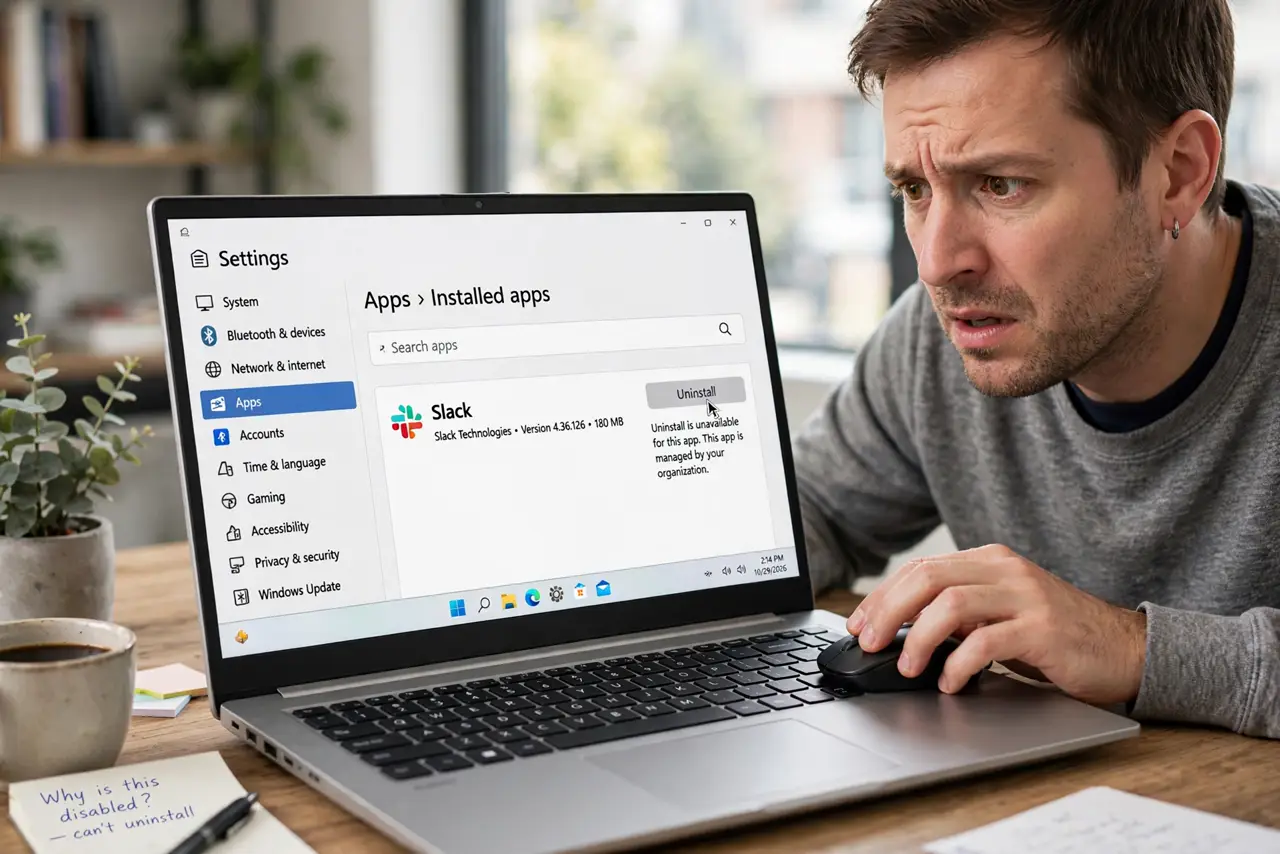
You click Uninstall and nothing happens — no error, no progress, the program just sits there. The uninstaller is usually damaged or missing while the program itself runs fine. Microsoft offers a free troubleshooter for exactly this, and there is a safe order to try before it — a software cousin of the stuck Store update problem.
TL;DR / Quick Fix
Quick fix: try uninstalling from both Settings and the classic Control Panel, since one path sometimes works when the other stalls. If both fail, run Microsoft's Program Install and Uninstall troubleshooter, which repairs broken uninstall entries. Only as a last resort should you remove leftovers by hand.
Follow these steps
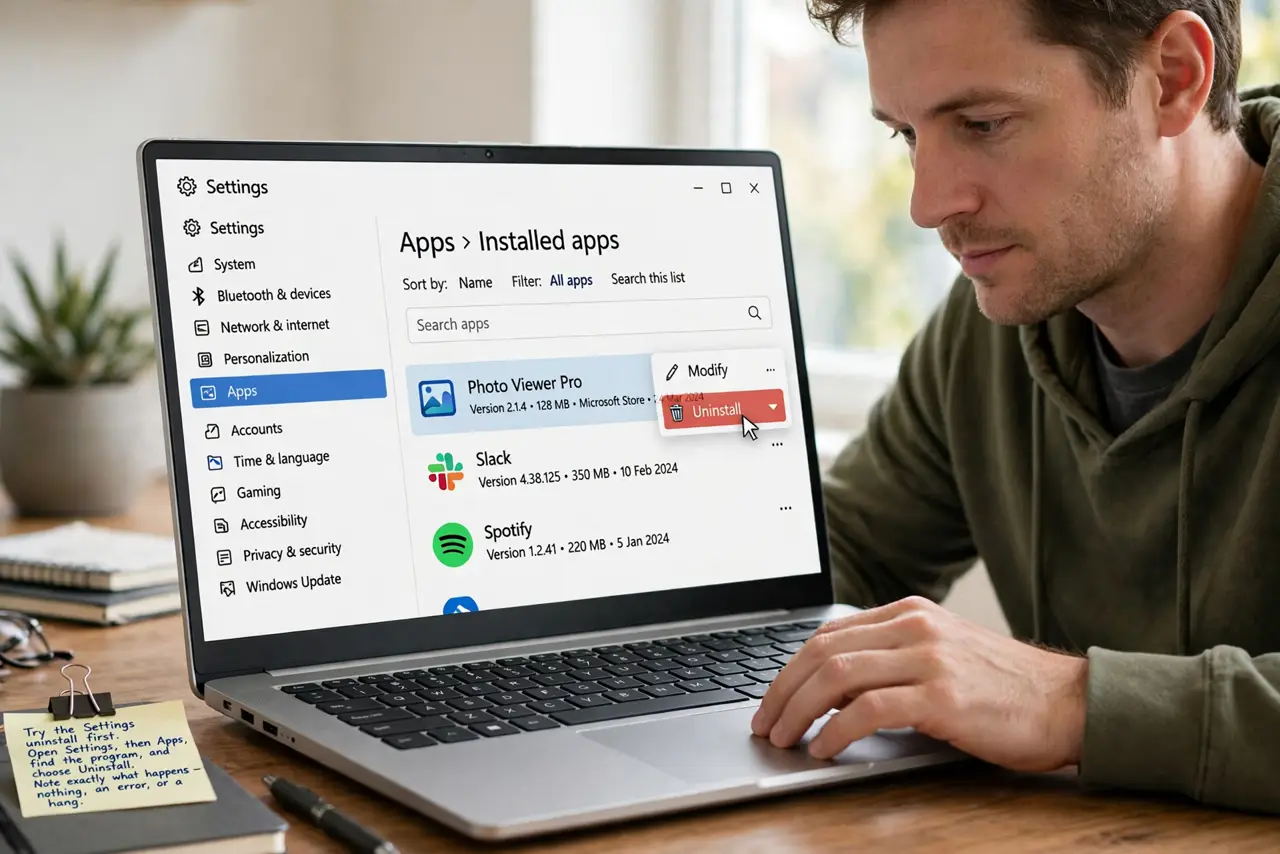
- Try the Settings uninstall first. Open Settings, then Apps, find the program, and choose Uninstall. Note exactly what happens — nothing, an error, or a hang — because the symptom guides the next step.
- Try the Control Panel path too. Open the classic Programs and Features panel and uninstall from there. The two paths use slightly different mechanisms, and one often succeeds where the other fails.
- Check the program is not running. Open Task Manager and end any of the program's processes, including background helpers. An uninstaller cannot remove files that are currently in use.
- Run Microsoft's uninstall troubleshooter. Download the Program Install and Uninstall troubleshooter from Microsoft's support site and run it. It is built for broken uninstall entries and fixes them safely.
- Reinstall, then uninstall. If the troubleshooter cannot help, reinstall the same version of the program over itself, then uninstall immediately. A fresh install repairs the broken uninstaller.
- Clean leftovers only at the end. After a successful uninstall, you may delete the program's leftover folder in Program Files. Never delete the folder before uninstalling — that is what breaks uninstallers.
What NOT to do
- Do not delete the program folder as the uninstall method. That strands registry entries and services, which is worse than a program that merely will not uninstall.
- Do not use aggressive third-party uninstallers first. Try Microsoft's own troubleshooter before handing deep system access to another tool.
- Do not force-remove shared components. Some uninstallers offer to remove shared libraries; declining keeps other programs working.
- Do not ignore a program that resists all removal. A program that survives every legitimate method may be malicious, and that deserves a malware scan, not more force.
Frequently asked questions
Why does the uninstall button do nothing?
Because the uninstaller file is damaged or missing. The button calls a helper that no longer exists, so the click goes nowhere.
Is it safe to reinstall just to uninstall?
Yes. Installing the same version over itself repairs the uninstaller, and the immediate uninstall then works cleanly.
What if the program is not in the apps list at all?
Then it may be a portable app with no installer. Portable apps uninstall by simply deleting their folder.