Public vs Private Networks?
Windows asks whether a new network is Public or Private, and the choice actually matters: it controls firewall rules, sharing, and discovery. Pick wrong and your home sharing breaks — or your laptop is exposed at the coffee shop. Here is what each one does.
TL;DR / Quick Fix
Quick fix: set trusted home and work networks to Private — sharing and discovery work there. Set coffee shops, airports, and hotels to Public — Windows locks sharing down. If home sharing suddenly breaks, the network probably flipped to Public.
Follow these steps
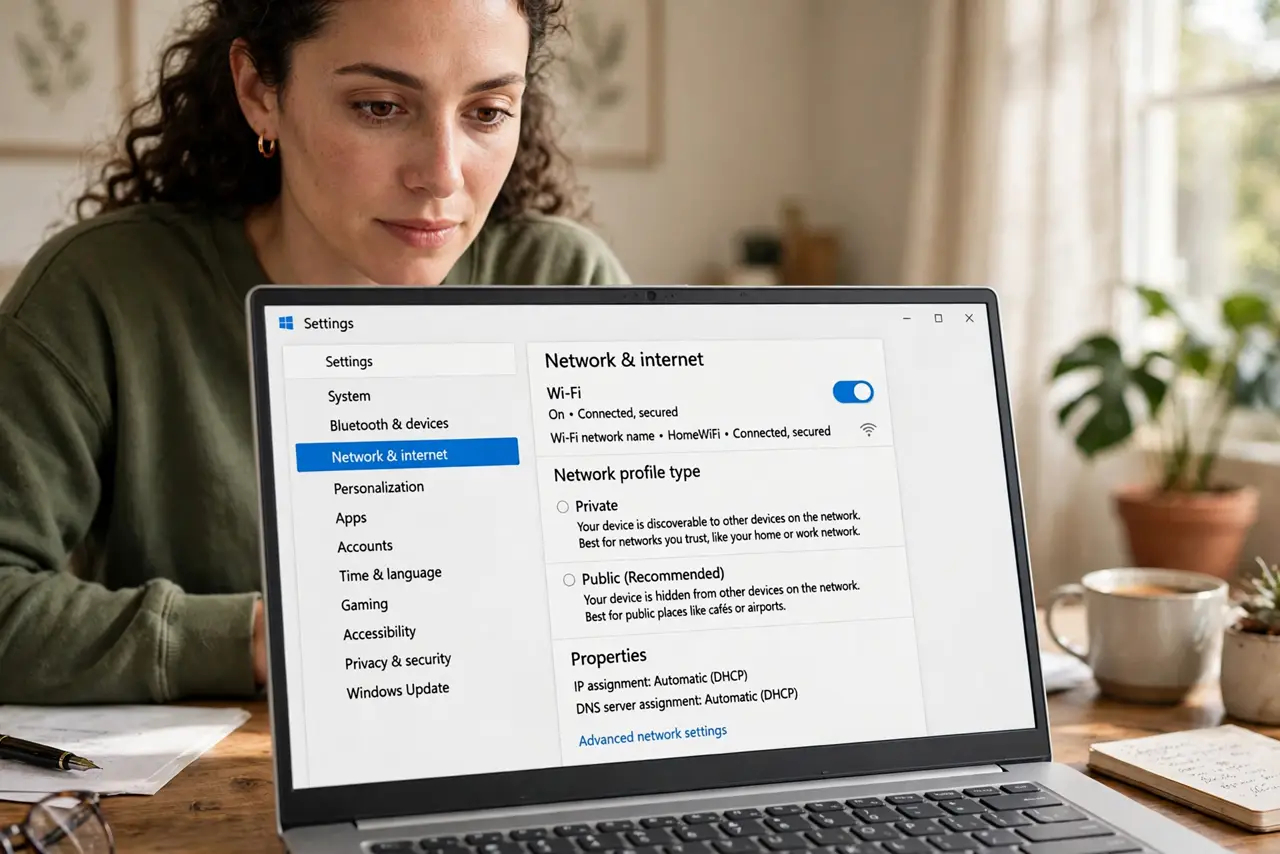
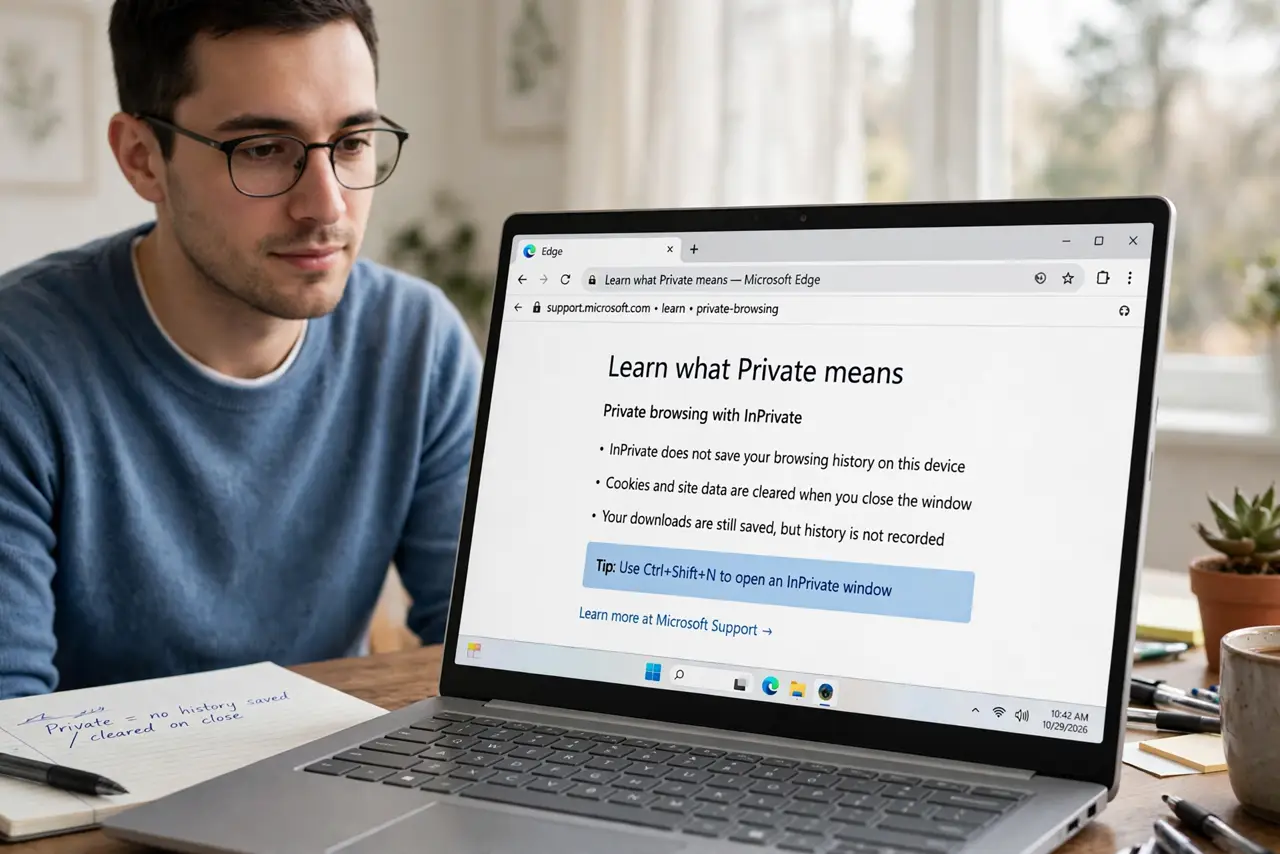
- Learn what Private means. Private tells Windows the network is trusted: sharing, discovery, and casting are allowed. Home and office networks belong here.
- Learn what Public means. Public tells Windows the network is hostile: sharing blocked, discovery off, firewall tightened. Cafes, airports, hotels — always Public.
- Check the current profile. In Settings, Network, click your connection — the profile is shown. Many 'sharing broke' mysteries are a network set to Public.
- Change it when wrong. Flip the toggle to the correct profile. The change applies instantly — sharing starts working (or locks down) immediately.
- Watch for silent flips. Windows updates and router changes sometimes reset a network to Public. If discovery stops working, check the profile first.
- Pair with safe public habits. On Public networks, also disable auto-join for open networks and prefer a VPN.
What NOT to do
- Do not set a cafe network to Private. That enables sharing and discovery among strangers — exactly backwards.
- Do not set home to Public 'for security.' It just breaks your own sharing and printing for no benefit.
- Do not ignore the prompt on new networks. The default matters — Public is the safe default for unknown networks.
- Do not assume the profile never changes. Recheck after updates and router swaps.
Frequently asked questions
Which should my home Wi-Fi be?
Private — you want sharing and discovery working there.
Can I change it later?
Yes, anytime in Settings, Network. It is a toggle, not a commitment.
Does Public block everything?
It blocks inbound sharing and discovery. Your outbound browsing works normally.