Pin Folders to Quick Access
You open the same three folders every day — projects, downloads, the shared drive — and every time you dig through the folder tree to reach them. Quick Access pins them to the top of File Explorer's navigation pane, one click away. Thirty seconds of pinning saves minutes every single day.
TL;DR / Quick Fix
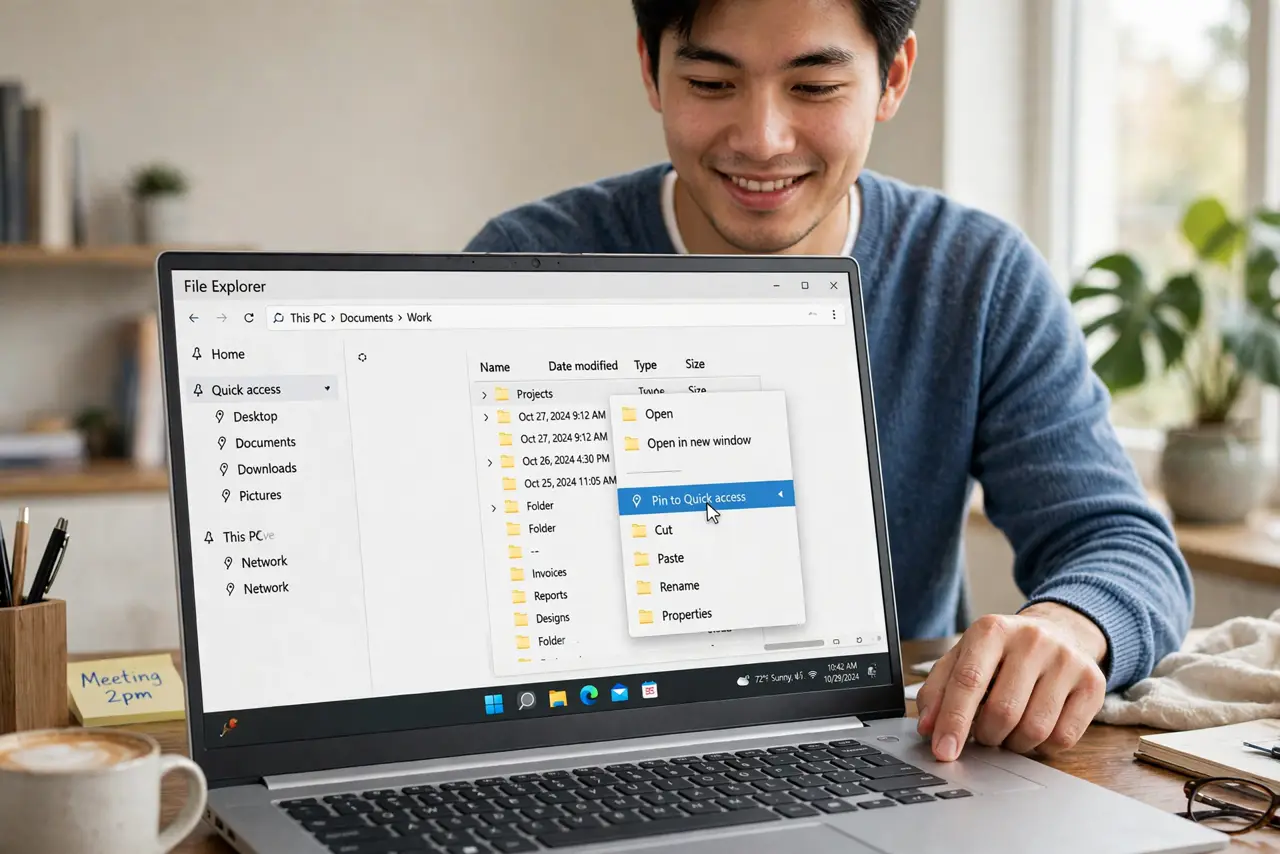
Quick fix: right-click any folder and choose Pin to Quick Access. Your daily folders now sit at the top of the navigation pane. Unpin with a right-click when a project ends. If pins vanish after an update, re-pin them — the folders themselves are never affected.
Follow these steps
- Open File Explorer. Press Windows+E or click the folder icon on the taskbar. You need the navigation pane visible on the left — that is where Quick Access lives and where your pins will appear.
- Navigate to a folder you open daily. Go to the folder the long way one last time. Pick the folders you genuinely open every day — current projects, downloads, a shared folder — not everything you might need someday.
- Pin it. Right-click the folder and choose Pin to Quick Access. It jumps to the top of the navigation pane under Quick Access. Repeat for your other daily folders; three to six pins is the sweet spot.
- Reorder by dragging. Drag pinned folders up or down to match your workflow order — most-used at the top. The order is yours to arrange; Windows does not sort them for you.
- Unpin finished projects. Right-click a pin and choose Unpin from Quick Access when a project ends. This removes only the shortcut, never the folder. A tidy pin list stays useful; a stale one becomes clutter.
- Recover pins after an update. Major Windows updates sometimes reset Quick Access. The folders are fine — just re-pin them. If this annoys you, keep a note of your pin list somewhere handy.
What NOT to do
- Do not pin your entire drive. Quick Access is for daily folders; pinning everything recreates the clutter you are escaping.
- Do not confuse unpinning with deleting. Unpin removes the shortcut only — your files stay exactly where they are.
- Do not pin folders on a drive you unplug often. Dead pins to missing drives just sit there grayed out until you unpin them.
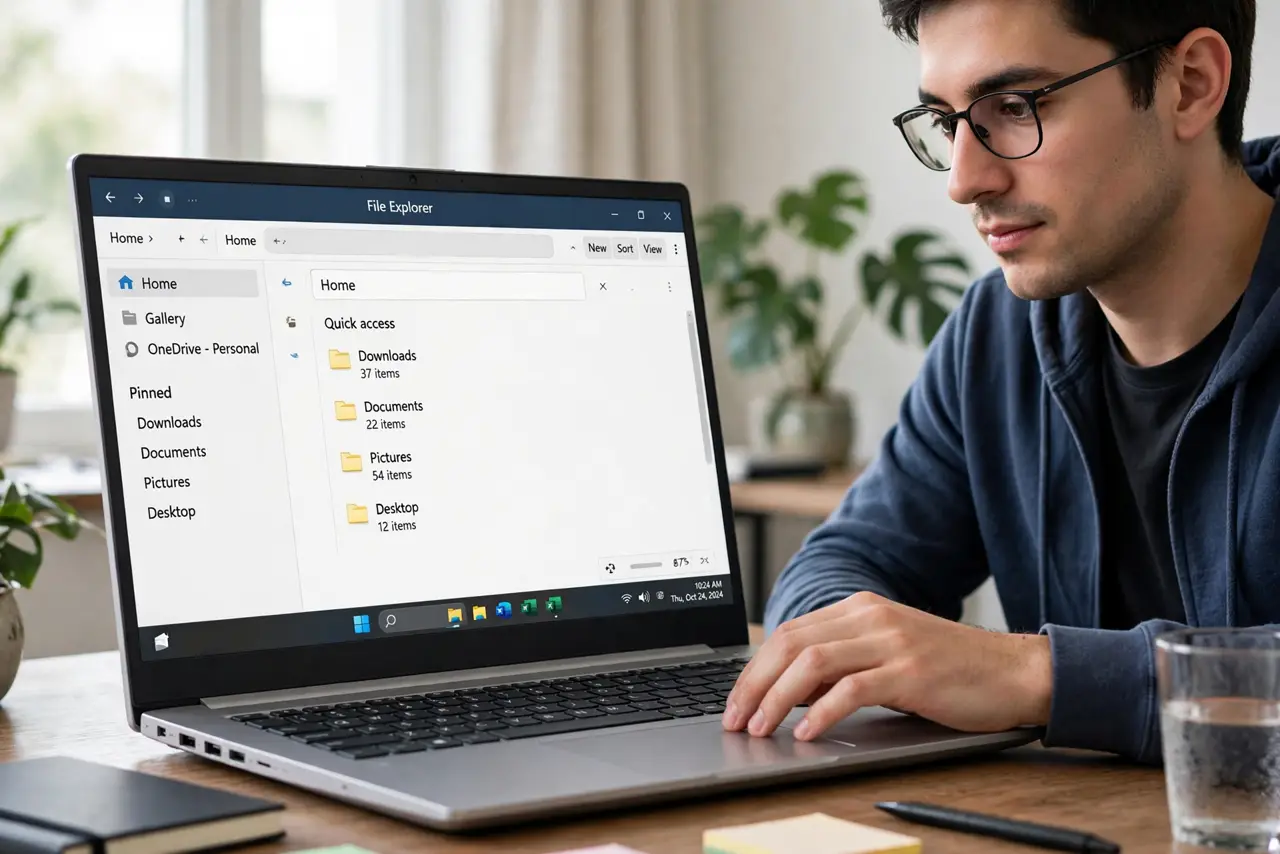
- Do not ignore the recent-files section. Quick Access also shows recent files below your pins — handy, but clear it if you share the PC.
Frequently asked questions
How many folders should I pin?
Three to six. Enough to cover your daily work, few enough to scan at a glance. More than ten and you are back to hunting.
Can I pin a network or cloud folder?
Yes — any folder File Explorer can open can be pinned, including OneDrive and network shares. The pin just opens slower if the location is offline.
My pins disappeared after an update. Are my files gone?
No. Pins are shortcuts; updates sometimes clear them. Re-pin the folders and everything is back where it was.