Quick Access Pins Keep Resetting
You pin your project folders to Quick Access, and a day later the pins are gone again. The pin list lives in small cache files that corrupt easily, and some cleanup tools wipe them on every run. Clearing the corrupted cache and stopping the wiper fixes it for good — a different flavor of the folder view that resets problem.
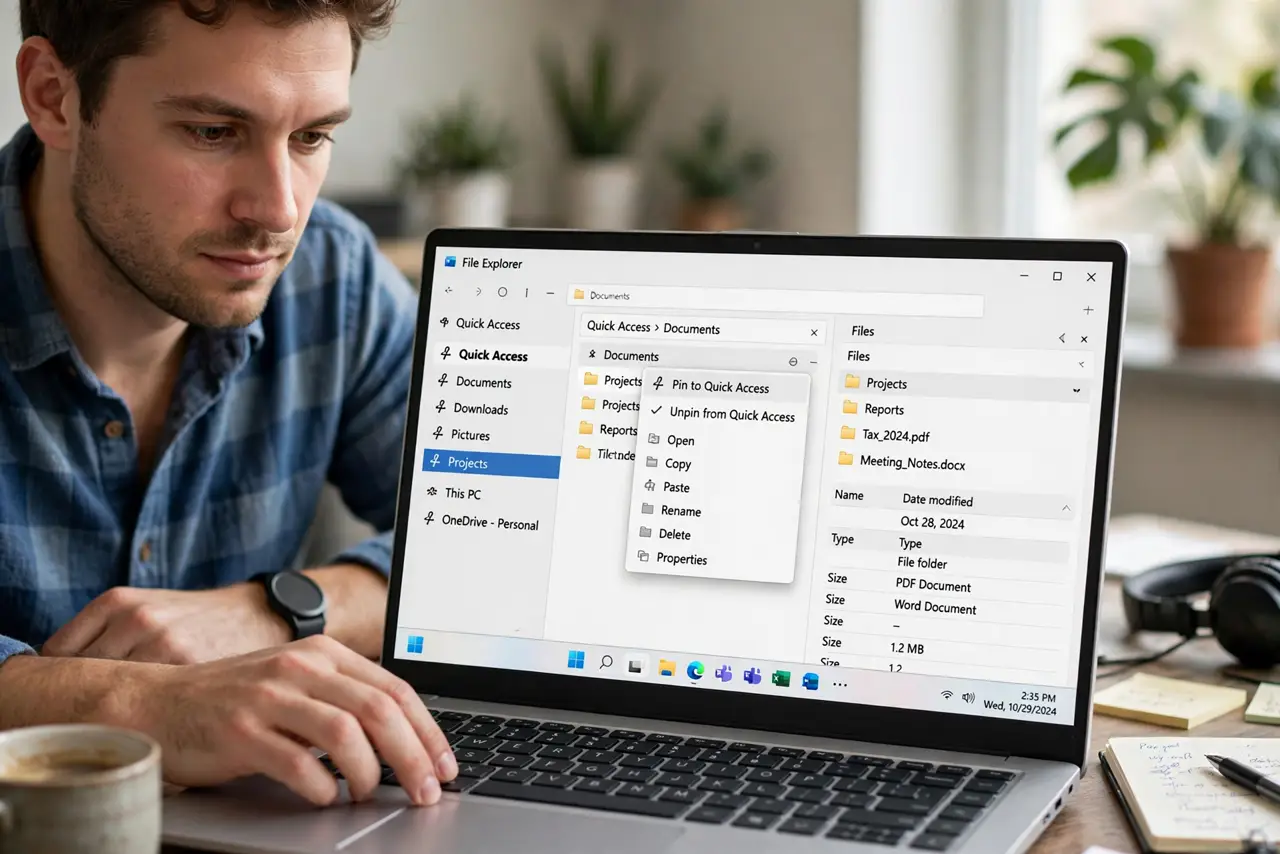
TL;DR / Quick Fix
Quick fix: unpin everything, delete the corrupted Quick Access cache files that store the pins, and check that no cleanup tool is wiping them on a schedule. Then re-pin your folders once. The pins survive reboots after the cache is rebuilt cleanly, because the corruption is gone.
Follow these steps
- Unpin everything currently in Quick Access. Right-click each pinned item and unpin it. Starting from an empty list means the rebuild has no half-broken entries to trip over.
- Delete the corrupted pin cache files. Remove the AutomaticDestinations files that belong to Explorer. These are just jump-list caches, not your data, and Windows rebuilds them fresh on next use.
- Check your cleanup tools' schedules. Open any PC cleaner or privacy tool you use and look for an option that clears jump lists or recent items. Turn that specific option off, since it is the usual repeat offender.
- Re-pin your folders one by one. Pin your key folders again, slowly, checking each one sticks. Rebuilding the list deliberately beats restoring from a backup of the corrupted cache.
- Reboot and verify the pins survive. Restart the computer and open File Explorer. If every pin is still there after a reboot, the fix is solid.
- Watch it for a week before trusting it. Use the PC normally for several days. If pins vanish again, some other scheduled task is wiping them, and the timing will point to which one.

What NOT to do
- Do not restore the old cache files from a backup. They were corrupted, which is why you deleted them, and restoring them brings the problem back.
- Do not run aggressive cleaners with default settings. Many wipe jump lists silently, so review what a cleaner deletes before scheduling it.
- Do not confuse Quick Access with the Start menu pins. They are separate lists with separate caches, and fixing one does not fix the other.
- Do not pin network folders that are often offline. Unreachable pins can behave oddly, so pin local folders and use shortcuts for flaky network shares.
Frequently asked questions
Where does Windows store Quick Access pins?
In AutomaticDestinations cache files in your user profile. Deleting them is safe because Windows regenerates them.
Why do my pins vanish after running a cleaner?
Because many cleaners treat jump lists as clutter and wipe them. It is a setting, not a bug, once you know where to look.
Can I back up my pins?
You can copy the cache files, but only restore them if they were healthy. A backup of a corrupt cache just restores corruption.