Remote Desktop vs Quick Assist?
You need to reach another Windows PC remotely — maybe your home computer from work, maybe Grandma's laptop to fix her email — and Windows offers two built-in tools: Remote Desktop and Quick Assist. They solve different problems, have different requirements, and picking the wrong one wastes an afternoon. Here is which fits your situation.
TL;DR / Quick Fix
Quick fix: use Remote Desktop to access your own PC unattended — it needs Windows Pro and network setup. Use Quick Assist to help someone else in the moment — it works on any Windows 10/11, needs no configuration, and both people stay present. Different jobs, different tools.
Follow these steps
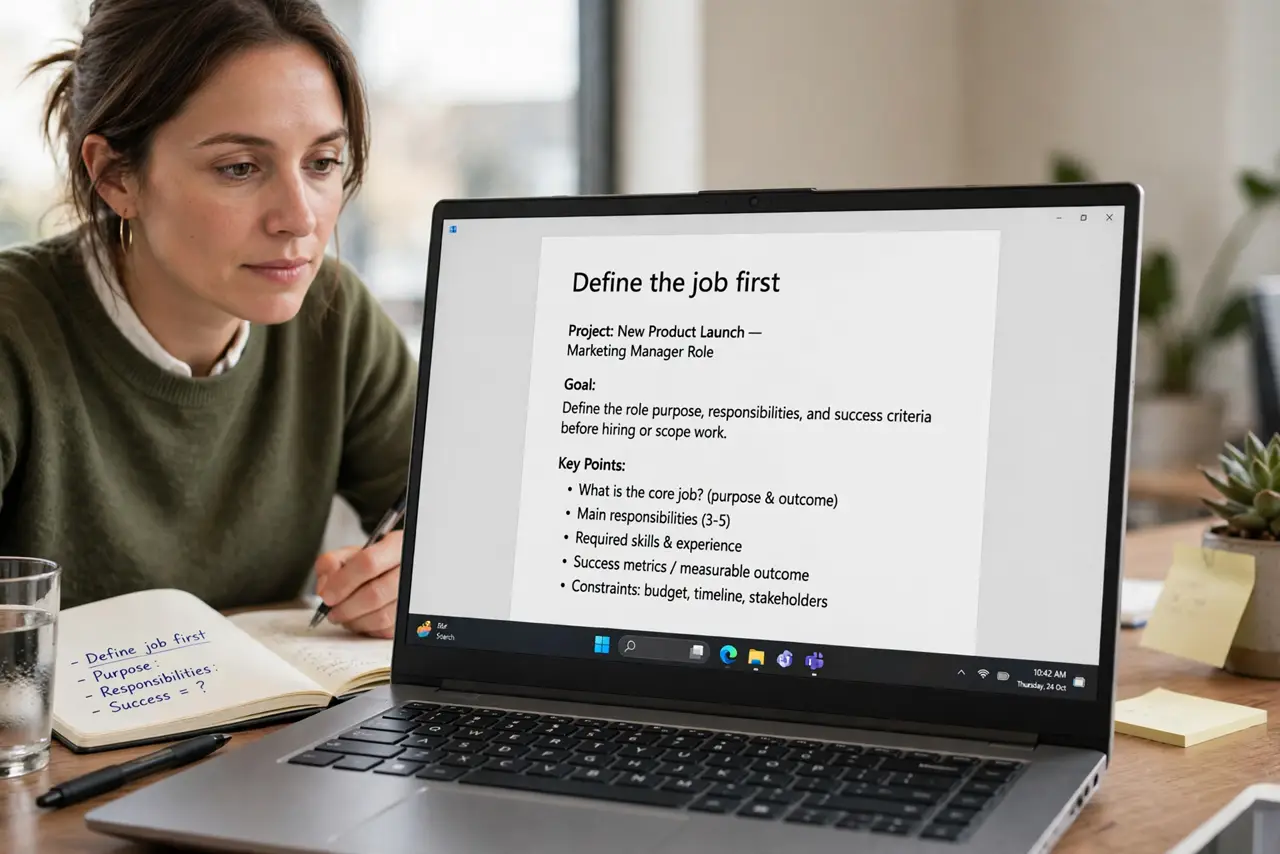
- Define the job first. Unattended access to your own machine? That is Remote Desktop. Helping a person who is sitting at their PC right now? That is Quick Assist. The scenario picks the tool.
- Check the requirements. Remote Desktop hosting needs Windows Pro or higher plus network configuration. Quick Assist runs on any Windows 10 or 11 with internet — no setup, no Pro required.
- Understand the security model. Remote Desktop opens a listening service — powerful, and a target if exposed. Quick Assist uses outbound connections with a time-limited code — nothing listens, nothing to attack.
- Compare the experience. Remote Desktop gives you the full desktop, even with nobody home. Quick Assist shares the screen with the person watching — they see everything you do, which builds trust when helping family.
- Set up Remote Desktop properly. If that is your pick, enable it in Settings, use a strong password, and never expose it directly to the internet — see the setup walkthrough for the safe path.
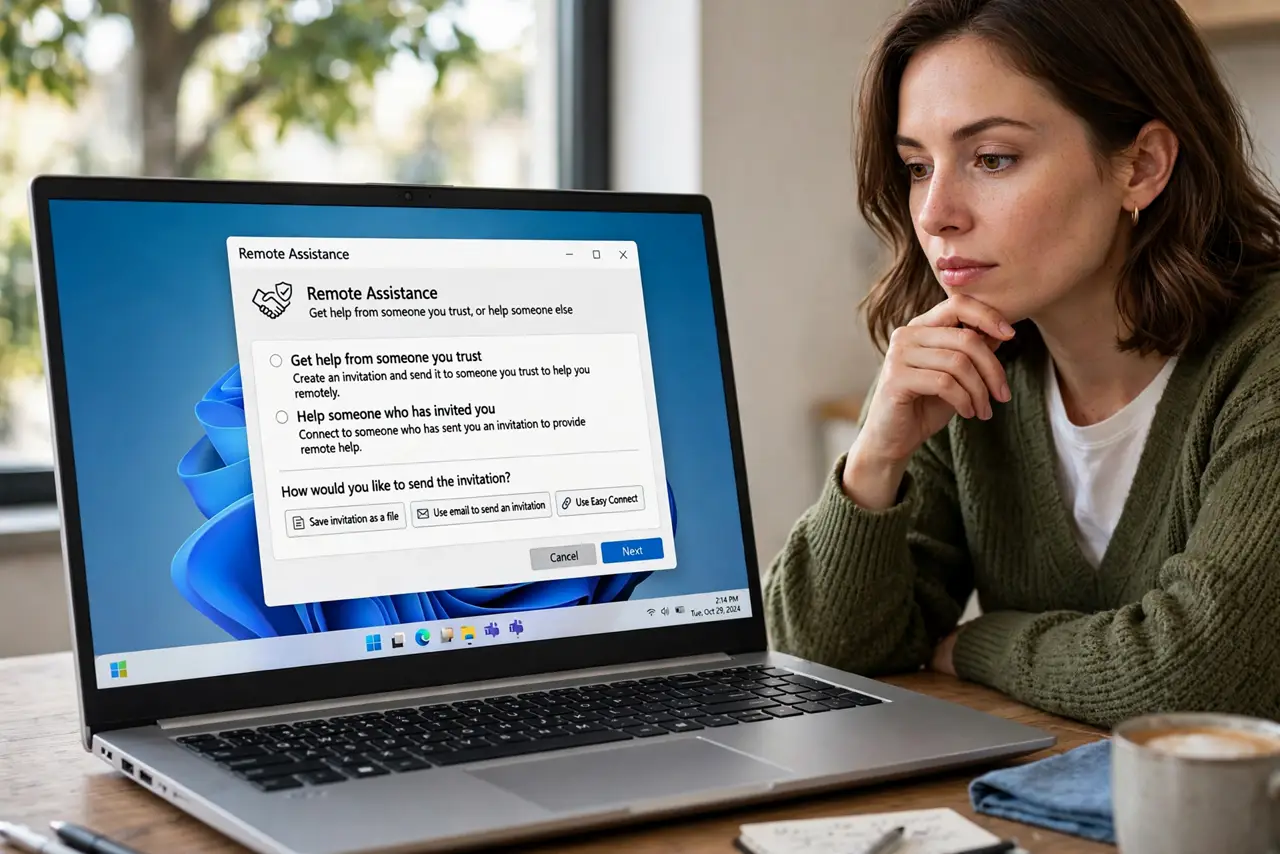
- Use Quick Assist for one-off help. Open Quick Assist, generate a code, read it to the other person over the phone. They enter it, you see their screen, problem solved — see getting help generally for related support paths.
What NOT to do
- Do not use Remote Desktop for quick family help. The setup overhead is absurd when Quick Assist does it in a minute.
- Do not expose Remote Desktop to the internet. If Remote Desktop is your choice, reach it through a VPN — never a raw port forward.
- Do not read Quick Assist codes from a text. Generate the code live on a call — a texted code could come from anyone.
- Do not assume Home edition limits Quick Assist. It does not — Quick Assist works fine on Home; only Remote Desktop hosting needs Pro.
Frequently asked questions
Can I use both?
Absolutely — many people run Remote Desktop for their own machines and Quick Assist for helping others. They coexist peacefully.
Is Quick Assist secure?
Yes — connections are encrypted, codes expire in minutes, and the other person watches everything. It is designed for exactly this.
What about third-party tools?
They exist and work well, but try the built-ins first — they are free, maintained, and already installed.